
New Profile Request
Revised: July 7, 2026
Overview
To use the Minnesota Provider Screening and Enrollment (MPSE) portal to enroll with Minnesota Health Care Programs (MHCP), you must first complete the MPSE registration process.
When creating your new profile request, you must enter all the required information into the fields, which includes legal name, ownership information, location addresses, services you will provide, your credentials and so forth. A new profile request cannot be submitted until all the required information is completed.
Steps to Create a New Profile Request
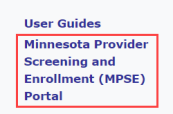
Screenshot of the MPSE portal link in MN–ITS
Once you have completed and submitted your new profile request to MHCP for review, you can track your request status on the Manage Portfolio page of the MPSE portal. If MHCP approves your new profile request, you become an enrolled MHCP provider. You will receive a Welcome Letter via the U.S. Postal Service or via email to the primary administrator identified in your request, if one was provided.
 Report this page