
Long-term care (LTC) screening document screens
Page posted: 8/3/26
The LTC screening document has nine screens, including three comments screens. This page provides a brief description of each screen. MMIS LTSS Manual – LTC screening document fields includes a list of each field on these screens.
In the LTC screening document, the name of the current screen appears at the top middle of the screen. The next screen appears in the NEXT field in the upper left corner. You can press the transmit key to go to that screen. You can also type in the name of the screen you wish to open in NEXT field and press the transmit key.
The screenshots shown on this page are blank and are intended to provide information about what each screen contains. When you work in MMIS, the appearance of these screens (i.e., fields that are populated) will depend on whether the person has a history of saved screening documents. The required fields and changeable fields often depend, on the activity type you enter on the ALT1 screen.
The following pages include additional instructions:
Use the following links to jump to the applicable section on this page:
ALT1 screen | ALT2 screen | ALT3 screen | ALT4 screen | ALT5 screen | ALT6 screen | Comment screens
ALT1 screen
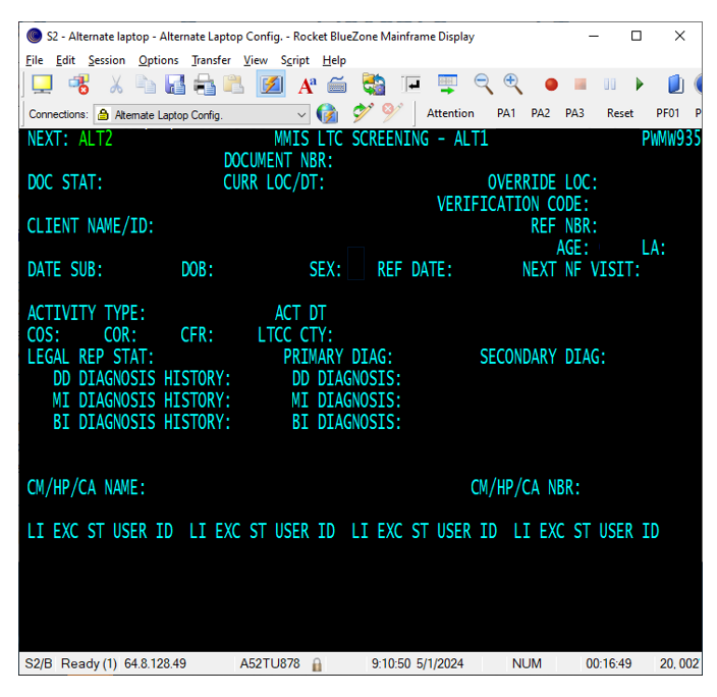
The ALT1 screen is the first MMIS screen in the LTC screening document. This screen records:
Activity type
The ALT1 screen records the activity type. The activity type controls which fields you must complete, sequences of activities, assessment results, effective dates and more. For information about activity types and their uses, refer to MMIS LTSS Manual – LTC screening document activity types.
Basic data about the person
The ALT1 screen records information about the person, including:
Information about the lead agency
The ALT1 screen records the lead agency (LTCC CTY) and case manager, care coordinator or certified assessor associated with the screening document.
Figure 1: The fields and field names included on the ALT1 screen. This image shows a blank ALT1 screen.
ALT2 screen
The required fields on the ALT2 screen depend on the activity type you entered on the ALT1 screen.
Living arrangement and more
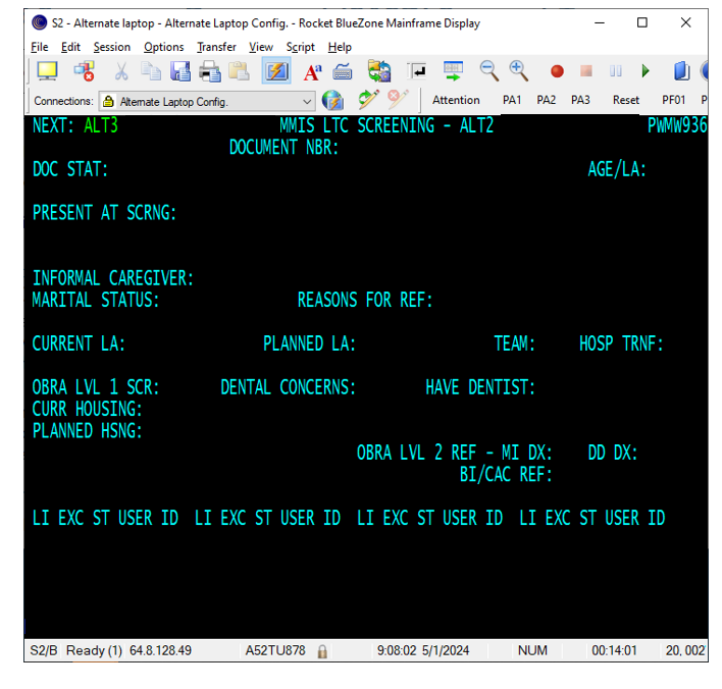
The ALT2 screen records additional information about the person and the assessment, including:
The ALT2 screen also records completion of additional tasks related to OBRA Level I screening and OBRA Level II referrals for mental illness and developmental disability.
Figure 2: The fields and field names included on the ALT2 screen. This image shows a blank ALT2 screen.
ALT3 screen
General function and history
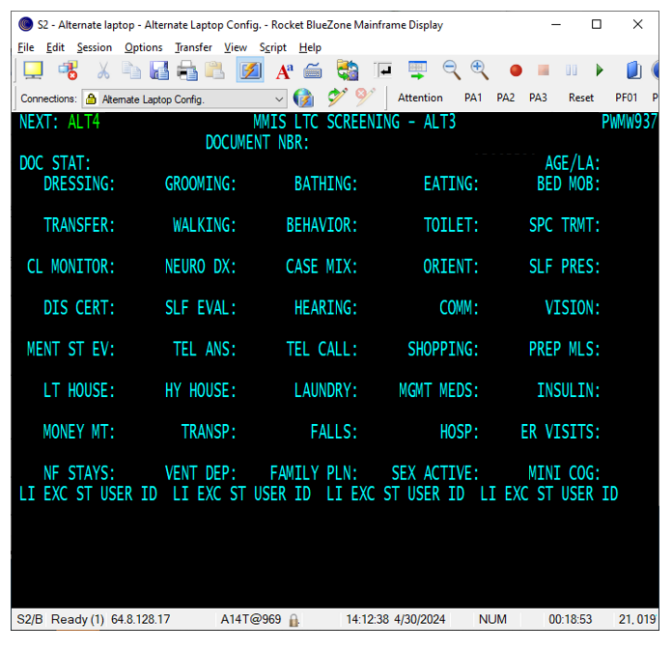
The required fields on the ALT3 screen depend on the activity type you entered on the ALT1 screen. The ALT3 screen records assessment information. It includes fields related to the person’s functional ability and assessed needs in various areas of everyday life. It also records information about the person’s historical use of some health care services.
Figure 3: The fields and field names included on the ALT3 screen. This image shows a blank ALT3 screen.
ALT4 screen
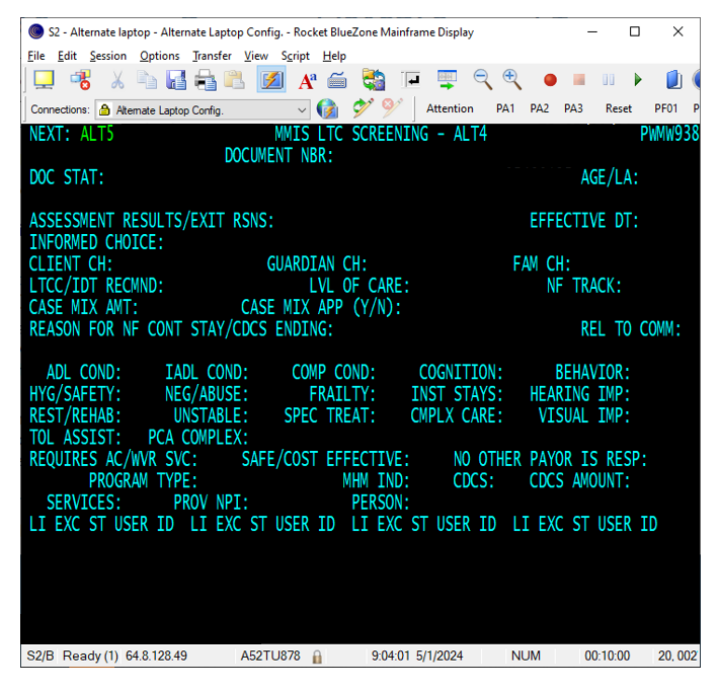
The required fields on the ALT4 screen depend on the activity type you entered on the ALT1 screen. The ALT4 screen records information about the outcome of the assessment or other activity completed.
Assessment results and exit reasons
The assessment results field records the outcome of assessment. For example, this field is where you open a home and community-based service (HCBS) program, change a program, close a program or continue the person’s HCBS program eligibility.
The exit reasons field indicates why the person is closing their program and expected next steps. For example, you can use other assessment results for people who may enter a nursing facility or chose state plan home care instead of an HCBS program to meet their needs. For more information, refer to MMIS LTSS Manual – LTC screening document activity type and assessment result combinations.
Program details
The ALT4 screen records additional program details, including:
Figure 4: The fields and field names included on the ALT4 screen. This image shows a blank ALT4 screen.
ALT5 screen
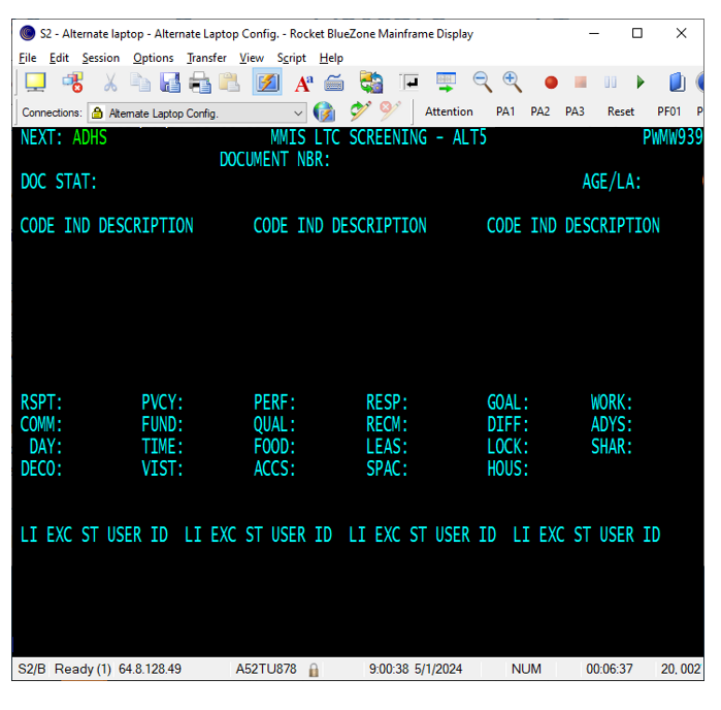
The ALT5 screen records a summary of the proposed support plan. Previously, the ALT5 screen also recorded the person’s evaluation of certain services.
Service plan summary
The ALT5 screen summarizes the person’s planned services and supports, including the source of the services and supports.
Person’s evaluation of services
Historically, managed care organizations (MCOs) used the ALT5 screen to complete a set of evaluation questions at reassessment for people who use EW. The bottom portion of the ALT5 screen is no longer used, but you may see data here from previously saved screening documents.
Figure 5: The fields and field names included on the ALT5 screen. This image shows a blank ALT5 screen.
ALT6 screen
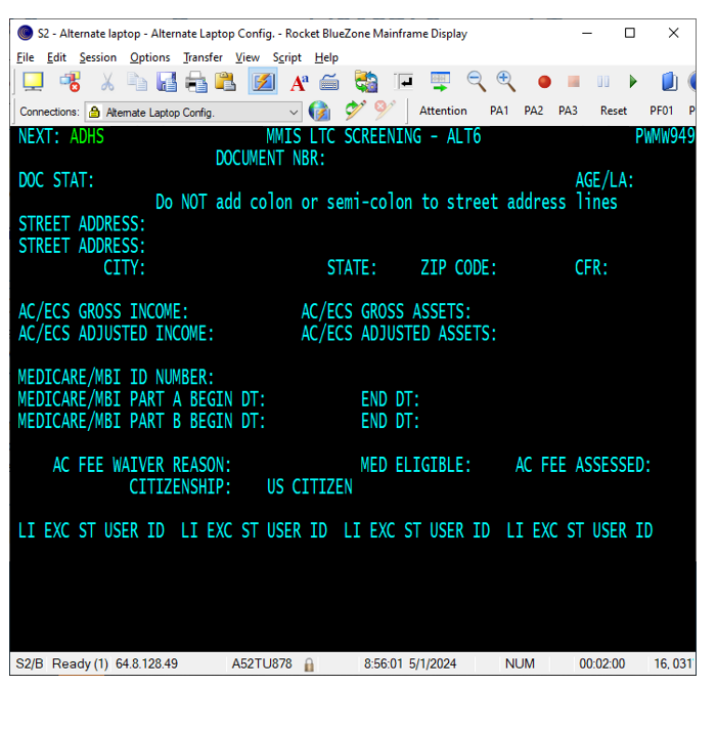
AC and ECS program details
The ALT6 screen only appears when you work with the AC or ECS program types. The ALT6 screen records information related to financial and other program eligibility requirements, including:
Figure 6: The fields and field names included on the ALT6 screen. This image shows a blank ALT6 screen.
Comment screens
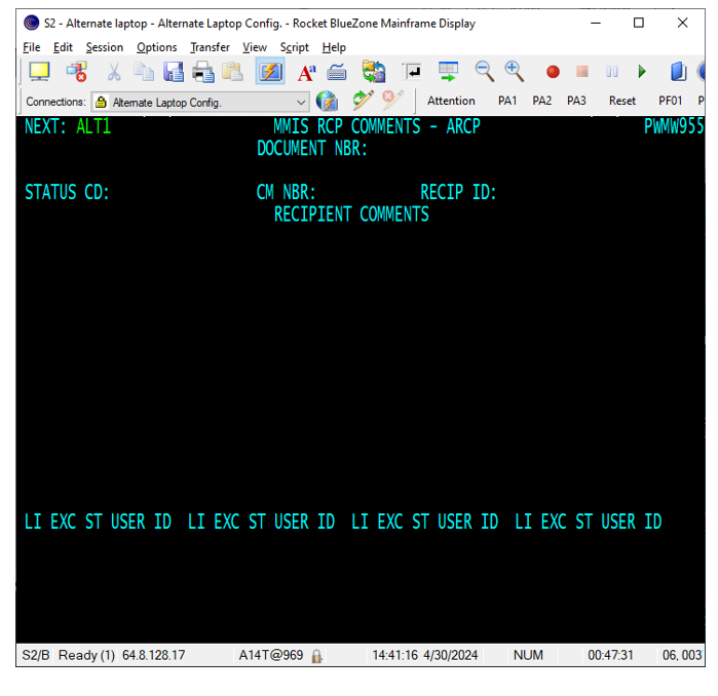
There are three screening document comment screens:
Any person with inquiry access to the screening document may view comments on these comment screens.
These screens are not required, but they can be useful in some situations. You can use comment screens to record information or add explanations to service agreement letters (including explanations for changes on the service agreement). It is helpful to date and initial the message(s) you enter. You should delete any comments that were carried over from a previous document unless needed. Do not delete DHS comments entered by DHS staff.
MMIS comment screens do not include spell check or word wrap. Text stops at the bottom of the screen for all screening document comment screens. If you need to include the same text on the next comment screen within the MMIS sequence of screens, press F2 to copy the text from the current comment screen and add it to the next comment screen. If the text does not fit onto the screen, you will receive a “comments will not fit, delete lines from target screen” message.
DHS and case manager comment screens
In some instances, you must add information to the DHS comment and/or case manager comment screen. For more information, refer to MMIS LTSS Manual – Route an LTC screening document for additional approval.
Figure 7: A blank DHS comments screen (ADHS).
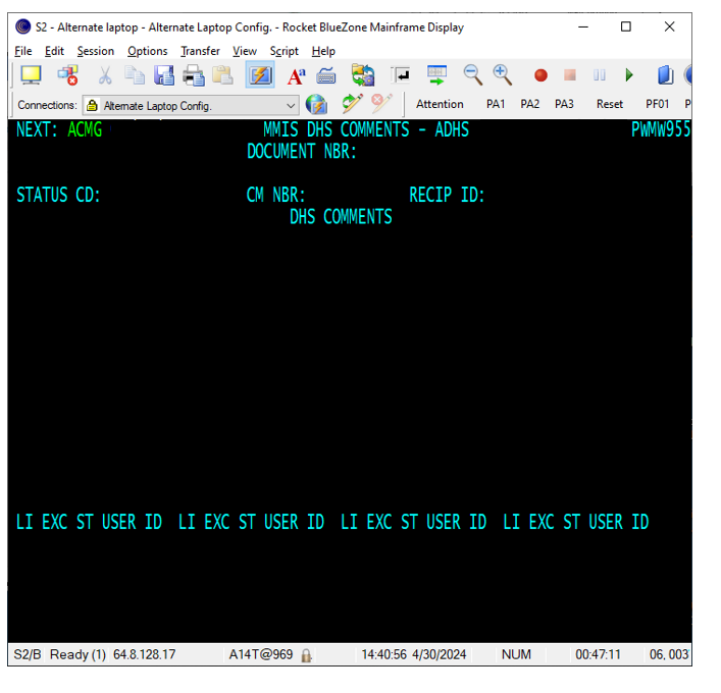
Figure 8: A blank case manager comments screen (ACMG).
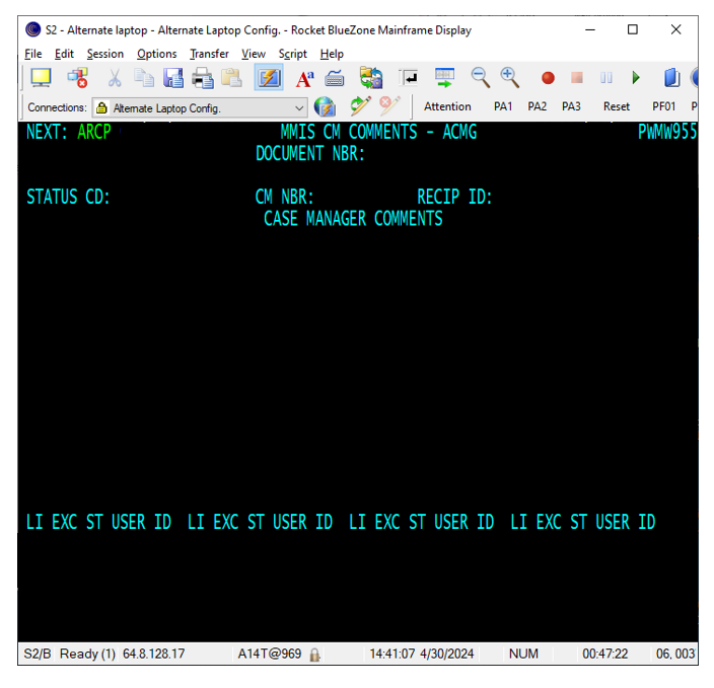
Figure 9: A blank recipient comments screen (ARCP).
Additional resources
MMIS LTSS Manual – Enter an LTC screening document
MMIS LTSS Manual – LTC screening document activity types
MMIS LTSS Manual – LTC screening document activity type and assessment result combinations
MMIS LTSS Manual – LTC screening document fields
MMIS LTSS Manual – Open, reopen or change a program with an LTC screening document
MMIS LTSS Manual – Route an LTC screening document for additional approval
MMIS LTSS Manual – Use inquiry mode with an LTC screening document
 Report this page