
Access the service agreement
Page posted: 8/3/26
A service agreement is part of the prior authorization subsystem. It is one of many MMIS prior authorization types. To access a service agreement:
1. Log into MMIS using the instructions on MMIS LTSS Manual – Access to MMIS.
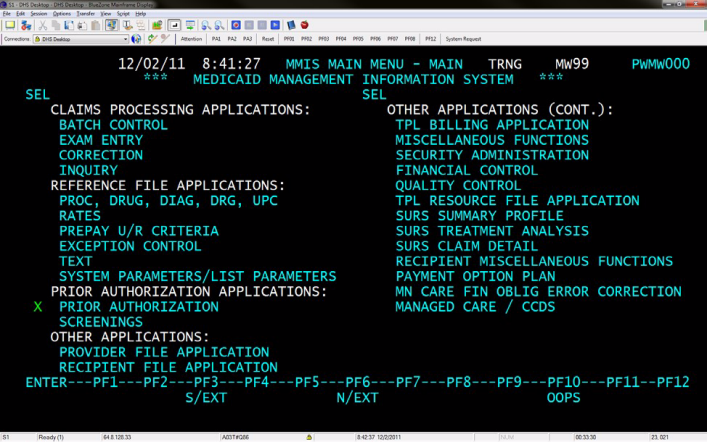
2. Move the cursor to the prior authorization line on the main menu screen and type X.
3. Press the transmit key to open the key panel screen.
Figure 1: Main menu with X next to the prior authorization line.
Use the key panel screen fields
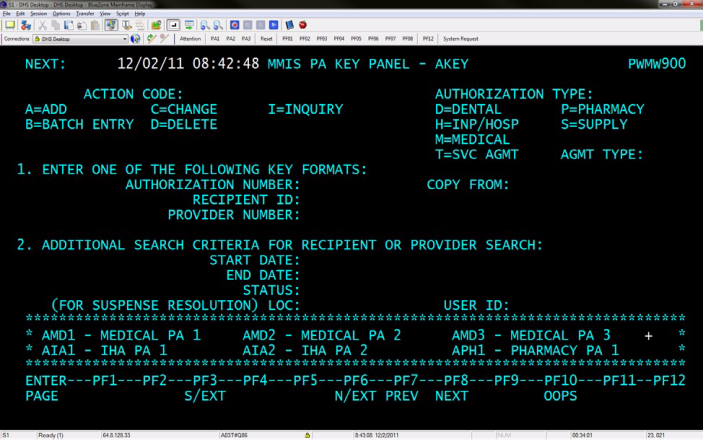
You use the key panel screen to identify the action you want to take and the person, provider or service agreement you want to access.
Figure 2 shows the key panel screen that appears when you select the prior authorization subsystem at the main menu to work on home and community-based services (HCBS) service agreements.
Figure 2: The MMIS key panel screen, called MMIS PA KEY PANEL – AKEY.
Action code field
This field indicates the action you want to take:
You cannot use the batch entry (B) and delete (D) action codes with service agreement authorization types.
Authorization type and agreement type fields
You must complete the authorization type and agreement type fields to create a new service agreement. For instructions to create a new service agreement, refer to MMIS LTSS Manual – Create a new service agreement.
You are not required to complete the authorization type and agreement type fields when you use action code C (change) or I (inquiry). However, you can choose to complete them to help narrow the search to one service agreement type.
Authorization type field
This field is used for many types of Minnesota Health Care Program (MHCP) authorizations with various codes. The HCBS programs use T (SVC AGMT) for all service agreement types. To add or change a service agreement, type T (SVC AGMT) in the authorization type field.
You can leave this field blank when using action code I (inquiry). If you leave it blank, all the person’s prior authorizations in MMIS will appear in a selection screen (refer to the selection screen section below).
Agreement type field
Each HCBS program uses a specific service agreement type in MMIS. When you add a new service agreement, you must indicate the type based on the person’s program type:
Key format fields
The information you enter into the prior authorization key format section depends on the action you will take. Complete only one field in this section.
Authorization number (also called document control number)
MMIS assigns an authorization number to every service agreement saved in MMIS, regardless of the service agreement status. You can use this field in the key format section to:
Recipient ID
The recipient ID is the person’s person master index (PMI) number. You can use this field to:
If you use this field and the person has more than one service agreement saved in MMIS, refer to the instructions in the selection screen section below for next steps.
If the person does not have other service agreements saved in MMIS, the next screen will be a blank ASA1 screen. For next steps, refer to MMIS LTSS Manual – Create a new service agreement.
Provider number
Do not use this field for service agreements.
Use the selection screen
The selection screen appears when you use the person’s PMI number in the AKEY screen and the person has more than one service agreement saved in MMIS (includes all service agreement and/or prior authorization types you are allowed to access based on your MMIS security access).
To select a specific service agreement for inquiry or change:
1. Type X in front of the line that contains the service agreement.
2. Press the transmit key to open the selected document.
Figure 3: The selection screen.
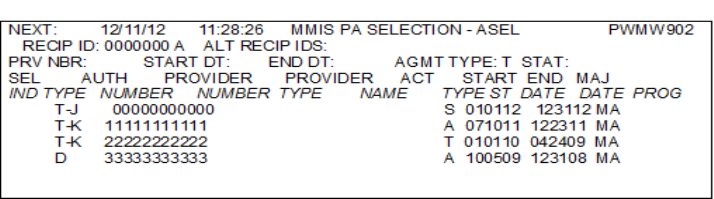
Selection screen fields include:
1. RECIP ID: This is the person’s PMI number.
2. ALT RECIP IDS: This field is populated if the person has multiple or duplicate PMI numbers. For information about how MMIS manages duplicate PMI numbers and how they affect screening documents and service agreements, refer to MMIS LTSS Manual – Select from duplicate PMI numbers (coming soon).
3. TYPE: All authorization types are included in the selection screen when you use the PMI number on the AKEY screen and do not indicate an authorization type and/or agreement type. The authorization type codes are:
Authorization type T (service agreement) is followed by the associated program type code of that document. Figure 3 (above) includes three T service agreements for the Elderly Waiver (program type codes J and K) and a prior authorization for D (dental).
4. AUTH NUMBER: This is the document control number of each authorization.
5. PROVIDER NUMBER AND TYPE: This is the number and name of the provider that appears on certain types of MMIS prior authorizations. The provider number may be blank on this screen because this information is not normally entered on the ASA1 screen of the service agreement for HCBS programs.
6. ST: This field shows the status of the authorization. The status code can be:
7. START DATE and END DATE: This is the period of time the authorization covers.
8. MAJ PROG: This is the major program from the RELG screen in the recipient subsystem. For the purpose of HCBS service agreements, the most common major program codes are:
Use additional search criteria on AKEY (key panel) screen
The key panel has an additional search criteria section that narrows the search for a service agreement. It includes:
Additional information
MMIS LTSS Manual – Access to MMIS
MMIS LTSS Manual – Change an existing service agreement
MMIS LTSS Manual – Close a service agreement
MMIS LTSS Manual – Create a new service agreement
MMIS LTSS Manual – Use inquiry on a service agreement
 Report this page