
Guide for family providers
Page updated: 7/5/24
This page includes instructions for family providers to complete their cost report, so they do not have to navigate the larger manual. Family providers should continue to reference specific pages of the larger manual for more detailed information about how to complete certain sections. This guide also might be useful for smaller organizations that provide services to only a few people or do not have many employees.
This page includes information about:
What is a family provider?
A family provider is an organization that only provides family foster care or family supported living services, which are called family residential services (refer to CBSM – Family residential services). They provide services in their own home. Often, they do not hire outside staffing, or they have minimal staffing for support.
Family provider example: Throughout this page, DHS will use an example of a family residential provider with only one employee who is also the owner of the business. Her name is Lyla, and her company’s name is Example1. Lyla is the only employee of Example1. Lyla is completing a cost report for the year 2020 after receiving a notice from DHS.
What is cost reporting, and why do family providers need to do it?
DHS must compare the wage and component values in the Disability Waiver Rate System (DWRS) frameworks to provider organizations’ actual costs, as required by Minn. Stat. §256B.4914, subd. 10a. To do this, DHS asks all DWRS providers to complete a cost report.
DHS will use the data gathered from DWRS cost reporting to make evidence-based recommendations to the Legislature about the payment rates for disability waiver services. DHS will collect this data on an ongoing basis to inform policymakers of the cost drivers and allow the DWRS to set rates that:
Cost reporting is not:
What do family providers need to include in the cost report?
The family provider must report the actual costs for providing services within a cost reporting year. Do not provide only a weekly or monthly rate for any costs. The cost report must include the total costs for the entire year.
The family provider should use their company’s official bookkeeping records when available. These records may be certified or uncertified. If the family provider does not keep records of costs and wages, they should use trackable documentation to prove their costs/payments. The family provider should use and save records such as credit card or bank statements.
For resources to help track costs, refer to the resources tab of DHS – DWRS cost reporting.
The family provider can use their remittance payment notifications in the MN-ITS system to understand billed units and revenues. For more information, refer to DHS – How to read your remittance advice.
What cannot be included in the cost report?
Do not include any of the following in the cost report:
Note: Contact the DHS Cost Reporting team at dhs.costreport@state.mn.us with questions about any of these items.
Step 1: Log in as the authorized agent
There are two types of accounts in the online cost reporting system: authorized agent accounts and provider user accounts. This section will explain authorized agent accounts. Family providers may only need an authorized agent account to complete the report if they have only one individual or a small number of individuals working for their organization.
The authorized agent is the person who is the owner of a program or a licensed service provider. The authorized agent is responsible to review and submit the final cost report to DHS when it is finished. They also can complete the entire cost report (without creating a provider user account) if their organization does not have other staff who would complete the report.
During the family provider’s first year of cost reporting, DHS creates an authorized agent account for them in the online cost reporting system. Then, DHS emails the family provider instructions to log in to their authorized agent account. This email includes the username, temporary password and instructions to access the system. The family provider should save this email for their records.
The authorized agent account has a username with “admin.” in front of it. Sometimes, an authorized agent account can have a username with a number at the end of it (e.g., admin1, admin2) if they have multiple logins for multiple organizations. However, this is not likely for many family providers.
The family provider can use their authorized agent account (i.e., username with “admin.”) to complete every section of the cost report.
For more information about the authorized agent role, refer to DWRS Cost Reporting Manual – Authorized agents and provider users.
Example: Authorized agent login
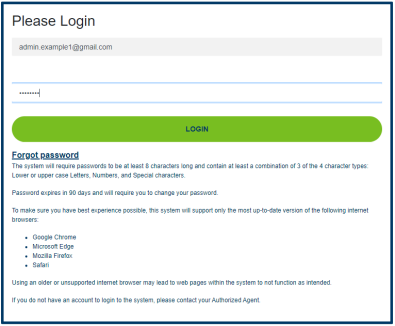
Lyla is the sole owner and employee of Example1, so she is the authorized agent. Her email address is Example1@gmail.com. DHS sent an email to Lyla with instructions to log in as the authorized agent with the username admin.example1@gmail.com. Refer to screenshot 1 for an example of Lyla logging in as the authorized agent.
Screenshot 1: Authorized agent login
Step 2: Go to the provider report dashboard
After logging in as the authorized agent, the family provider will access the provider report dashboard. To start the report, the family provider must scroll down to the bottom of the dashboard page and select the current year report in the “reports not started” section. Refer to screenshot 2 for an example of the provider report dashboard.
Screenshot 2: Provider report dashboard

Step 3: Complete contact information section
When the family provider selects the current year’s report, the contact information section will open. Creating a new contact is optional if the family provider license holder (i.e., the authorized agent) is the only person completing the cost report.
If the family provider fills out the contact information and selects the “create new contact” button, the cost reporting system will send an email to that contact to invite them to become a provider user. The new contact will be able to log in with their email and start filling out the cost report.
The family provider (logged in as the authorized agent) does not need to use a provider user account to fill out the cost report. The authorized agent and the provider user can be the same person.
Example: Contact information
Lyla logs in with her authorized agent account (i.e., admin.example1@gmail.com). She selects her provider report from the provider dashboard. Selecting the report takes her to the contact information section.
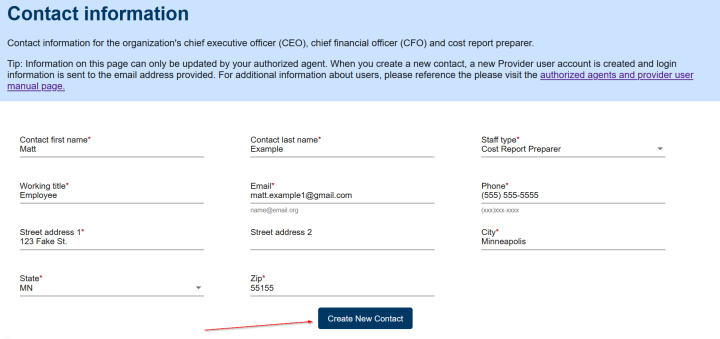
Lyla is the sole owner, and she has one employee, Matt. She has the option to create a provider user account for Matt if he will help complete the cost report. To create the provider user account, she enters Matt’s contact information, including his email, matt.example1@gmail.com. She selects the “create new contact” button, and he immediately receives an email to matt.example1@gmail.com with instructions to log in as a provider user.
Lyla and Matt now each have an account in the online cost reporting system:
Refer to screenshot 3 for an example of the contact information section filled out by Lyla.
Screenshot 3: Contact information
Step 4: Log in as the provider user (optional step)
The authorized agent creates a provider user contact in the online cost reporting system. Provider users can enter and save the necessary information in their cost report. Provider users can review, create, update and delete information, but they cannot submit the final cost report to DHS.
After the family provider uses their authorized agent account to create a new contact, the cost reporting system will send an email to that contact with instructions to become a provider user. That contact can now log in with their email to the online cost reporting system as a provider user.
A provider user account (i.e., username without “admin.”) can complete the following sections of the cost report:
Example: Provider user login
Matt receives an email at matt.example1@gmail.com after Lyla created a new contact for him. Refer to screenshot 4 for an example of the email from the system with instructions to log in as a provider user.
Screenshot 4: Email to provider user

Matt logs into the cost reporting system with his provider user account (matt.example1@gmail.com) to complete the rest of the cost report. Lyla also could choose to fill out the rest of the report with her authorized agent account. Refer to screenshot 5 for an example of Matt’s login screen as the provider user.
Screenshot 5: Provider user login

Step 5: Complete the cost report
This section explains how to complete the cost report as a family provider. The table below lists the required, possible and unlikely sections for a family provider to complete their report.
Required pages | Possible pages | Unlikely pages |
The following links lead to sections on this page with information about how to complete the required sections: | The following links lead to sections on this page with information about how to complete sections that might be required, based on the provider: | The following links lead to sections in the main manual, as it is unlikely that the family provider will need to complete them: |
Provider information (required)
On the provider information section, the family provider only needs to enter:
Cost reporting requests are attached to a Federal Employer Identification Number (FEIN). If a family provider has multiple NPIs under the requested FEIN, they must include all NPIs in the report. Do not include locations or NPIs under different FEINs or organizations.
Most family providers do not have a Federal Employer Identification Number (FEIN). If a family provider does not have a FEIN, DHS enters a placeholder FEIN into the system. These placeholders usually start with “Z000000”, with a number at the end (e.g., Z00000013). The family provider does not need to update or change this placeholder.
Do not enter a personal social security number anywhere in the online cost reporting system, including as a replacement of the FEIN. Some family providers may use their personal social security number as their tax ID, but they should not enter it into the system. This system is not built to be secure enough to protect personal social security numbers.
Unless the family provider filed paperwork to become a non-profit or government entity, their organization is a for-profit organization.
For more information about how to fill out the provider information section, refer to DWRS Cost Reporting Manual – Provider information and attestations.
Revenues (required)
On this section, the family provider enters all revenues for DWRS services for the entire year. This is the daily rate multiplied by the number of days (units) the person was in the home for the year, for every person the provider serves.
Do not include non-service revenues, housing support revenues or social security payments. If the family provider does not know the annual DWRS revenue cost, they should look at the organization’s MN-ITs remittance advice for the reporting period. For more information, refer to DHS – How to read your remittance advice.
If the provider did not track billing outside of the MN-ITs system, the only way to determine billing for the entire year is manually through each remittance advice. This can take a lot of time if billing is done frequently. DHS suggests that all providers track their billing outside of the MN-ITs system for easier tracking in the future. For resources to help track costs, refer to the resources tab of DHS – DWRS cost reporting.
To complete this section, the family provider must:
The family provider must complete this section before moving on to the other areas of the cost report. The information from this section will impact the choices on drop-down menus in other sections of the report.
Example: Completing the revenues section
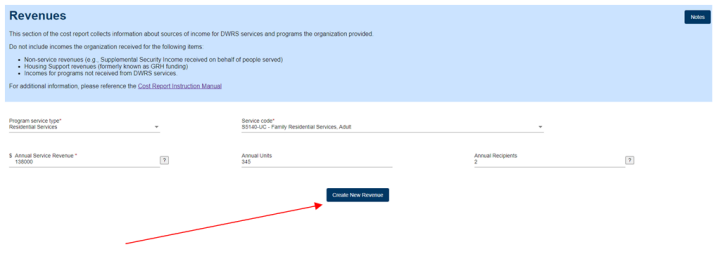
Lyla is logged in, and she reaches the revenues section. Her company, Example1, provided services to two people in 2020 as a residential family provider. She selects the service code S5140-UC – Family Residential Services, Adult.
She does not know total revenue for the year, but she does know that the daily rate for both people was $200. She also knows the total days of service for the year was 345. She multiplies the daily rate for two people (i.e., 2 x $200 = $400) by the total service days in 2020 (i.e., $400 x 345 = $138,000 of revenue for two people). The revenue is the equivalent of her annual units, so she enters 345 into the annual units field. Refer to screenshot 6 for an example of how Lyla entered her revenue.
Screenshot 6: Revenues section
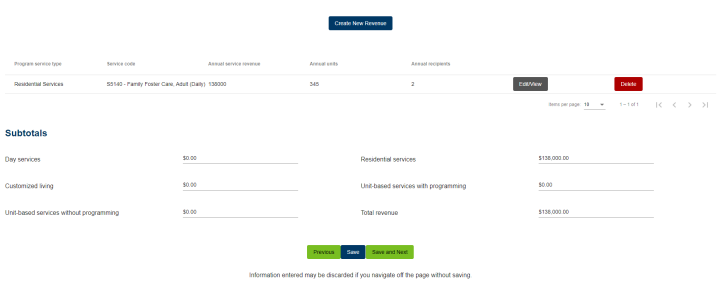
After Lyla enters all her program revenue for 2020, she selects the “create new revenue” button, which moves the entry to a table below the button. She can review, edit and delete the information by selecting the buttons to the right of the entry. The information she entered about residential services is at the bottom of the page.
Since her only program revenue for 2020 was residential services, she selects the “save and next” button to move to the next section of the cost report. Refer to screenshot 7 for an example of Lyla’s total calculated revenue.
Screenshot 7: Total calculated revenue
Cost allocation (required for multiple sections)
Cost allocation means assigning each reported cost to a service category. Family providers need to know how to do cost allocations to complete their report.
If a family provider only provides one type of service, they will allocate all costs to a single category. Most family providers only provide one type of service, which makes cost allocation easier.
Note: The online cost reporting system only shows service groupings that have reported revenues. If a family provider only has revenues for residential services, the system will only include residential services.
DHS does not require family providers to use a specific way to allocate costs, but it does require them to explain how they allocate their costs.
For more information about cost allocation, refer to:
Staff wages and benefits section (required)
There are multiple sections on which the family provider can report staff wages and benefits. Most family providers use the direct care staff wages and benefits section only because they do not have dedicated administrative staff. If direct care staff also do administrative work, the family provider can report that information on the direct care staff wages and benefits section when they enter the allocation (refer to screenshot 13).
The direct care staff wages and benefits section gathers information about all staff whose main job is to provide direct care to people who receive services. This includes work done by the license holder (i.e., authorized agent) and their family members as well.
If the family provider has not tracked what they paid staff or themselves over the year, they must use banking records or other records to determine this information. The family provider can use Cost Reporting Time-Study Worksheet, DHS-7190A (PDF) to calculate an average for the year. DHS suggests all family providers track their hours for reporting purposes going forward.
Determining if a worker is an employee or contractor depends on how a person’s taxes are reported. A person with a W-2 form is an employee. A person with a 1099 form or other tax documentation typically is a contractor. If the family provider did not pay for benefits and/or withhold taxes from wages, they can leave those fields blank.
Note: If the organization did not withhold payroll taxes for an employee (e.g., the organization issued Form 1099 for contractors or the business owner is the sole employee), the cost report preparer must explain this in a note by selecting the “notes” button located at the top right of the page on the direct care staff and supervisor wages, benefits and allocations and/or administrative and program support salaries, benefits and allocations pages within the cost reporting system. If the cost report preparer does not add a note, DHS will prompt them to make the necessary corrections and resubmit the cost report.
The family provider must determine their income for the year. The annual income is whatever revenue was left over after all other expenses were paid. Be sure to include other family members’ salaries (including spouses) who were working without tracking hours and pay, if applicable. Please keep in mind that their time and support is considered work and should be included in the cost report.
The family provider must also enter information about benefits and payroll for each position type. The family provider should only select “licensed direct care worker” for the position type when the worker provides registered nurse (RN) or licensed practical nurse (LPN) supports.
Then, the family provider must enter allocations of their workers’ time. For instructions about allocations, refer to the section about cost allocation.
Example: Completing the direct care staff wages and benefits section
Lyla does not have any administrative or program support staff, so she selects “no” when the system asks if she needs to report salaries and wages for those staff types. Refer to screenshot 8 for an example of how Lyla selected “no” to move on to the next section.
Screenshot 8: Administrative and program support salaries, benefits and allocations

When Lyla gets to the direct care staff and supervisor wages, benefits and allocations section, she only includes one employee because she is the only direct care and support professional for her company. She also does all the administrative work for her business (refer to screenshot 13 for an example of how she handles this information).
To complete this section, she:
Refer to screenshot 9 for an example of the information Lyla entered.
Screenshot 9: Direct care and supervisor wages, benefits and allocations

Lyla has no other pay types to enter, so she selects the “create direct care wages” button to add her wage to the section. Refer to screenshot 10 for an example of what happens after Lyla selects that button.
Screenshot 10: Direct care and supervisory salaries and wages for employees

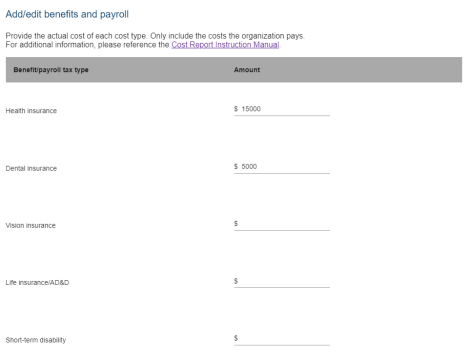
After the system generates Lyla’s wage entry, Lyla selects the “benefits & payroll” button to enter her benefits. A pop-up window prompts her to fill out the amounts for the different benefit/payroll tax types. Lyla completes the information by entering all her benefits and payroll information into the pop-up window. Refer to screenshot 11 for an example of the pop-up window with into which Lyla enters her benefits.
Screenshot 11: Add/edit benefits and payroll
After she saves her benefit and payroll information, she selects the “allocation” button. A pop-up window prompts her to fill out the percentage amounts for the different service allocation staff types. Lyla fills in the allocation percentage for the amount of time she spends with each staffing type (refer to screenshot 12). She also enters 10% for DWRS services administration for the administrative work she does to support her direct care work (refer to screenshot 13).
Screenshot 12: Add/edit allocations, part 1

Screenshot 13: Add/edit allocations, part 2

Client programming and support costs (might be required, based on the provider)
The family provider must complete this section if they have costs related to programming and support for people who receive services, including but not limited to:
Transportation costs (might be required, based on the provider)
The family provider must complete this section if they have non-wage costs related to travel and transportation, including but not limited to:
For more information, refer to DWRS Cost Reporting Manual – Transportation costs.
Vehicles (might be required, based on the provider)
The family provider must complete this section if they own or lease vehicles that are used to transport people as part of the DWRS services or administration.
Do not include vehicles that are not associated with DWRS services or administration.
For more information, refer to DWRS Cost Reporting Manual – Vehicles.
General and administrative costs (required)
On this section, the family provider must enter any administrative costs during the cost reporting year. Family providers are not likely to have many administrative costs.
Costs the family provider could enter in this section include but are not limited to:
Do not include costs for residential facilities or facilities related to DWRS residential services. Also, do not include a home mortgage, rent and other housing costs.
For more detailed information about this section, refer to DWRS Cost Reporting Manual – General and administrative costs and cost allocation.
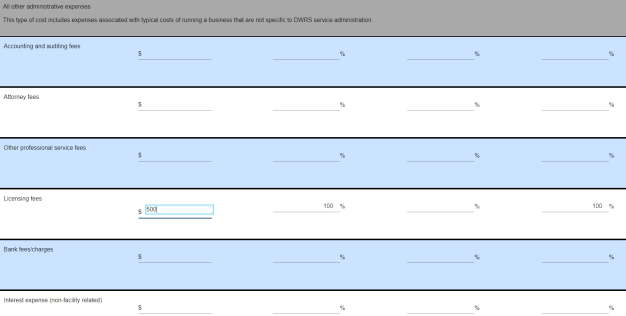
Lyla makes it to the general and administrative costs section, which is toward the end of the cost report. She reviews all the rows for this section, and she notices that she needs to enter her licensing fees. She has $150 in costs for a DWRS licensing fee, and she enters that 100% of that cost is allocated to DWRS service administration.
She finishes reviewing all the possible costs, and none of them apply to her company. She scrolls to the bottom of the page and selects the “save and next” button. Refer to screenshot 14 for an example of the information Lyla entered for her license fee and allocation percentage.
Screenshot 14: All other administrative expenses
Direct care worker questionnaire (required)
On this section, the family provider must complete the questionnaire about benefits available to staff as of the last day of the reporting period. Family providers are not likely to include much information on this section because they usually have limited staff.
If the family provider does not have part-time employees, they must enter a “0” for that field.
Example: Direct care worker questionnaire
Lyla gets to the direct care worker questionnaire. She has one full-time employee (herself) and no part-time employees. She needs to enter a “0” in the part-time field, so she can save the page and complete the report. Refer to screenshot 15 for an example of how Lyla completed this section.
Screenshot 15: Direct care workers questionnaire

Step 6: Submit the cost report
To submit the report, the family provider must log in to the cost reporting system with their authorized agent account (i.e., username with “admin.”). The organization cannot submit the report with a provider user account (i.e., username they may have used to fill out the previous sections of the report, if they decided to complete step 4).
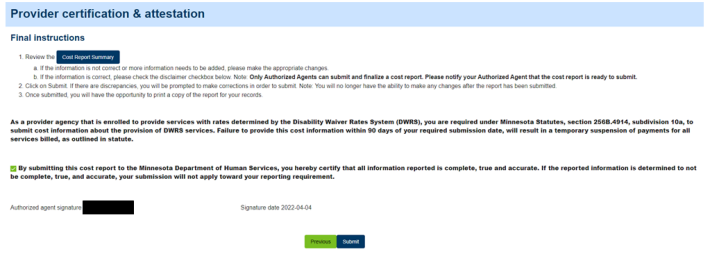
When the family provider gets to the provider certification & attestation section, they must select the checkbox at the bottom to certify that all the work is completed, true and accurate. Then, they must select the “submit” button at the bottom to complete the entire report.
Example: Submitting the cost report
Lyla has finally finished filling out the report, so she reviews the cost summary page to make sure all information is completed, true and accurate.
She then goes to the provider certification & attestation section at the end of the report and selects the checkbox at the bottom to certify her report is completed, true and accurate. Refer to screenshot 16 for an example of the submission page with the checkbox selected.
Screenshot 16: Provider certification & attestation
Confirmation
After the family provider submits their report, they will be redirected to the submission confirmation page (refer to screenshot 17) to confirm the report has been submitted with the date of submission. For more information on submitting the report, refer to DWRS Cost Reporting Manual – Submission instructions.
Important: The cost report is not considered complete until the provider uses their authorized agent account to submit it. If the cost report is not complete, the provider is subject to DHS stopping their payment for non-compliance.
Screenshot 17: Submission confirmation

 Report this page