
Registration and Access
Revised: June 12, 2025
Overview
Providers who wish to enroll with Minnesota Health Care Programs (MHCP) or make enrollment requests using the Minnesota Provider Screening and Enrollment (MPSE) portal will access the portal through the MN-ITS application.
The following sections will explain how different providers will access the MPSE portal.
Currently Enrolled Providers
If you are an existing MHCP-enrolled provider, you will access the MPSE portal through your MN–ITS account. If you do not have a MN–ITS account, review the Welcome Letter with MN–ITS registration instructions sent by the Minnesota Department of Human Services (DHS) when your enrollment was initially approved by MHCP.
If you do not have your Welcome Letter or do not know what your MN–ITS username and password is, contact the MHCP Provider Resource Center.
If you or your organization has never accessed MPSE before, find detailed instructions for updating your enrollment portfolio on the Existing MHCP Providers - First Time Access manual page.
If you attempt to complete your enrollment application and receive the error message that your social security number (SSN), federal employer identification number (FEIN), or provider identifier number (NPI or UMPI) is already in use, follow the Retrieve Portfolio instructions to get access to your portfolio.
Providers Enrolling for the First Time
If you are a provider who is not currently enrolled with MHCP and wish to use the MPSE portal to enroll with MHCP, you must first complete the MPSE portal registration process. The username and password you create during this process will give you access to a temporary MN–ITS account, allowing you to log in and track the progress of your request.
Use the following steps to complete your new enroller registration for MPSE. There is also a training video available: MPSE Portal Registration for New Provider Enrollers.
Steps for New Enrollers to Register for MPSE
Once you have completed the registration process, you will receive an email at the address used to register with a link to access your temporary MN–ITS account. If you do not receive an email, you can access your temporary account in the MN–ITS Application.
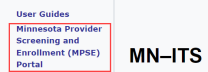
After logging into your temporary account, you can access the MPSE portal using the link on the left-hand side of the MN–ITS home page.
Screenshot of left-hand navigation in MN-ITS
Use the New Profile Request manual page for steps to complete the process to enroll with MHCP.
 Report this page