
Instructions to look up a person
Page posted: 8/3/26
This page provides instructions for counties and Tribal Nations to look up a person in the MMIS recipient subsystem. For instructions to look up a case number instead, refer to MMIS LTSS Manual – Instructions to look up a person’s case number.
To look up a person, you must have access to the recipient subsystem as part of your permissions granted by your security liaison. If you are a managed care staff member, you cannot access the recipient subsystem.
You can only use inquiry (I) mode when you select the recipient subsystem from the main menu or navigate to the recipient subsystem from a screening document or service agreement.
Instructions
To look up a person:
1. Open MMIS, log in and access the main menu.
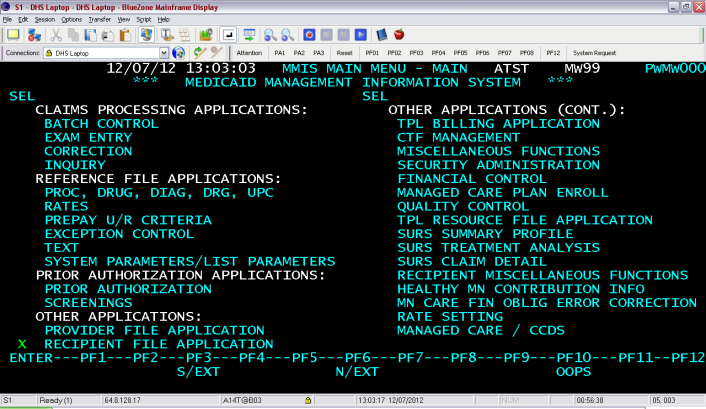
2. Move the cursor to the left of recipient file application and type X.
Figure 1: MMIS main menu with an X at the recipient file application line.
3. Press the transmit key to open the recipient key panel screen.
Figure 2: Recipient key panel screen
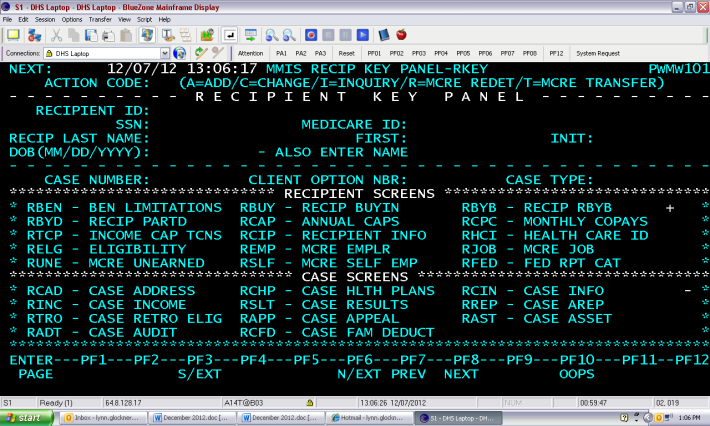
4. Review the bottom of the key panel screen for the recipient detail screens with four-letter abbreviations (i.e., cryptics). A + (plus) in that section means you can view more information. Press F8 to scroll forward and F7 to scroll back.
5. Move the cursor to the right of the action code field at the upper left corner.
6. Type I for inquiry.
7. Move the cursor to one of the fields in the first section and enter the appropriate data to identify the person.
8. Press the transmit key. The screen that opens next is based on the identifying data you entered:
If you chose the second option (recipient selection screen), take these additional steps:
1. Press F7 and F8 to scroll on the selection screen.
2. Move the cursor to the left of the applicable person’s recipient ID, as shown in Figure 3.
Figure 3: Recipient selection screen (RSEL) that lists fictitious recipients’ PMI numbers, names, Social Security Numbers, dates of birth and sex, with an X typed at the beginning of a line.
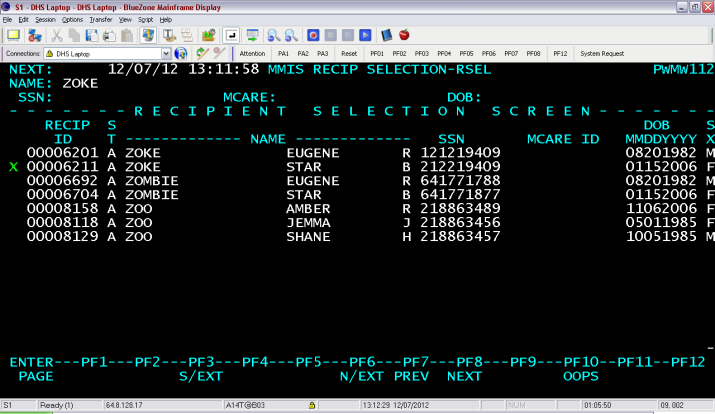
3. Type X in front of the person’s name.
4. Press the transmit key to open the person’s first detail screen, the recipient summary (RSUM).
When you finish viewing detail screens in the recipient subsystem:
1. Press F3 or F6 to return to the selection screen (if applicable), then continue to press F3 or F6 to return to the key panel screen, return to the main menu and log out.
2. Type “logoff” at the cursor.
3. Press the transmit key to return to the MNIT Services screen.
4. Close MMIS.
Additional resources
MMIS LTSS Manual – Instructions to look up a person’s case number
MMIS LTSS Manual – Recipient screen descriptions
 Report this page