

MnCHOICES Assessment v20.5.1 Release notes and companion documentation
5/15/2020
Purpose of release notes and companion documentation
This page is a visual, step-by-step document that describes how to use the changes made to specific functions and tasks for the MnCHOICES Assessment (MnA) computer application in version 20.5.1. This release includes:
- Addition of Nursing facility level of care (NF LOC) notification message
Corrections to the:
- Person search results page
- Infinite barber pole issues in the Assessment Queue and when creating any type of reassessment
- Isolated storage error message when logging in.
Changes in the MnA 20.5.1 release require an updated URL address.
New feature with all future MnA releases:
Beginning with the 19.9 release, MnA automatically updates any open, in-flight assessments and any reassessments with the new release content. The new code will automatically update changed questions and remove old questions. As recommended in the past, assessors should not:
- Need to save data outside the assessment in an alternate format prior to the release
- Have to enter saved information back into the assessment after the release
This should avoid problems with assessors running eligibility after changing questions or losing data from retired questions. If an assessor experiences problems with MnA data after the release, they should contact the help desk for assistance.
Helpful Hint: Make sure you are in the current version of the MnCHOICES Assessment.
- Log in to the MnA application, and select “User Profile” from the gray bar.

- Select “About MnCHOICES” from the User Profile dropdown choices.
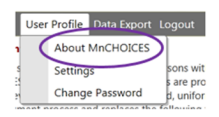
- The first sentence on this page will show you which version of MnA you are using.

- Delete bookmarks with outdated URL and create new bookmarks with updated URL.
As you work in the new MnA release, here are the release notes:
- Previous functionality: MnA displays two nursing facility levels of care (NF LOC) after statute changed to only one NF LOC.
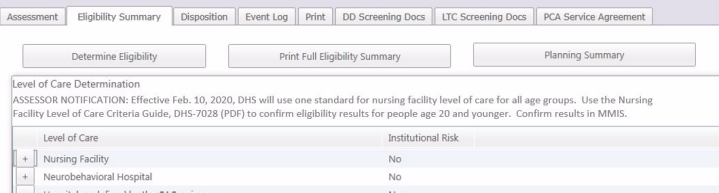
New functionality: We added an assessor notification with instructions about how to confirm eligibility results.
- Previous functionality: A user performs a person search, selects a person, views the Person and Activities page and returns to the search page. The previous search results do not display the same way they used to.
New functionality: We corrected MnA and users can return to the search page using the browser back button to view the previous search results again.
- Previous functionality: A user must log out and back in to MnA when an infinite barber pole displays after trying to create a reassessment, functional needs update or 65th birthday update.
New functionality: We corrected MnA so users can create any type of reassessment, the barber pole displays and then the document displays for the user to access without logging out and back in.
- Previous functionality: An infinite barber pole displays in the Assessment Queue, users are not able to view assessments and have trouble saving assessment dates.
New functionality: We corrected MnA so users can view assessments and save assessment dates without the infinite barber pole displaying.
- Previous functionality: The user tries to log in to MnA and a confusing and unclear notification message about isolated storage displays.
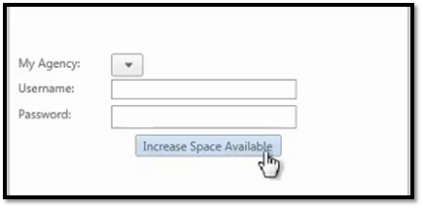
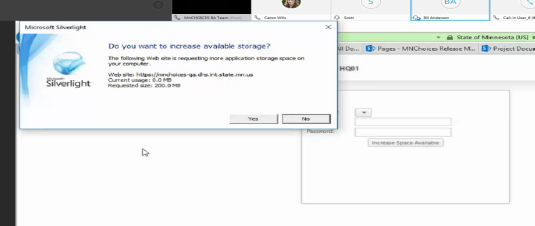
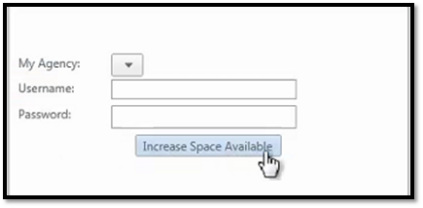
New functionality: We corrected MnA and a message notifying the user to “increase MnCHOICES Assessment space” displays, with detailed instructions about how to increase space.
As you work in the new MnA release, here is the companion documentation:
- Before the release, statute changed criteria for NF LOC from two standards based on age to one standard regardless of age. MnA still displays the two nursing facility levels of care (NF LOC) after statute changed to only one. We will update MnA to display the correct NF LOC in the revised MnCHOICES application. Until the revised MnCHOICES application is implemented, we added an assessor notification with instructions about how to confirm eligibility results.
-
- Before – screenshot not needed
- After

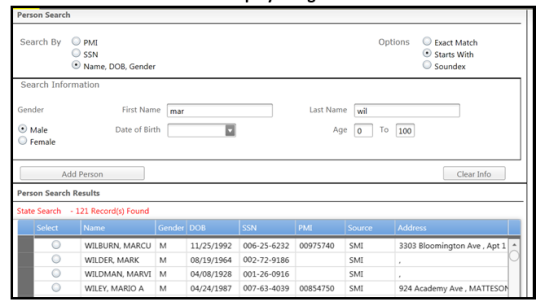
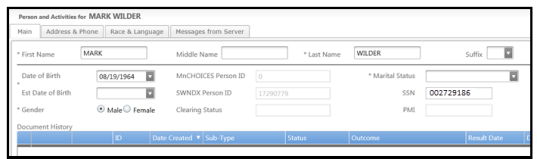
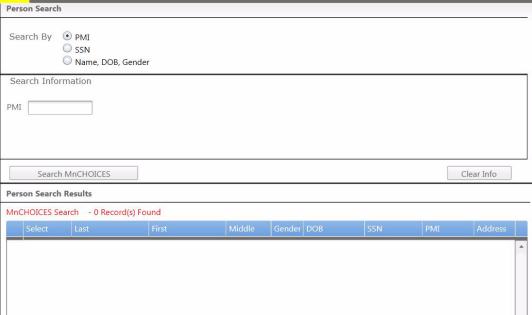
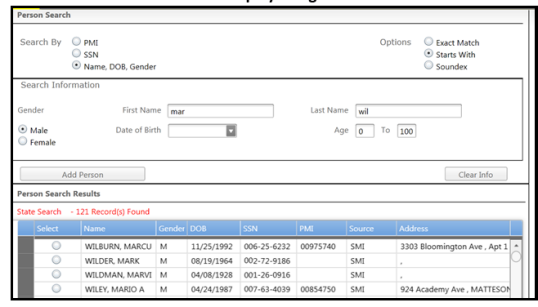
- Before the release, a user performs a person search, selects a person and views the person’s profile on the Person and Activities page. The user wants to go back to the list to select another person and clicks the browser back button to return to the search page. The previous search results do not display the same way they used to. After the release, users are able to return to the search page and view the previous search results by using the browser back button.
- Before – search results do not display using browser back button
-
- After – search results remain using browser back button
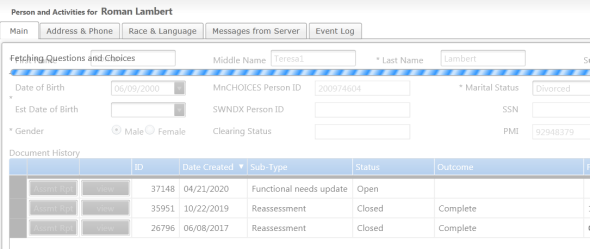
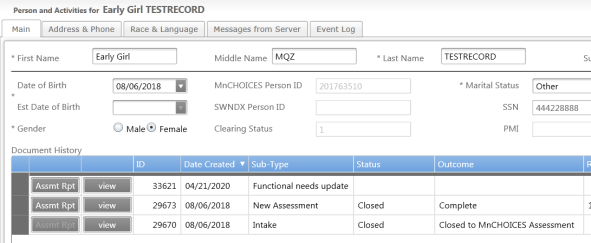
- Before the release, a user must log out and back in to MnA when an infinite barber pole displays after trying to create a reassessment, functional needs update or 65th birthday update. The new assessment type is created but stuck behind the infinite barber pole and the user cannot access the document without logging out and then back in to MnA. After the release, users can create any type of reassessment, the barber pole displays and then the document displays for the user to access without logging out and back in.
- Before
-
- After
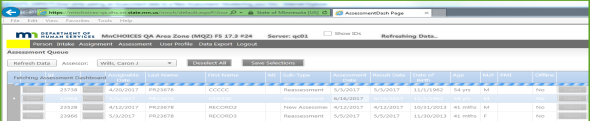
- Before the release, an infinite barber pole displays in the Assessment Queue, users are not able to view assessments and have trouble saving assessment dates. After the release, users can view assessments and save assessment dates without the infinite barber pole displaying.
- Before
-
- After

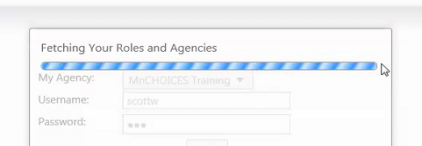
- Before the release, the user tries to log in to MnA and a confusing and unclear notification message about isolated storage displays. After the release, a clear message notifying the user to “increase MnCHOICES Assessment space” displays, with detailed instructions about how to increase space.
- Before
![Screenshot of the error message "[IsolatedStorage_Init] Arguements: Debugging resource strings are unavailable. Often the key and arguments provide sufficient information to diagnose the problem."](/main/groups/county_access/documents/pub/~export/DHS-321407~4~COUNTYLINK_HCT/40894-13.png)
- After

 Report this page