

Offline/Online: A screen-by-screen walkthrough
Purpose: To provide certified assessors the step-by-step instructions to take assessments offline to conduct a face-to-face assessment interview, save data entered and correctly upload data back into MnCHOICES Assessment (MnA) after reconnecting to the internet. This walkthrough uses screen shots from the MnCHOICES Assessment training zone (MTZ-A), but the content and process is the same in the MnCHOICES Assessment production (MnA-PROD) site.
Taking assessments offline
- Log in to MnA through the MnA URL. Click Assessment on the menu bar and select Assessment queue. All assessments should be online at this point. This can be verified by noting the word “No” in the Offline column. The “Select” button, that allows the user to choose it for offline use, will also be visible.
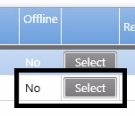
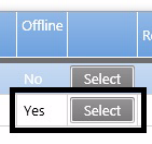
- Users should make sure the assessments taken offline are open and have an assessment date. The assessor will receive errors if the assessment does not have an assessment date or if there are no assessments in the queue. Click the Select button to change the Offline status to Yes and then click Save Selections.
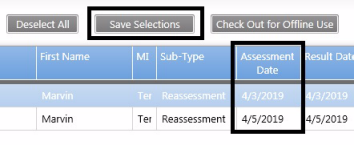
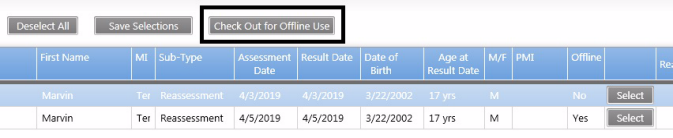
- The screen will show a button that says Check Out for Offline Use. Click this button.
- The screen shows a message that says Check Out Assessments for Offline along with a button that says Check Out Selected Assessments for Offline Mode. Click the Check Out Selected Assessments for Offline Mode button.


Note: The more assessments that are open, the longer it takes to display the button. Users must wait and not close the window, even if it seems to be taking too long. If a user closes the window, it interrupts the process of checking out the assessment properly.
- A series of notification messages will pop up as the information is downloading. Click the OK button for all notification messages. Note: Messages might appear in a different order than shown below.
- A notification message pops up asking, Are you sure you want to check out for offline? Click OK to check out for offline mode.

-
- A notification message pops up stating Downloading files needed for Offline Mode. Click the OK button.

-
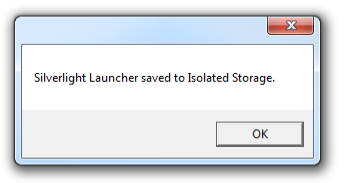
- A notification message pops up stating Silverlight Launcher saved to Isolated Storage. Click the OK button.
-
- A notification message pops up stating MnCHOICES RuleSet Version 2 saved to Isolated Storage. Click the OK button.

-
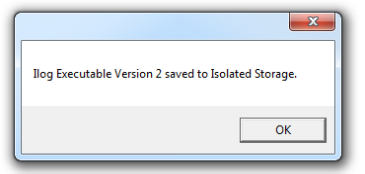
- A notification message pops up stating Ilog Executable Version 2 saved to Isolated Storage. Click the OK button.
-
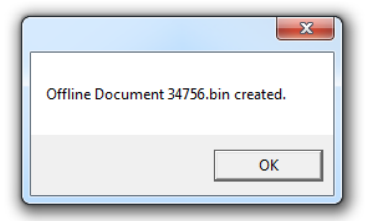
- A notification message pops up stating Offline Document bin created. The bin number is associated with the assessment document ID number. This is the file that stores all the assessment information that has been downloaded. The help desk may be able to use this file to restore data if an issue happens during the offline/online process. Click the OK button.
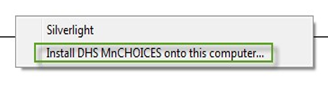
- The user must right click in the box to install MnCHOICES Assessment onto the desktop. Follow the instructions on the screen.

- Choose Install DHS MnCHOICES onto this computer…
- A security warning pops up stating, The publisher could not be verified. Are you sure you want to install this application? Click the Install button.

- A notification box pops up stating, Retrieving Doc ID for Offline. Click the OK button.

- Users will be redirected back to the login page showing MnA is in offline mode after MnA is installed and all data is downloaded. If you are not redirected to the login page in offline mode, find the DHS MnCHOICES icon on the desktop and launch offline mode from there.

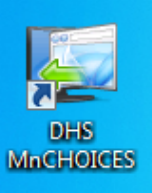
- Users must check to make sure assessments are offline before leaving the office. Double click on the DHS MnCHOICES icon on the desktop. A notification message stating Retrieving Doc ID for Offline will display when MnA launches. Click the OK button.
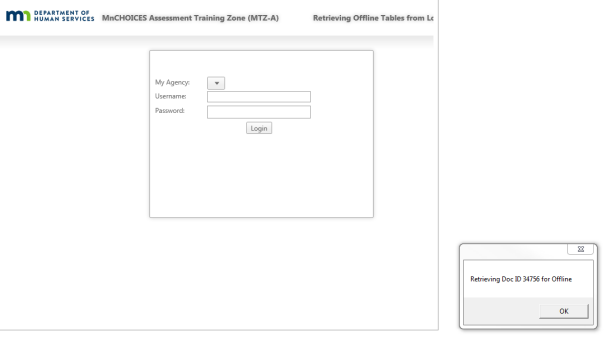
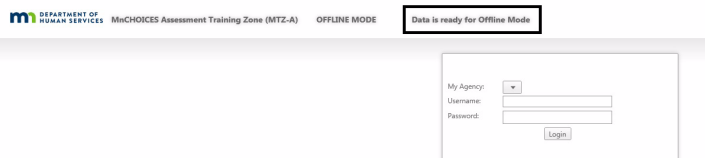
- MnA displays the login screen and shows that data is ready for Offline Mode. The user may log in following standard protocol.
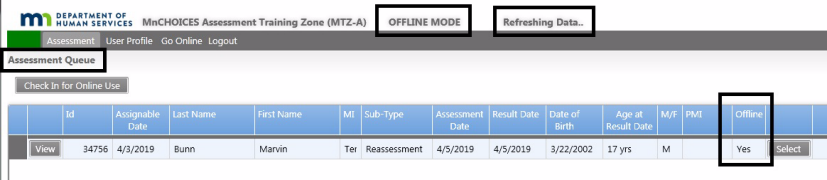
- The user should see the Assessment queue in Offline Mode and Refreshing Data when logged in to MnA. The assessment should show a status of Yes under the Offline heading.
The user should confirm the functionality of the assessment after taking it offline before he or she leaves the office:
-
- Click View for one of the assessments being used offline.
- Make sure answers can be edited in the assessment. Make sure the assessment is not grayed out.
Note: Certain demographic information is always grayed out.
-
- Make sure the screen resolution allows you to see all of the questions. The Behavior/Emotion/Symptoms domain is a good place to make sure all the question and answer fields are visible.
- Users must log out of the assessment before leaving the office. Close MnA by clicking the Logout button. Close the window by clicking the red “X” in the upper right corner of the window.
- When at the assessment, users should follow standard login procedures but use the DHS MnCHOICES icon from the desktop to launch and log in to MnA. When logged in to MnA:
- Find the person being assessed and click View.
- Conduct the assessment and record conversations and observations in MnA.
- Run the Eligibility Summary and discuss options with the person.
Log out of MnA when the assessment interview and discussion is finished. Close the MnA window before shutting down the computer and/or closing the laptop.
- Repeat the same steps to access other offline assessments if additional assessments need to be completed before returning to the office.
Bringing assessments back online
- Return to the office. Connect the computer to the agency’s network and/or the internet in the usual manner. Turn on the computer and open the DHS MnCHOICES desktop icon from the desktop. MnA will display Retrieving Offline Tables from Local files. A notification message will display Retrieving Doc ID for Offline. Click the OK button.
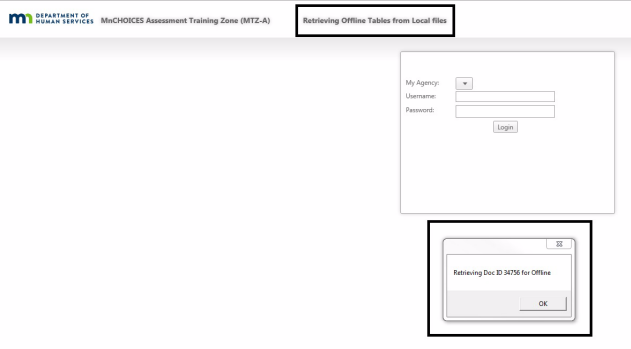
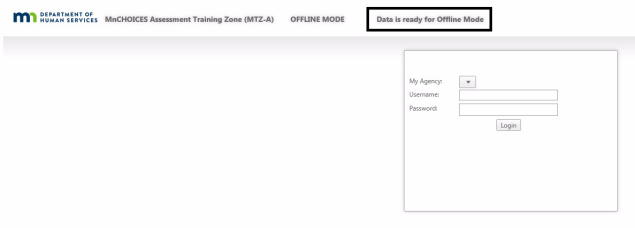
- The login page will display Data is ready for Offline Mode. Log in to MnA. Enter the same username and password used when completing the assessment offline.
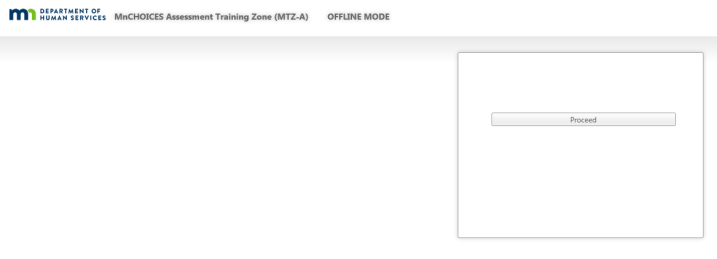
- After user enters login credentials, the Proceed button will display. Click Proceed.
- Users will see the Assessment queue after logging in. MnA will display in offline mode and offline assessments will display Yes in the Offline column.
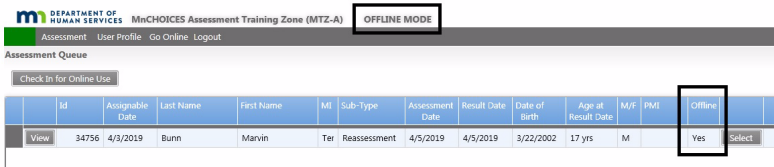
- Click the Check In for Online Use button to go back to online mode.
Note: By doing this, all assessments will be checked in to online mode. If you have other assessments that are not ready to check in to online mode, go back to the Assessment queue and complete them before going back to online mode. Users may also check in to online mode and then check out unfinished assessments when ready.
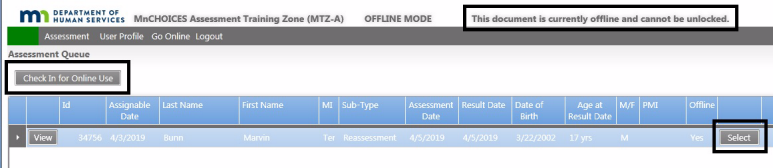
- MnA will display Assessments Ready for checkin and Check In Assessments for ONLINE MODE. The Check In All Assessments for Online Mode button will display. Click the button.

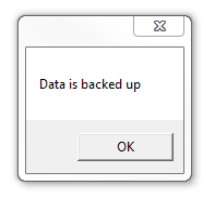
- A notification box pops up stating Data is backed up. Click the OK button.
- MnA will display Check In Assessments for ONLINE MODE. The Uninstall Offline Mode button will display. Click the button.

- The DHS MnCHOICES icon will be removed from the desktop and MnA window will close.
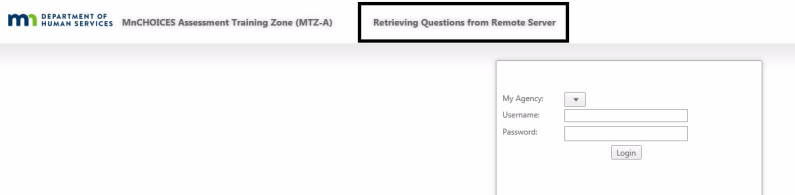
- Proceed to the MnA URL to log in. The login page will display Retrieving Questions form Remote Server. Enter your login credentials and click the Login button.
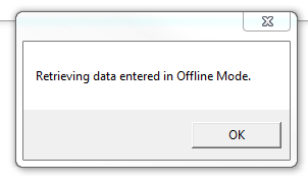
- A notification box will pop up stating Retrieving data entered in Offline Mode. Click the OK button.
- MnA will display the message Retrieving offline data. Please wait ... A notification message pops up stating, Offline Data Changes Saved to the Server. Assessment data entered in offline mode is saved to the server between these two messages. Users must wait until this process is complete and MnA displays the second notification box.
These two messages are IMPERATIVE to make sure offline work uploads to the online server. Users MUST see these two messages for assessment data to be saved. If you don’t see these messages:
- Stop IMMEDIATELY and contact your mentor.
- Mentors: Check the assessments worked on in offline mode. Make sure answers entered in offline mode are present. If data loss occurred, go through the Offline Document Restore (PDF) process with the user.
If you see the two messages, click the OK button.
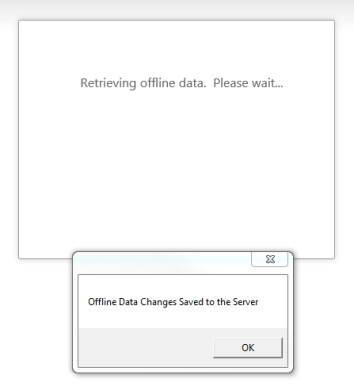
Note: MnA will take a long time to load if saving a completed assessment back to the server or if multiple assessments were offline. The more assessments being brought back online, the longer it takes. Users must wait for the upload to finish.
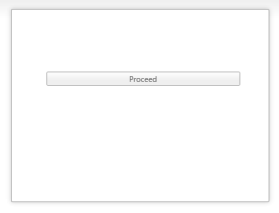
- Click the Proceed button.
- Go to the Assessment queue.
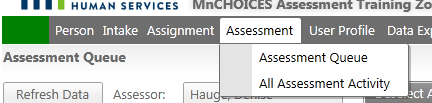
- Confirm that all assessments are back online. The assessment that was taken offline should display No in the Offline column.

- All offline assessment information should be uploaded to the online assessment.
- If the assessment still shows Yes in the Offline column at this point, stop immediately and contact your mentor.
- Mentors: Contact the MnCHOICES help desk and ask for assessments to be toggled back to online mode.
- If the assessment came back online and shows No in the Offline column, click the View button to make sure all answers entered in offline mode saved to the server. If answers are missing, stop immediately and contact your mentor.
- Mentors: Go through the Offline Document Restore (PDF) process with the user.
- The offline/online process is complete.
 Report this page