Addresses
Revised: August 3, 2026
Overview
This section in the Minnesota Provider Screening and Enrollment (MPSE) portal contains information about the provider’s physical address, mailing address(es), and file location address. Note that the Mailing Address and File Location Address sections of the MPSE portal do not become available until you have completed the Physical Address section and if you did not select the physical address as the mailing or file location address.
· Add or Update a Physical Address· Add or Update a Mailing Address· Add or Update a File Location Address
Add or Update a Physical Address
The physical address is the practicing address of your organization. It may also be the address Minnesota Health Care Programs (MHCP) uses to send documents like authorizations and paper checks. This address will be used when billing for services.
Minnesota Health Care Programs (MHCP) uses a United States Postal Service (USPS)-certified address verification service to confirm that addresses users enter into MPSE are valid and deliverable. If you believe your address is correct but are getting an error message that the address is not found in the USPS system, contact USPS and they can assist in correcting it.
Note: If you use a National Provider Identifier (NPI) as your provider identifier, you must update your physical address with the National Plan and Provider Enumeration System (NPPES) before updating your physical address in the MPSE portal. If applicable, you may also have to update your address with the Minnesota Department of Health (MDH) Licensing, the Department of Human Services (DHS) Licensing, the Office of the Minnesota Secretary of State, or other credentialing or insurance licensing agencies.
Steps to Add or Update a Physical Address
1. Once you have started an Enrollment Record Request, MPSE will open the Manage Enrollment Record page. Click Edit next to the enrollment record you have selected to update. 2. Using the Right-Side Navigation, click Physical Address to go to the Manage Physical Address page.3. Fill out all fields on this page that have an asterisk (*) next to the field name and enter any additional information as needed.4. There are two columns in the Physical Practice Address section. Click the name of the items in the Available Address Usage Types column that apply to the address entered on this page. This will move the item to the Selected Address Usage Types column.
Screenshot of MPSE section to select address usage types
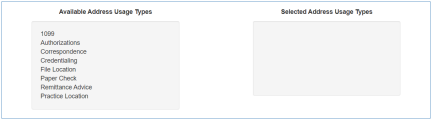
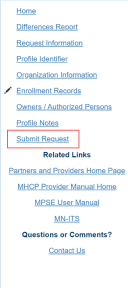
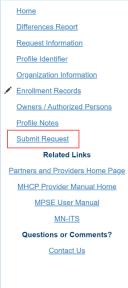
1. Practice Location is required to be moved to the Selected Address Usage Types column. Select all other applicable items in the Available Address Usage Types that can be used for the address on this page. If the enrollment record requires separate addresses to be added for any of the other items in the Available Address Usage Types column, leave the applicable item(s) in the Available Address Usage Types column.2. Once you have added or updated all the information you need, click the Continue button at the bottom of the MPSE page to save your information and move to the next page in the MPSE portal.· If additional addresses need to be added at this point, review the Add or Update a Mailing Address or the Add or Update a File Location Address for additional instructions.3. If there are no other updates needed to this enrollment record request, you can use the Right-Side Navigation and click Submit Request to submit your request for approval.
Screenshot of MPSE right-side navigation
Add or Update a Mailing Address
If you did not move mailing address to the Selected Address Usage Types column on the Physical Address section, MPSE will open the Mailing Address section for you to identify the address for that usage type.
Note: You can add up to two mailing addresses for each enrollment record type. If you already have two mailing addresses listed, you can only update the existing addresses and cannot add more.
Steps to Add or Update a Mailing Address
1. Once you have started an Enrollment Record Request, MPSE will open the Manage Enrollment Record page. Click Edit next to the enrollment record you have selected to update. 2. Using the Right-Side Navigation, click Mailing Address to be taken to the Manage Mailing Address page.3. If you are removing an old address, click View/Edit on the address you are updating. If you are adding a new address, click Add Mailing Address.4. Fill out all fields on this page that have an asterisk (*) next to the field name and any additional information as needed.5. There are two columns in the Mailing Address section, click the name of the items in the Available Address Usage Types column that apply to the address entered on this page. This will move the item to the Selected Address Usage Types column.
Screenshot of MPSE section to select address usage types
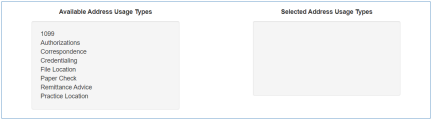
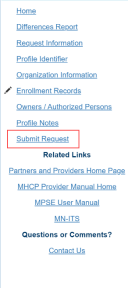
6. Once you have added or updated all the information you need, click the Continue button at the bottom of the MPSE page to save your information and be taken back to the Manage Mailing Address page.7. If there are no other updates needed to this enrollment record request, you can use the Right-Side Navigation and click Submit Request to submit your request for approval.
Screenshot of MPSE right-side navigation
Add or Update a File Location Address
If you did not move the file location address to the Selected Address Usage Types column on the Physical Address section, MPSE will open the File Location Address section for you to identify the address for that usage type.
The File Location Address page is where you enter the address where your files are stored if that address is different from the physical and mailing addresses.
For the Manage File Location Address page to appear, you must first remove the File Location Address Usage Type from the Selected Address Usage Types column for the mailing address or physical address it is currently listed under.
Steps to Add or Update a File Location Address
1. Once you have started an Enrollment Record Request, MPSE will take you to the Manage Enrollment Record page. Click Edit next to the enrollment record you have selected to update. 2. Using the Right-Side Navigation, click File Location Address to be taken to the Manage File Location Address page.3. Fill out all fields on this page that have an asterisk (*) next to the field name and any additional information as needed.4. Once you have added or updated all the information you need, click the Continue button at the bottom of the MPSE page to save your information and be taken back to the next page in the MPSE portal.5. If there are no other updates needed to this enrollment record request, you can use the Right-Side Navigation and click Submit Request to submit your request for approval.
Screenshot of MPSE right-side navigation

 Report this page