

Instructions for self-reporting learning activities in TrainLink
- Go to TrainLink and click Sign On in the upper right corner. Enter your unique key and click the OK button. This will bring you to the TrainLink home page. You should see your name in the upper right corner.
- Click on My Transcript under the My Information heading.

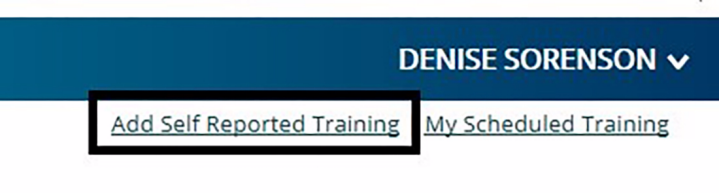
- Click the Add Self Reported Training link in upper right corner.
- Complete all of the required fields for your training activity. Fields marked with an asterisk (*) are required. Fields with a triangle selector provide a list of possible entries. Click save.

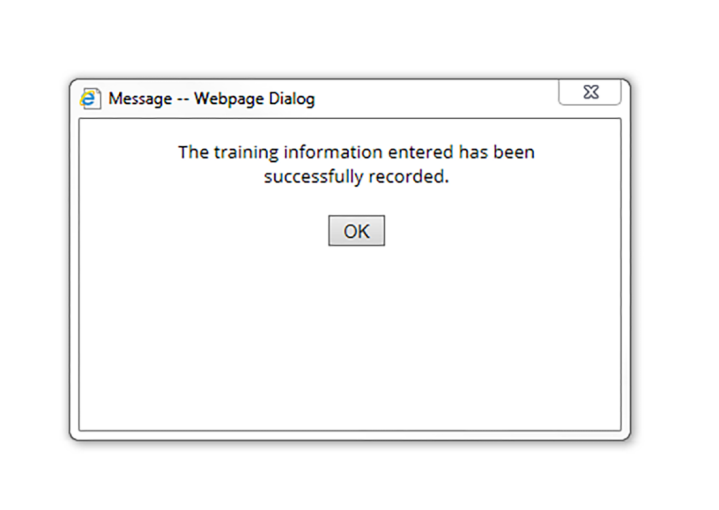
- Click OK when the confirmation message box appears.
- The self-reported course should show immediately on your transcript. If necessary, you may edit an entry after submission by clicking the pencil icon that appears next to it.

 Report this page