

Child Protection Summary Reports
Workers can access, print or email a child protection summary from an existing intake or workgroup to submit to law enforcement, the agency attorney, or the court. The reports include:
- Child Protection Intake Summary- Provides a summary of the Child Protection Intake workgroup
- Current / Prior CP Activity- Provides a summary of all child protection activity associated with the persons in a Child Protection workgroup and statewide offender information
- Police Report - Child Protection Summary- Designed to be provided to law enforcement. The last page is an Information Request to obtain a criminal background check on the alleged offender
- Child Protection Assessment Summary- Provides a summary of the Child Protection Assessment workgroup.
 Warning: Due to privacy issues, check your agency’s email policies regarding sending client data electronically via email. Anything that identifies a specific individual should only be sent via secure means, such as encrypted email, if it goes outside the agency.
Child Protection Intake Summary
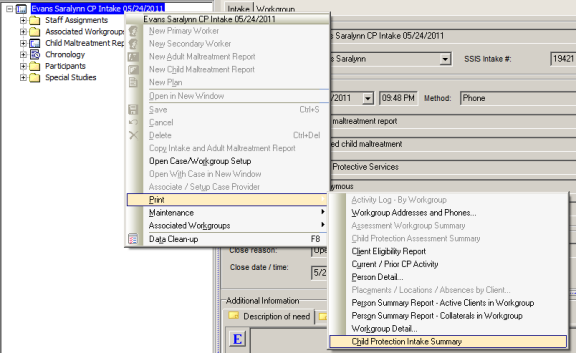
To Print a Child Protection Intake Summary:

- Right-click on the CP Intake workgroup.
- Select Print.
- Select Child Protection Intake Summary.
- Click the Printer
 or the Email button
 .
.
Current/Prior CP Activity from Intake
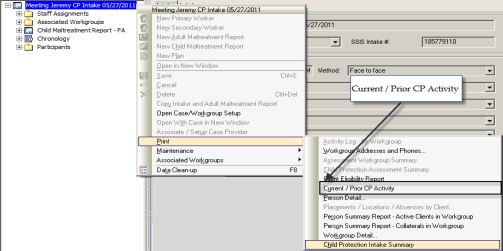
Current/Prior CP Activity from Child Maltreatment Report
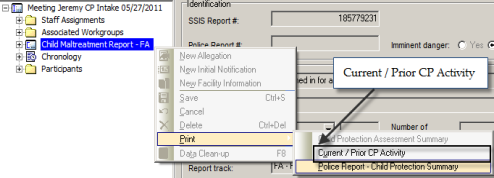
To Print the Current/Prior CP Activity:

- Right-click on CP Intake or CP Assessment workgroup or
Child Maltreatment Report node. - Select Print.
- Select Current / Prior CP Activity.
- Click the Printer
 or the Email button
 .
.
 Warning: Workers will need the SSIS Admin Security setting of Access Offender Index assigned to their role to allow them to execute the Current/Prior CP Activity report.
Police Report – Child Protection Summary
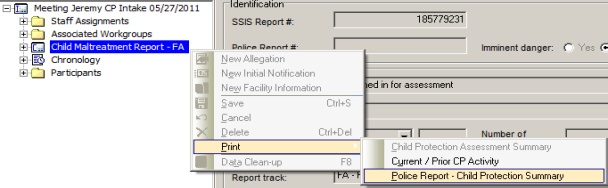
To Print a Police Report - Child Protection Summary:

- Right-click on the Child Maltreatment Report node.
- Select Print.
- Select Police Report - Child Protection Summary.
- Click the Printer
 or the Email button
 .
.
Child Protection Assessment Summary

To Print a Child Protection Assessment Summary:

- Right-click on the Child Maltreatment Report node within a
CP Assessment workgroup or the CP Assessment workgroup node. - Select Print.
- Select Child Protection Assessment Summary.
- Click the Printer
 or the Email button
 .
.
 References: For additional information regarding other Child Maltreatment and Intake reports, see the General Reports module.
 Report this page