

Family Assessment Service Plan
The Family Assessment Service Plan (FA Plan) is completed within 30 days of opening Child Protection Case Management Services. The FA Plan is reviewed with the family every 90 days. The new FA Plan merges the SDM Strength and Needs Assessment from within the Decision Tools folder in the Tree View.
Tree View – Service Plans Folder – New State Service Plan

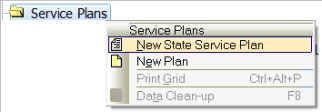
 To open a New Family Assessment Service Plan:
- Right-click on the Service Plans folder.
- Select New State Service Plan.
- Click on the Document template menu and select Family Assessment Service Plan.
- The Setup tab of the FA Plan displays.
Information on a Setup tab must be selected from each field’s drop-down menu; it cannot be typed into any Setup tab field. If the desired information is not available, it must be entered in the corresponding Tree View folder. Once saved, it is available from the Setup tab.
 Hint: Yellow triangles
  indicate required fields in order to save the plan to access the Document tab. It is Best Practice to complete all fields as are applicable. Blue underlined text indicates a hyperlink; clicking on it takes you to the Tree View folder where information for this field may be entered or updated. These fields are enabled until the plan is made Active.
 To complete the Setup tab of the FA Plan:
- Enter a date in the Review date field.
- Select yes or no to display the Language block.
- Enter a date in the Effective from date field.
- Enter a date in the Effective to date field.
 Best Practice: Regarding Family Assessment Plan Timelines:
- The Review date is the date the caseworker and family agree to review progress towards identified service plan goals. This date may be earlier than the Effective to date, but must not occur later then that date.
- The Effective from date is the date the plan is agreed to by the caseworker and the family. Ideally, this coincides with having obtained all required signatures on the plan. This date should be within 30 days of offering Child Protection Case Management services; however, the plan can begin during a Family Assessment or Family Investigation.
- The Effective to date is the date that the plan is required by statute to be reviewed. If applicable, it may reflect the date of the next court hearing if the plan has been filed with the court and will be reviewed accordingly. Regardless, both the FA and CP Service Plans are required to be reviewed within 90 days of their Effective from date.
Tree View – Decision Tools – New Decision Tool – Strength and Needs Assessment

Unique to the FA Plan (and CP Plan) Strength and Needs Assessments merge into the Setup tab from the Decision Tools folder. Ideally, complete a current Strength and Needs Assessment prior to opening the FA Plan.
All Strength and Needs Assessments completed for this family in the Decision Tools folder display in the FA Plan’s Strength and Needs Assessment drop-down menu. Select the Strength and Needs Assessment most recently completed. Identified Strengths and Needs display as previously selected for each parent and child. The section expands with additional data when selected.
Setup Tab - Strengths and Needs Assessment
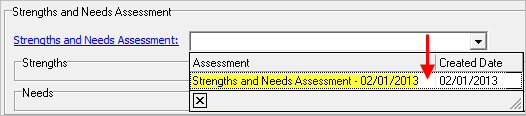
 To select a Strength and Needs Assessment on the FA Plan Setup tab:
- Select the current Strengths and Needs Assessment in the corresponding field.
Setup Tab – Priority Strengths and Needs Checkboxes
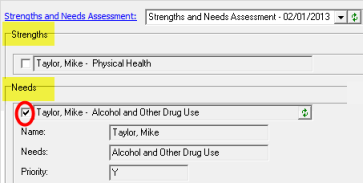
- Each priority Strength and Need selected on the SDM Tool regarding each family member displays beneath the Strength and Needs Assessment field. Select the priority strengths and needs related to each family member. Selected checkboxes merge into the Strength and Needs screen on the FA Plan.
 Hint: If no current Strength and Needs Assessment has been completed, click on the blue hyperlink text Strengths and Needs Assessment. You will be moved to the Decision Tools folder where the missing tool may be completed. Only SDM Tools created after SSIS Version 12.1 merge into the plan’s Setup tab.
Setup Tab – Participants Section
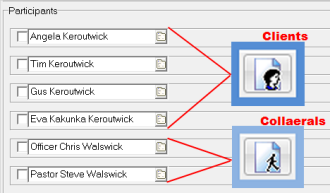
Participants on the FA Plan’s Setup tab may be either clients or collaterals. All client and collateral names merge from the Participant folder without requiring any entry within the Relationships folder (as is required for these same individual’s names to merge within any OHPP.)
- Review the Participants section to ensure that all desired Participants display. Click in the checkboxes next to the names of the Participants to include in the service plan.
When a checkbox next to a Participants name is selected, it expands and displays an Actual or estimated date of birth, if available. Fields also display where both a Home Phone and/or a Work Phone can be selected.
- Select the desired Home Phone and Work Phone number for each Participant from the Phone drop-down menus. Once selected, the Type and Phone number auto-fill.
 Hint: Although several types of Phone numbers can be entered for clients and collaterals, only those identified as Home or Work merge into the Setup tab fields specific to the FA Plan, and only one of each may currently be selected to merge into the service plan Document tab.
- Ensure that the primary caseworker’s name is reflected in the Staff field. An office telephone number for the identified Worker auto-fills in the Phone field if a number has been associated to the caseworker in SSIS Admin.
Setup Tab – Save – Document Tab
- Click Save to access the Document tab.
If the required tabs on the Setup tab are incomplete, the Document tab is not accessible. Ideally, all (applicable) fields on the FA Service Plan should be completed.
Once the plan is complete in SSIS, and ideally – after required signatures are obtained – the status field on the Setup tab should be changed from Draft to Active. An Active service plan is not editable, and indicates that this is the current service plan with the family.
 Best Practice: The FA Plan’s status field should reflect an Active status within 30 days of the provision of services. Ideally, Active plans have all required signatures; however, changing the status to Active should not be delayed strictly to acquire signature.
 Report this page