

Your Revised MnCHOICES application launch questions
Updated 12/5/2022
Launch transition
Application features will improve:
- The person’s assessment experience, including a summary of the assessment that is easy to read.
- The support planning process, by integrating a more person-centered format.
- The ability of lead agency staff to facilitate, complete and track their work.
- The ability of lead agencies to manage staff access to the application, review assessment and support plan activity, monitor staff workflow and run reports for their organization.
- Coordination among assessors, case managers and care coordinators with the ability to see who else is working with the person and access related documents.
Refer to the transitions instructions for further information for counties, tribal nations and managed care organizations (MCOs) about:
- Launch expectations.
- Documents not created by the revised MnCHOICES applications that need to be updated.
- Historical data from the current MnCHOICES computer applications (MnA and MnSP).
Passwords and inactivity timers
What if a staff member forgets their password and is locked out of the system? How many attempts do they have to log in?
Users are locked out after five login attempts. If a user gets locked out, they must wait 15 minutes before returning to the staff member login page to sign into the system.
Use the “forgot password” feature on the login page to reset your password. Password resets are effective immediately.
Inactivity log out
If a user is logged out due to inactivity, unsaved text will be lost. Information in text boxes is saved only after save is selected on screen.
Your training questions
I need to make changes to my usernames
Refer to Smart Guide: MTZ-Adding and managing users in the help center.
I am unable to locate a username in the assignment drop down menu.
First, enter the user’s username in the field to see if it shows up in the dropdown menu.
If the name does not appear, it is likely the staff member has changed their username. Users with a lead agency supervisor role may monitor username changes by going to the global search in MTZ.
- Choose organization and enter the name of your lead agency in the search box.
- Find the organization with the provider number ending in “MnR” and double click to open the record.
- Choose the staff member icon to review usernames linked with the selected organization.
- The original username is in the PW or X number column.
Note: Usernames and passwords belong to the lead agency and should not be edited, so they can be reused.
The staff members icon will show a list of all users, with this information:
- First name and PW column: Should be the same (User######)
- Last name: Lead agency.
Note: The first and last name columns are editable. The PW or X number column is not.
Explain the differences among the training material/resources and how to locate them.
Refer to the instructions on the MnCHOICES training page for more information.
Training modules for the revised MnCHOICES application are available in the TrainLink Disability Services Learning Center, organized into the following courses:
- MnCHOICES: Access and Navigation (MNCH900).
- MnCHOICES Content: MnCHOICES Assessment - Recert CLUS course (MNCH301A).
- MnCHOICES Content: Support Plan (MNCH920).
- MnCHOICES Workflow: MnCHOICES Assessment - Recert CLUS course (MNCH303A)
- MnCHOICES Workflow: Support Plan and Rates (MNCH921) — For EWRS rate tool use the “My supports” module with the “EWRS rate tool field guide” section in the Practice Guide: Support Plan in the application help center.
- Overseeing MnCHOICES (MNCH930).
The following resources are found in the revised MnCHOICES application help center (In the navigation header, open the “Help” dropdown menu and choose “Help Center”):
- Practice guides: Instructions about navigating and completing fields in a form. (For example, MnCHOICES assessment, HRA and support plan)
- Smart guides: Step-by-step walkthrough of a specific topic in the application. (For example, taking forms offline, how to attach information to a person record)
- Micro-learnings: Short videos about how to complete a specific function in the system.
Which training modules have been updated?
Modules with updates are listed below by course with a brief description of the change and when the change was made. User must retake all “Access and navigation” and “Workflow” modules to ensure they have the most up-to-date changes.
How to access updated modules:
- Users who became a certified assessor through the process described on the Revised MnCHOICES application: MnCAT instructions for lead agencies webpage should take the following steps:
- Complete course modules “Access and navigation (MNCH900).”
- To review changes in MnCAT Step 3 modules instead, go to “MnCHOICES content: Assessment (MnCH301a)” and “MnCHOICES workflow: Assessment (MNCH303a).”
- All other users (including assessors certified in MnA) should log into the course and restart any revised modules you would like to review.
Changes to currently posted courses
MnCHOICES: Access and navigation (MNCH900)
- Person record: Added new slides on health information icon. (Dec. 13, 2021)
- Assignments: Edited and revised slide order. (Jan. 14, 2022)
MnCHOICES content: MnCHOICES assessment (Recert CLUS course) (MNCH301A)
- MnCAT Step 3 – Part 1: Using Mini-cog (Module 7): Updated with instruction information and links to the form. (April 28, 2022)
- MnCAT Step 3 – Part 1: Assessment results (Module 10): Describes the difference between program summary and program summary details in the assessment results section, including the importance of using the program summary details section to confirm programs for which a person is eligible. (April 29, 2022)
MnCHOICES workflow: MnCHOICES Assessment (Recert CLUS course) (MNCH303A)
- MnCAT Step 3 – Part 3: Starting the MnCHOICES Assessment workflow (Module 1): Updated the course description and “In this module you learned.”. (Aug. 15, 2021)
- MnCAT Step 3 – Part 3: Initiating a MnCHOICES Assessment (Module 2): Changed narration throughout the module. (Aug. 15, 2021)
- MnCAT Step 3 – Part 3: MnCHOICES Assessment organization and domains (Module 3): Added “What to do when dropdown menu is blank?” slide and two additional slides about editing a person’s record. (Aug. 15, 2021)
- MnCAT Step 3 – Part 3: MnCHOICES Assessment results and assessment summary (Module 4): Added “Next steps and best practices” slide. (Aug. 15, 2021)
MnCHOICES workflow: Support plan and rates (MNCH921)
The modules listed below were updated to improve the user experience. The MnCHOICES team recommends that all modules be reviewed prior to launch of the revised applicatoin. Care coordinators should complete parts one and two of the new Support plan-Health risk assessment (SP-HRA) modules.
- Support plan and rates: Getting started (Module 1): Removed status slide. (Oct. 15, 2021)
- Support plan HRA (SP-HRA), Part 1 and Part 2 (Modules 2 and 3): Added new modules for MCO and delegate staff. (Jan. 17, 2022)
- Overview, About me, My goals (Module 5): Significantly revised and added more content. (Jan. 17, 2022)
- Support plan and rates: My supports (Module 6): Reorganized significantly and added more content. (Dec. 13, 2021)
- Safety & wellbeing and Signature page (Module 8): Added signature sheet content. (Dec. 18, 2022)
- Support plan and rates: Completing support plans and review of other forms (Module 9): Added content regarding transition plan reason. (Oct. 15, 2022)
New training modules, including release dates
MnCHOICES: Access and navigation (MNCH900)
- Taking forms offline and online (Module 7) — (April 4, 2022)
Overseeing MnCHOICES (MNCH930)
- Adding user access — (Dec. 12, 2021)
Workflow
What roles in the application can assign a staff member to a person?
- Certified assessor
- Case manager
- Lead agency supervisor
- Delegate supervisor
- Contracted case management supervisor
- Support staff
- Rate staff
- MnCHOICES interagency contact point (MICP)
- Care coordinator for Special Needs Basic Care (SNBC)
- Care coordinator for Minnesota Senior Health Options/Minnesota Senior Care Plus (MSHO/MSC+)
How will intake be handled in the new application?
The components of the current MnCHOICES Assessment (MnA) intake section are incorporated in the new application. They are now in the person‘s profile and the initiate assessment section of the MnCHOICES assessment form.
Each lead agency will identify staff members who are responsible for adding a person to the system and assigning them to a location and staff who will provide services. This can include support staff, like intake assessment and support plan staff.
Note: Informed consent (Tenessen warning) is required before creating a record for a person.
As a supervisor, how can I review the work of my entire staff in one location?
Review the micro-learnings video on queries in the MnCHOICES Help Center.
- Open queries in the navigation header.
- Use the queries filter to choose the form.
- In the query window, choose your location and the staff member, in “Routed to.” Run the query.
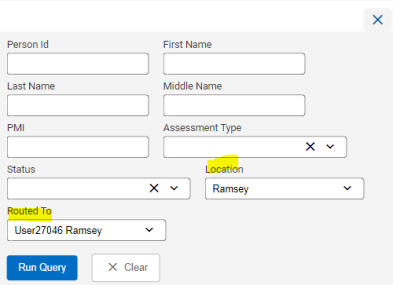
- This is produce a list of the work for the chosen staff member. Select clear to remove the results from the screen and run another query.
- If you would like to see the work of multiple staff members at one time, go to the filter, and choose the form. In the query window, select your location only and run the query. This will give you the complete list of staff members assigned to that location. Your options to review staff include:
- Resort the list from A to Z, based on “Rerouted to.”
- Export the results.
Person records/data
What person data will be loaded into the revised MnCHOICES application from MnA and MnSP?
- The person’s contact information, including name, address (street, City, Zip code, county), address directions, date of last address change, email, phone, phone type, phone comment, date of last phone change.
- The person’s demographics, including date of birth/death, gender, marital status, Person Master Index (PMI), social security number (SSN), race, ethnicity, primary language and interpreter indicator.
A person will be associated with the location that last completed their coordinated services and supports plan (CSSP)/rate plan.
Person data in the revised MnCHOICES application
Person data will be pulled from state systems (i.e. SSIS, SWDX, MAXIS, MMIS) and loaded into the revised MnCHOICES application, each night. See the complete list of person data, above.
What if a search does not find a person in the MnCHOICES database?
This action is reserved for people completing intake and assignment work in MnCHOICES:
- Create a record for the person in SSIS or MAXIS.
- Request a PMI. The data will get updated in the MnCHOICES database during the nightly upload.
- Return to MnCHOICES the next day to begin the assessment process.
To add a person to MnCHOICES in an emergency:
- Create a PMI in MAXIS.
- Add the person in MnCHOICES and copy the PMI into the person’s information.
Since a person’s name, PMI, SSN and birthdate are locked in the revised MnCHOICES application, where can they be edited?
Update a person’s name, PMI, SSN and/or birthdate in SSIS or MAXIS. Your changes will update in the MnCHOICES database during the nightly upload.
If a person needs a PMI and one is obtained, how long does it take for information to appear in the revised MnCHOICES application?
Data will be pulled from the state systems, nightly. If a lead agency needs to complete an assessment before the nightly load, they can:
- Create a PMI in MAXIS
- Add a new person in the revised MnCHOICES application and carefully enter or cut-and-paste the PMI into the revised MnCHOICES application.
How do I correct or merge PMIs in the revised MnCHOICES application?
Follow the current process to submit a MnCHOICES help desk form. Provide details on what is shown on the screen and what should be changed. Explain why the change is needed.
MnCHOICES Assessment: Screening documents
When there is a care coordinator or case manager change for someone open to a waiver, do I need to enter a screening document into the Medicaid Management Information System (MMIS)?
Yes, case manager or care coordinator changes should be entered into MMIS. The launch of the revised MnCHOICES application does not change current protocol.
Who changes the status to “Approved in MMIS” or addresses a problem with the long-term care (LTC) screening document?
Follow your agency protocol, including:
- Support staff enters screening document data into MMIS: This staff member is assigned to a person. In this case, the certified assessor notifies them that the screening documents are ready to enter into MMIS. The support staff will choose the correct status in the dropdown based on the results of data entry. The certified assessor will make any needed changes and notify the support staff of changes.
- Certified assessor enters screening document data into MMIS: The assessor enters data into MMIS, and based on MMIS makes any needed changes. When MMIS approves the changes the status of the assessment is updated to “Approved in MMIS.”
Reopen closed assessments
Staff members who are identified as a lead agency supervisor or delegate supervisor can open closed assessments. An assessment with an “Approved by MMIS” status can be re-opened within 60-days of the assessment interview.
To re-open an assessment, locate your assessment with a status of “Plan approved in MMIS” or “Plan approved,” and double click on the form to open it. Change the status to “Reopen” to open the record.
Support plan
In the current application there is a clear break where the assessor completes the community support plan (CSP) so the case manager can begin the coordinated services and supports plan (CSSP). Where is that in the new application?
The CSP, a summary of a person’s assessment, is now part of the assessment summary. The assessment summary is included in the MnCHOICES assessment form and will no longer be a separate CSP. It will still serve the function of sharing important information with the person and case manager.
When the assessment summary is complete, the case manager receives a notification. The case manager can work in all areas of the support plan once the assessment status becomes complete.
To learn more about completion of the support plan while waiting for the assessment to be marked complete, review these modules in the MnCHOICES workflow: Support plan and rates (MNCH921) in TrainLink:
- Support Plan-MnCHOICES Assessment (SP-MnA) and SP-MCO/MnA
- Support Plan HRA (SP-HRA)-Part 2
Which parts of the support plan require completion?
Use the completion requirements and the asterisks in the support plan to identify required fields.
For people who receive publicly-funded services:
- Waivered services: The case manager completes the support plan.
- State plan services (i.e., CFSS/PCA): The certified assessor creates the support plan.
- Managed care: The care coordinator completes the support plan associated with the HRA/MnCHOICES assessment for their related programs.
Onboarding questions
Whose staff data is loaded in the revised MnCHOICES application?
DHS collected staff data from lead agencies in October 2022 to load into the revised MnCHOICES application. DHS will provide lead agencies with instructions to add or manage staff access prior to the launch of the revised application.
What happens if a staff member is on leave when the launch happens? Will their access email become outdated?
Security liaisons can submit a systems, securities and access management (SSAM) ticket to activate staff members who were added to the system, but on leave when the launch occurred.
Who manages access to the revised MnCHOICES application?
Lead agencies (counties, tribal nations, and MCOs) manage access for the staff they employ and their contractors.
- Delegate staff: MCO security liaison maintains access because an agency works on behalf of the MCO.
- Contracted case management staff: A county security liaison maintains agency access because the contracted case manager works on behalf of the county.
Are all lead agency users required to take data privacy courses?
DHS enterprise standards require all agency staff who access state computer applications to complete the required data privacy courses on Handling MN Information Securely. This is an annual requirement. Go to MnCHOICES Assessment (MnA) and Support Plan (MnSP) access for more information about required data privacy courses.
How does a security liaison or mentor receive administrative access to Handling MN Information Securely?
The Handling MN Information Securely site provides contact information at the bottom of the page.
Who can be a security liaison?
Your agency will determine who will facilitate your lead agency’s access requests and what requests a security liaison can make. For MnCHOICES access, the agency staff member will need to be an SSAM security liaison. They will use the SSAM ticketing system to request X1/PW numbers and have the ability to request system access.
Follow MN Service Hub Instructions on how to add an SSAM security liaison.
 Report this page