

Login problems: Create MnCHOICES bookmarks with clean URLs
Updated 7/11/2025
Problem
A user might get stuck on the acknowledgement page or not be able to log in following a release after they delete their browser data.
Solution
Make sure the URL of the MnCHOICES environment is saved as a web browser bookmark/favorite and that the address is clean (no extra characters).
How to create a web browser bookmark/favorite
The MnCHOICES training zone (MTZ) login page is used in the images below. Use the same steps to create a bookmark/favorite for the production environment.
Edge
1. Select the star inside the address bar, on the far right.
2. Enter the following information in the edit favorite window:
- Name: “MnCHOICES — MTZ” (or similar) for MTZ; “MnCHOICES” for production environment
- Folder: Select favorites bar.
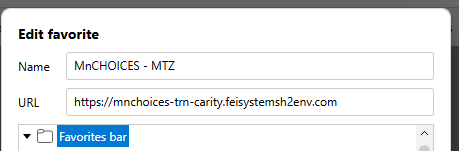
- Select more.
3. In edit favorite, copy the proper URL exactly as it appears below and save.
- MTZ: https://mnchoices-trn-carity.feisystemsh2env.com
- Production: https://mnchoices.org
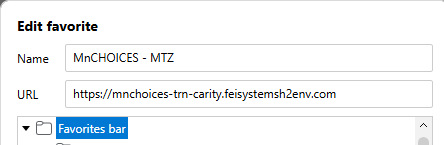
- Clean the URL of a favorite if it looks like this:

- Copy the address above and paste it into the URL address and save.

4. Clear browser data.
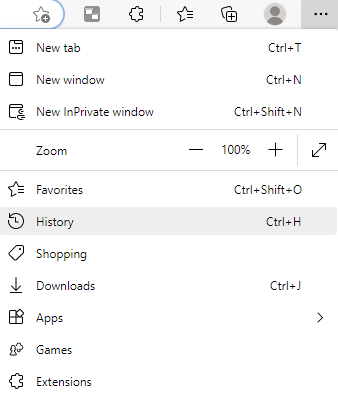
- Use the horizontal ellipsis on the right side of the browser window to open the menu and select history.
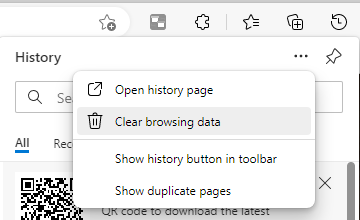
- Select the horizontal ellipsis in the upper-right corner of the history window to open the action menu.

- Choose clear browsing data in the dropdown.
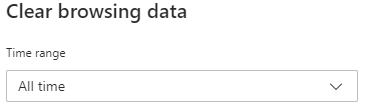
- Set time range to “All time” in the clear browsing data popup window.
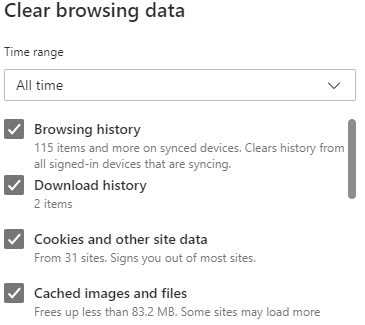
- Check browsing history, download history, cookies and other site data, and cached images and files.
- Select clear now.
5. Close the browser window.
6. Open a new browser window.
7. Use the new bookmark to access MTZ or the MnCHOICES production environment.
Chrome
1. Select the star inside the URL address window, on the right.
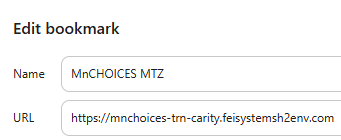
2. Enter this information in the edit bookmark window:
- Name: “MTZ MnCHOICES” for MTZ; “MnCHOICES” for production environment
- Folder: Bookmarks bar
- Select more.
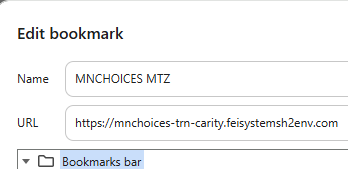
- Clean the URL of a favorite if it looks like this:
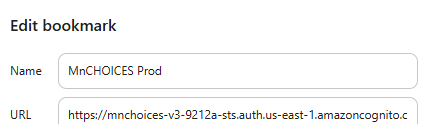
3. In the edit bookmark popup window, copy the proper URL exactly as it is below and save.
- MTZ: https://mnchoices-trn-carity.feisystemsh2env.com/
- Production: https://www.mnchoices.org.

4. Clear browser data.
- Select the vertical ellipsis on the right side of the browser window and open the more tools menu from the dropdown.
- Choose clear browsing data.
![Screenshot showing the vertical ellipsis menu open that has:
- New tab
- New window
- New Incognito window
- History
- Downloads
- Extensions
- Zoom
- Print
- Cast
- Find
- More tools (highlighted in gray with flyout menu that includes save pages as, create shortcut, name window, clear browsing data [highlighted in gray], performance, task manager and developer tools.)
- Edit
- Settings
- Help
- Exit.](/main/groups/county_access/documents/twocolumns/~export/MNDHS-063285~13~COUNTYLINK_HCT/158345-13.png)
- In the popup window check browsing history, download history, cookies and other site data, and cached images and files.
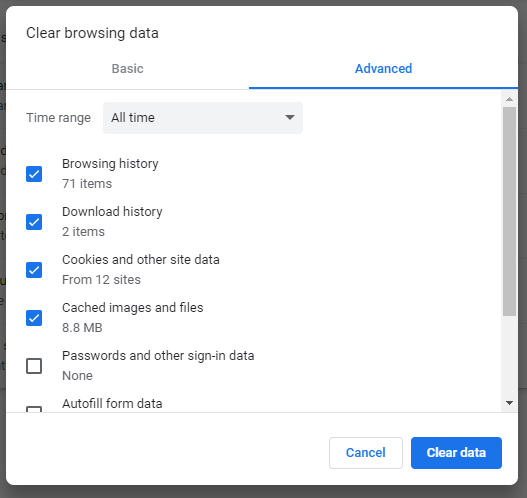
- Clear data.
5. Close the browser.
6. Open a new browser window.
7. Use the new bookmark to access MTZ or the MnCHOICES production environment.
Questions
To contact the MnCHOICES Help Desk, go to MnCHOICES Help Desk Contact Form, DHS-6979.
 Report this page