
Entering Recovery Obligations in MMIS
This section explains how to enter an estate recovery into the Medicaid Management Information System (MMIS) and how to find a recovery that was previously entered.
I. Selecting the correct obligation type for your estate recovery
There are two obligation types under which you must enter estate recoveries in MMIS for Medical Assistance (MA), Alternative Care (AC), or General Assistance Medical Care (GAMC) funds. The two obligation types are Estate Affidavit (EA) and Estate Probate (EP).
EA: Use obligation type EA whenever your recovery was made outside of a probate process.
EP: Use obligation type EP whenever your recovery was made through a probate process, such as formal probate, informal probate, special administration, or determination of descent.
Type of recovery | Obligation type |
Any recovery made outside of the probate process, such as through: | EA: Estate Affidavit |
Any recovery made through the probate process, such as: | EP: Estate Probate |
II. Entering a recovery
1. In the mainframe, choose MMIS. Use the customary mainframe access method for your local agency.

2. Enter your mainframe ID and password. Press Enter.

3. In the upper-left corner of the screen, enter the system ID: MW00. Be sure to enter the digits “00” and not the letters “OO.” Press Enter.
4. On the MMIS main menu screen, select the recipient (member) subsystem (RECIPIENT FILE APPLICATION) by entering an “X” to the left of that choice. Press Enter.
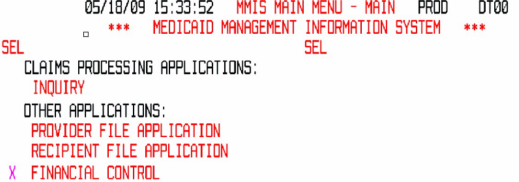
Note: The applications you see listed on the main menu screen depend on your level of access to MMIS information and may not match those shown in the following screen shot.

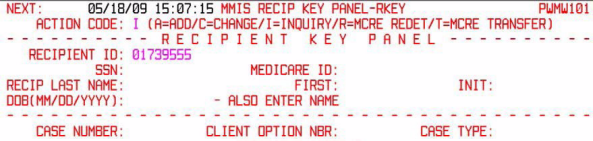
5. On the RKEY screen, use action code I to make an inquiry, and enter the recipient (member) ID, name, and SSN or other ID.
In the upper-left corner of the RKEY screen, enter “RELG” after “NEXT:” and press Enter to navigate to the RELG screen.
6. The following screenshot of an example RELG screen shows three eligibility spans to choose from.


Keep track of the eligibility span begin and end date(s) for each service you recovered funds for in your estate claim. You will need these dates in step 9 of this procedure.
Note about MA recovery: The claims payment history provides a claim total for MA services, and if the MA member received MA under a specialized eligibility type, the report provides subtotals for MA services by eligibility type. The specialized eligibility types that appear on the report are as follows:
These eligibility types receive specialized federal funding and require separate obligation entry into MMIS if you recovered enough funds to attribute recoverable dollars to services received under these eligibility types. Consequently, you must track the begin and end dates found in MMIS for each of these eligibility types that appear in the claims payment history. The eligibility type is found in the “ELIG TY:” field.
For example, an MA-AX eligibility span would look similar to this:
01 PRG: MA MEDICAID ELIG TY: AX ADULTS WITHO
ELIG BEGIN: 03/01/14 ELIG END: 12/31/15 C
STATUS DATE: 12/26/15 DATE ADDED: 05/12/14
If an MA-AX subtotal appeared on your claims payment history, and you recovered enough funds to attribute recovery to services received under MA-AX eligibility, then you would record the eligibility begin and end date for MA-AX for obligation entry in step 9C.
7. Press F6 until you are back at the main menu. Select FINANCIAL CONTROL by entering an “X” to the left of that choice. Then press Enter.
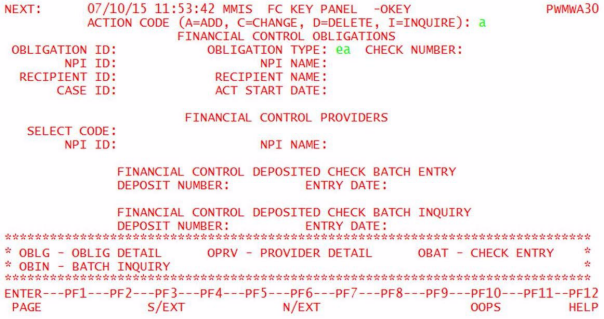
8. On the OKEY screen, use action code A (used to add a new recovery for a recipient [member]). Select your obligation type. Then press Enter to go to the next screen.
Screen shot of OKEY screen:
9. On the next screen, the OBLG screen, enter the recovery amount for each service you recovered funds for. Do this by isolating the claim amount and your recovery amount for each service. If you have recovered on more than one service, repeat steps 7–10 for each recovery entry.
Prioritize attribution of recovery dollars to each service in the following order:
Use the following guidance to enter recoveries for these services in this order.
A. Entering a recovery for AC services
If the person received AC services, attribute recovery funds first to AC up to the total amount paid for AC services. If the person did not receive AC services, skip to step 9B.
i. AC services received before November 1, 2013
a. Review the claims payment history for AC claims paid before November 1, 2013, and total those claim amounts together.
b. On the OBLG screen, enter the following three items to select the service for which you are entering a recovery:
c. Enter the amount of the AC claim total for services received before November 1, 2013, in the OBLIGATION MAX line and then enter your recovery amount for those services in the ACTIVITY TOTAL line. Go to step 10.
ii. AC services received on or after November 1, 2013
a. Review the claims payment history for AC claims paid on or after November 1, 2013, and total those claim amounts together.
b. On the OBLG screen, enter the following three items to select the service for which you are entering a recovery:
c. Third, enter the total amount of the AC claim total for services received on or after November 1, 2013, in the OBLIGATION MAX line and then enter your recovery amount for those services in the ACTIVITY TOTAL line. Go to step 10.
B. Entering a recovery for GAMC services:
If the person received GAMC services, then attribute recovery funds to GAMC up to the total amount paid for GAMC services. If the person did not receive GAMC services, skip to step 9C.
i. On the OBLG screen, enter the following three items to select the service for which you are entering a recovery:
ii. Second, enter the total amount of the GAMC claim found in your claims payment history in the OBLIGATION MAX line and then enter the actual amount you recovered for GAMC in the ACTIVITY TOTAL line. Go to step 10.
C. Entering a recovery for MA:
If the person received MA services, then attribute recovery funds to MA up to the total amount paid for MA services.
i. MA
a. Review the claims payment history for the subtotal of “plain” MA claims paid.
b. On the OBLG screen, enter the following three items to select the service for which you are entering a recovery:
c. Enter the total amount of the MA claim subtotal in the OBLIGATION MAX line and then enter your recovery amount for those services in the ACTIVITY TOTAL line. Go to step 10.
ii. MA-BC
a. Review the claims payment history for the subtotal of MA-BC claims paid.
b. On the OBLG screen, enter the following three items to select the service for which you are entering a recovery:
c. Enter the total amount of the MA-BC claim subtotal in the OBLIGATION MAX line and then enter your recovery amount for those services in the ACTIVITY TOTAL line. Go to step 10.
iii. MA-NA
a. Review the claims payment history for the subtotal of MA-NA claims paid.
b. On the OBLG screen, enter the following three items to select the service for which you are entering a recovery:
c. Enter the total amount of the MA-NA claim subtotal in the OBLIGATION MAX line and then enter your recovery amount for those services in the ACTIVITY TOTAL line. Go to step 10.
iv. MA-AX
a. Review the claims payment history for the subtotal of MA-AX claims paid.
b. On the OBLG screen, enter the following three items to select the service for which you are entering a recovery:
c. Enter the total amount of the MA-AX claim subtotal in the OBLIGATION MAX line and then enter your recovery amount for those services in the ACTIVITY TOTAL line. Go to step 10.
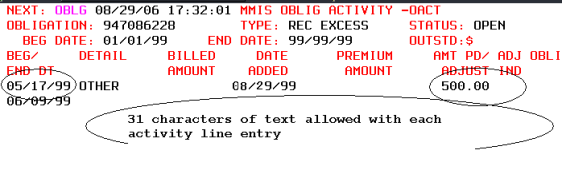
10. On the OACT screen, do the following:
Screen shot of OACT screen:
Verify your work and press F3 to save it.
If you need to exit and cancel all entries, press F6.
If you have another MHCP service to enter a recovery for, repeat this process starting from step 7.
III. Updating, changing, or adding additional entries to an existing recovery
You may need to update, change or add additional entries to an existing obligation. Examples of reasons you would need to do this include the following:
Use action code C (change) to update, change, or add additional entries to an existing obligation, as described in these steps:
1. Log in to MMIS. Select FINANCIAL CONTROL by entering an “X” to the left of that choice and press Enter.
2. At the OKEY screen, enter action code “C” and the obligation number or enter action code “C” and the recipient (member) ID in the “Recipient ID” field. Press Enter. This will bring you to the OBLG screen. Press Enter again. This will bring you to the OACT screen. Go to step 4.
3. If you do not know the obligation number or the recipient (member) ID: Enter action code “I” (inquire) and the obligation type or national provider identifier (NPI) name (your local agency name). Press Enter and review the results on the OSEL screen. The OSEL screen is a list of obligations. Find the obligation and write down the nine-digit obligation number. If you cannot find the obligation, then the previous entry adding the obligation may not have been saved (by pressing F3). Complete steps 1 and 2 by using the obligation number.
4. On the OACT screen, enter a new line with a begin date within the eligibility span entered on the OBLG screen.
For negative adjustments, entries of refunds or decreasing adjustments must meet these three requirements:
Example showing three entries followed by a refund of the third entry:
Begin Date | Amount |
03/01/09 | 20.00 |
04/01/09 | 20.00 |
05/01/09 | 50.00 |
05/01/09 | (50.00) |
Be sure to save any entries you made by pressing F3.
IV. Finding an existing recovery using action code I
To find an existing obligation, follow these steps:
1. Log in to MMIS. Select FINANCIAL CONTROL by entering an “X” to the left of that choice. At the OKEY screen, enter action code “I" and the obligation type or NPI name (your county name).
2. Review the results on the OSEL screen. To page forward, press F8. To page back, press F7.
3. Enter an “X” to left of the obligation that matches your criteria. Press Enter.
4. Review the results. To page forward to the OACT screen, press Enter again.
5. To exit inquiry at any point, press F6.


 Report this page