Revalidation
Revised: April 23, 2026
Overview
Minnesota Health Care Programs (MHCP) notifies providers when it is time to complete revalidation. Revalidation is a process that verifies that enrollment information is current, and credentials and requirements comply with state law.
All providers are required to complete revalidation at least one time every five years. Providers will receive a notice when it is time for revalidation and can expect to receive an initial revalidation notice as soon as 3 ½ years after the most recent revalidation or enrollment date.
To ensure efficient processing of revalidation paperwork for providers that are scheduled for revalidation, wait to send revalidation documents until you receive your initial revalidation notice.
Check the MN–ITS PRVLTR file regularly for important notices, including letters to notify you that you are due for revalidation. If you have not set up a MN–ITS mailbox, MHCP will send your notice of revalidation to the credentialing address listed on your enrollment record.
Review “Revalidating an Enrollment Record Using MPSE” (8 min., 8 sec.) for a demonstration of completing a revalidation using the Minnesota Provider Screening and Enrollment (MPSE) portal.
Review the training course “Step-by-Step Guide to MPSE Revalidation for MHCP Providers” for a detailed guide to the revalidation process in MPSE with screenshots and helpful links.
Steps to Complete Revalidation
Providers use the following steps to complete revalidation for an enrollment record in an organization portfolio or in their own individual portfolio. If you are responding to a revalidation due for an individual provider that is affiliated to an organization, follow the Steps to Update an Existing Organization to Individual Affiliation.
1. On the Manage Portfolio page in the MPSE portal, click the link labeled Manage Enrollment Records Due for Revalidations in the Revalidations section. This will open the Enrollment Records with a Revalidation In-Process page.
Screenshot of Revalidations section in the MPSE portal

2. On the Enrollment Records with a Revalidation In-Process page, review the Revalidations In-Process section for a list of enrollment records with a set revalidation due date. Find a list of the different revalidation statuses and outcomes applied to enrollment records on the General Information page of the MPSE user manual.3. Locate the enrollment record that you are revalidating and click the Create Enrollment Record Request link.4. This brings you to the Enrollment Record Information page. Go through each page of the enrollment record and update information as needed. Use the following links to find more information on how to interact with each page in the enrollment record.· Enrollment Record Information – General information about the enrollment record including phone number, electronic fund transfer information, remittance advice settings, and tribal affiliations· Addresses – Addresses for physical location, file location, and other mailing addresses· Provider Identifier – National Provider Identifier (NPI) or Unique Minnesota Provider Identifier (UMPI) number· Services – Services provided at this location· Credentials – Licensure, MHCP forms, and other credentials· Note: even if a provider has already uploaded a particular credential prior to revalidation, they will likely have to upload the same credential again as part of the MHCP revalidation process.· Fees – Fee payment information for initial enrollment, revalidation, and reinstatement· Many providers are required to pay a revalidation fee. Find more information about who is required to pay a fee on the Application Fees section of the Provider Manual.· Site Visits – Site visits performed by Minnesota, another state or Medicare· Agreements and Addendums – Provider agreements
Note: Certain provider types have additional pages for their enrollment records. Some pages will not need to be updated during the revalidation process.
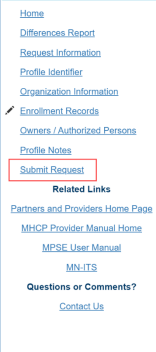
5. On the Manage Enrollment Records page, click Continue.6. On the Manage Owners and Authorized Persons page, review the owners and authorized persons lists and make sure all owners and authorized people in your agency are disclosed. Review the Owners and Authorized Person section of the MPSE user manual for steps to modify, add, or end individuals and businesses to a record. Click Continue when your review of this page is complete.7. Click on Submit Request in the Right-Side Navigation menu for MHCP to review.
Screenshot of MPSE right-side navigation
If there are errors associated with your request, you will need to resolve these before you can submit the request for approval.
8. Complete the attestations that pop up and click Submit for Approval.9. We strongly recommend that providers keep a record of the information they submitted. Use the Download All Documents button to download a zip file that contains a summary report of their revalidation and documents uploaded as part of the request. We also encourage providers to submit user feedback by selecting the MPSE Survey link.10. Click Continue to return to the Manage Portfolio page where you can start additional requests as needed.
Notes on Completing Your Revalidation:
· You can only have one enrollment record request per location with a request status of Draft or Pending Review at a time. If the enrollment record due for revalidation does not have the Create Enrollment Record Request link, review the Requests section of the Manage Portfolio page for an enrollment record request assigned to the enrollment record that needs to be revalidated. · Use the Help link in the top-right corner of the MPSE portal page for help with defining specific fields and requirements for the MPSE portal page you are in.
Screenshot of MPSE Help link


 Report this page