
Request Submitted and Next Steps
Revised: November 6, 2024
Overview
After submitting an MPSE Request in the Minnesota Provider Screening and Enrollment (MPSE) portal for approval, you should review your request in MPSE until the request is fully approved. As Minnesota Health Care Programs (MHCP) staff work on a request, they update the request status and outcome in MPSE.
A request in the MPSE portal can be assigned several statuses or outcomes during the process to approval. MPSE can display the following statuses after a provider submits a request in the MPSE portal:
Draft/Returned
If the request status displays Draft/Returned in the Status/Outcome column after you submit it, MHCP staff has reviewed the request, but we need something in the request corrected. MHCP will send a Request for More Information letter for any missing requirements or corrections with instructions for how to complete the request.
To make changes to the request when it is in Draft/Returned status, click the Edit button that appears in the Request Actions column of the Manage Portfolio page. If the Request for More Information letter requires changes to an enrollment record, click the Edit button that appears in the Actions column of the Enrollment Records – Modify Requests section to modify the enrollment record.
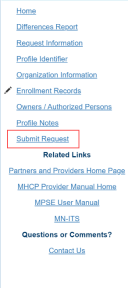
Once you have made all the corrections listed on the Request for More Information letter, use the Right-Side Navigation to click Submit Request. On the Submit Request page, complete the attestation(s) and click Submit for Approval.
Screenshot of MPSE right-side navigation
If you have questions about the information in a Request for More Information letter, call the Provider Resource Center and use Option 3 for enrollment questions.
Pending Review
If the request status displays Pending Review in the Status/Outcome column, you submitted the request successfully and it is waiting in the queue for MHCP staff to review. MHCP has 30 calendar days to review requests from the date the request was submitted. You will find the date the request was submitted displayed in the Submit Date column of the request on the Manage Portfolio page.
If the request has been in Pending Review status for more than 30 calendar days, call the Provider Resource Center and use Option 3 for enrollment questions.
If the request status displays Pending Review in the Status/Outcome column, sometimes a Pending Reason will appear next to it. Pending Reason options include Pending Site Visit, Pending Background Studies, or Pending Additional Information. The Pending Reason indicates what MHCP is waiting for to be able to continue processing the request.
Pending Review/Returned
If the request status displays Pending Review/Returned in the Status/Outcome column, MHCP returned the request to you due to missing information or corrections and you resubmitted the request to MHCP for another review. You do not need to take any action on a request with this status displayed.
In Review
If the request status displays In Review in the Status/Outcome column, MHCP is in the process of reviewing the request.
Complete/Approved
If the request status displays Approved/Complete in the Status/Outcome column, MHCP has approved the request. If you submitted this request to enroll with MHCP for the first time, you will receive a Welcome Letter in the U.S. Mail with further instructions. If you submitted this request to update existing enrollment information with MHCP, you will receive a summary report of your portfolio’s information in your MN-ITS mailbox. If you don’t have access to a MN-ITS mailbox, you will receive your summary report via U.S. Mail.
MPSE moves completed requests from the provider’s Manage Portfolio page to the completed requests section. To find completed requests once they have been moved, click the Completed Requests button at the bottom of the Manage Portfolio page and use the Search function located on that page.
Complete/Denied
If the request status displays Denied/Complete in the Status/Outcome column, MHCP has denied the request. MHCP will send a letter to your MN-ITS mailbox, or to the credentialing address on file if you do not have access to a MN-ITS mailbox. This letter will detail the denial reasons and instructions for how to appeal. You will have identified your credentialing address when you completed the Addresses section of MPSE.
MPSE moves completed requests from the provider’s Manage Portfolio page to the completed requests section. To find completed requests once they have been moved, click the Completed Requests button at the bottom of the Manage Portfolio page and use the Search function located on that page.
 Report this page