Individual Information
Posted: July 25, 2023
Overview
Your portfolio’s Individual Information page displays your name, date of birth and information related to your practice, such as fiscal year end date, and email address.
Follow the instructions below to update your Individual Information in the Minnesota Provider Screening and Enrollment (MPSE) portal.
Steps to Update Your Individual Information
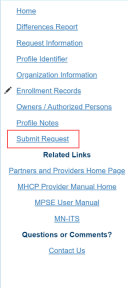
1. Once you have started a Global Request, the MPSE portal will take you to the Manage Profile Identifier page. 2. Using the Right-Side Navigation, click on the link for Individual Information.3. Update information as needed in the Individual Information section.a. The First, Middle, and Last name entered in this section should match the individual’s information with the Internal Revenue Service. If the person does not have a Middle Name, check the box indicating this next to the field.b. For the Self-Managed field, select Yes if you are personally managing your own individual information or select No if the portfolio is managed by the organization you work for.4. The Upload Supporting Documentation is optional but may make it easier for Minnesota Health Care Programs (MHCP) to verify your request. Click the Eye Icon and select a document to upload.5. If you wish to provide a note to MHCP for why you are requesting a change, you can do so by clicking the Edit link in the Reason for Change Note field.6. Click Continue to save your changes.7. There will now be four options available to you:a. If you need to make updates to the Portfolio Identifier page, follow the steps for Portfolio Identifier.b. If you need to make updates to the Owners and Authorized Persons page, follow the steps for Owner or Authorized Person.c. If the Individual Information is the only thing you want to change in this global request, you can use the Right-Side Navigation to click Submit Request to submit your request for approval.
Screenshot of MPSE right-side navigation

 Report this page