County Mailbox Application Quick Guide
Revised: July 23, 2026
The County Mailbox is an application within MN–ITS which contains:
· File type for uploaded health care renewals and supporting documentation submitted on the mn.gov/dhs/renewmycoverage webpage. · File type for documents received by Health Care Consumer Support (HCCS) which were transferred to the applicable processing county or tribe.
Assigning Access to the County Mailbox Application
1. Log in to LoginMN to access MN–ITS2. Select User Administration from the left menu3. Create a New User or Update an Existing PPA or User Account
NOTE: Primary Administrators (PAs) must assign County Mailbox privileges to themselves using the Update an Existing User ID process before giving other users access.
Using the County Mailbox Application
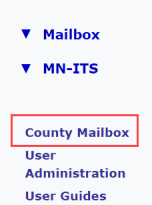
The user will find the County Mailbox link on the left-hand side of the MN–ITS home page after the user has been assigned access to the County Mailbox application.
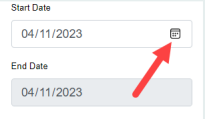
1. Pick a Start Date, which will filter the search results to display only files received on that date.
Note: Currently, End Date will be greyed out as searches can only be completed one day at a time.
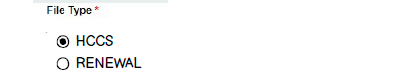
2. Select the file type you wish to view:· RENEWAL – Uploaded Health Care Renewals (and supporting documents)· HCCS – Documents transferred to the processing county or tribal nation by HCCS.
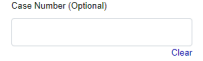
3. If you have a Case Number, it can be entered here to filter your results. If you want to see all results for a file type, leave the Case Number field blank.
NOTE: If a case number is not known for HCCS transferred documents, the case number will default to all zeros (that is, 0000000)
4. Click Search to display results.

5. Files uploaded to County Mailbox on the start date selected will display in the Search Results.
Example – Health Care Renewal Upload File Search Results:
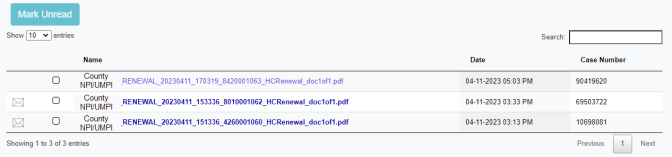
Example – HCCS File Transfer Search Results:

NOTES:
· File naming convention formats:
Health Care Renewal Upload File Name:
NPI or UMPI of county, renewal, date uploaded, time uploaded, confirmation number, HCRenewal (HC stands for health care), number of documents
HCSS Transferred File Name:
NPI or UMPI of county, HCCS, date uploaded, time uploaded, case number (if the case number is not known, all zeros)
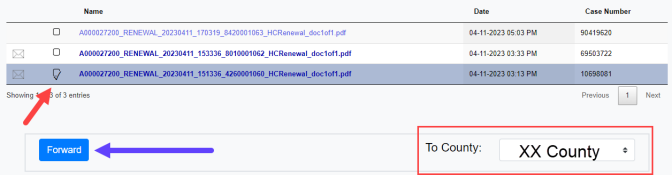
· Users can select a file by clicking on the box next to the file name.· An unread file will have the file name in bold and a symbol of an unopened envelope to the left of the file name. · A file will automatically be marked as read after it has been opened.· Users can mark a file as unread by selecting the box next to the file name and clicking the Mark Unread button.· Users can transfer the file to another county by selecting the box next to the file to be transferred, selecting the appropriate county from the list, and clicking the Forward button.
Create a New User
1. Go to LoginMN2. Select the MN–ITS tile from the Minnesota Partner Apps page3. Select User Administration from the left menu.4. Select the Create User button. 5. Complete required fields indicated with a red asterisk.6. Email address field: Enter the user’s work email address and confirm email address. Important note: Due to security risks of using shared accounts, LoginMN requires a unique work email addresses for MN–ITS access and not a shared email address as this will be the user’s log in.For example, use Jane.Biller@companyname.com instead of info@companyname.com.7. First Name: Enter the user’s first name8. Last Name: Enter the user’s last name9. MN–ITS Role: Select MN–ITS User or MN–ITS Secondary Admin (PPA) from the drop-down, as appropriate.10. MN–ITS Account Status: Select Active or Disabled from the drop-down.11. SFTP Status: Note: this step is only required if using SFTP. Secure FTP is used by batch billers to transfer and receive X12 and NCPDP Pharmacy data to and from DHS secure servers. Review Batch Submission User Guides to learn more. Select Active or Disabled from the radio buttons. *If you do not have the radio buttons but a message displays, follow the instructions in the message.12. User Access: Determine the appropriate Functions, Mailbox Folders and Applications/Forms/Lists to which you would like the user to have access. 13. Make sure both the boxes next to RENEWAL and HCCS in the County Mailbox section are selected.14. Select the Save on the bottom of the page to allow changes or the Cancel button to cancel the request. 15. A confirmation will display the newly created user ID.16. Inform the new user of their User ID.
Update an Existing PPA or User Account
1. Select User Administration2. Search by: Last name, first name, user ID or all in the drop-down. To limit the search results, select Last Name or First Name in the Search by drop-down and enter at least three letters of a user’s last or first name.3. Account status defaults to Active. You can change the selection from the drop-down to limit the search results. Options: All, active and disabled.4. Click the Search button.5. Search Result defaults to 10 entries per page. You can change the number of entries shown by clicking on the drop-down to 15, 25, or all. Sort the list, if necessary, by User ID, Full Name, Role or Account Status by selecting the column heading.6. Select the appropriate User ID in the left column of the list.7. Make appropriate changes in the user’s profile.8. Locate the County Mailbox in the User Access section and select the circle next to both RENEWAL and HCCS.9. Click Save at the bottom of the page to allow the change(s) or Cancel if you do not want to submit change(s).10. A confirmation notification will appear stating, “User Jane.Biller@businessname.com has been updated successfully.”
Note:
· Each MN–ITS user should log in with an individual User ID and password.· Do not share passwords or allow others to log in using your personal User ID or password.

 Report this page