Death Data Match User Guide
Revised: July 23, 2026
This User Guide instructs lead agencies how to access, view, retrieve and transfer Death Data Match information in the RECIPIENTFILE file type, in the Miscellaneous Received Mailbox.
About MN–ITS Mailbox
The MN–ITS Mailbox homepage now appears upon login. Items appear in four main folders.
· Links (default folder which includes Provider news and updates)· Miscellaneous Received (Recipientfile, service authorization/agreements, enrollment letters, reports, etc.) Death Data Match files are accessible for 90 days from the date they are placed into the Miscellaneous Received mailbox in the recipientfile file type.
Note: MN–ITS Administrators are able to restrict MN–ITS users access, which may reduce the number of Mailbox folders and file types that appear in an individual’s mailbox. Refer to the Death Data Match Create/Modify/Assign MN–ITS User Assess user manual.
To access and use the MN–ITS Mailbox:
1. Login to LoginMN to access MN–ITS2. Select Mailbox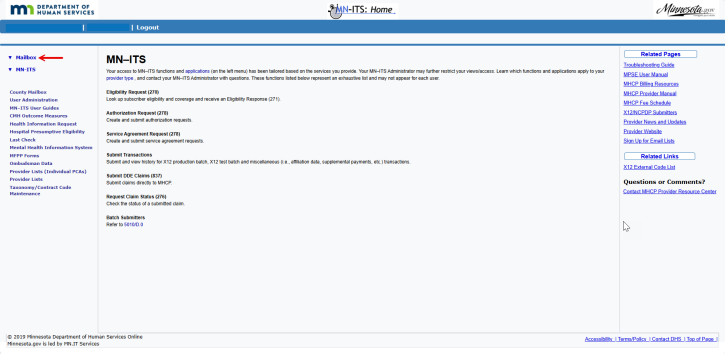
3. The landing page defaults to the Links folder, which contains Provider news and updates and other important information for your organization about any changes to coverage policy or billing procedures.
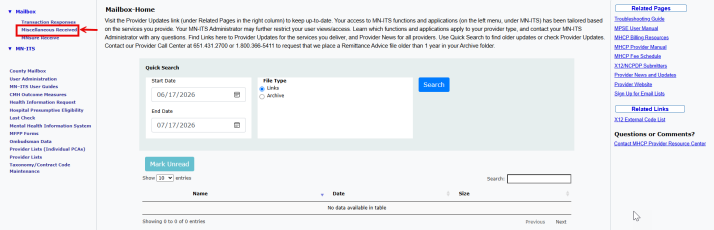
Use Miscellaneous Received
1. Select Miscellaneous Received in the left columnMN–ITS displays the number of files marked as “unread” in each mailbox file:
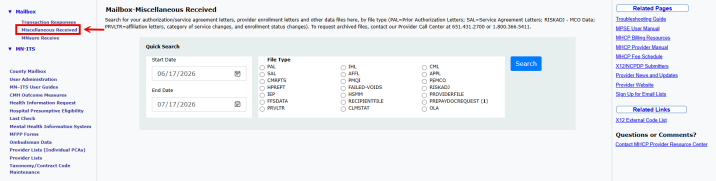
2. Select the date span that you are looking for in the Quick Search date fields.MN–ITS displays the number of files marked as “unread” in each mailbox file:
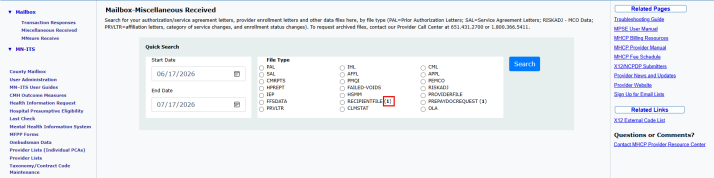
NOTE: File Type options may vary for different users based on the files sent to their mailbox. The File Type descriptions are as follows:
· SAL (service authorization letters)· PAL (prior authorization letters)· PRVLTR (provider affiliation letters)· POVIDERFILE (DHS/Provider datashare)· CMRPTS (MCO data)· CML (waiver/AC case manager authorization letters)· RECIPIENTFILE (death match documents)
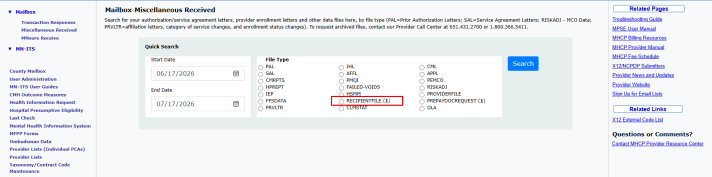
3. Select the RECIPIENTFILE file type from the options shown in the following image.
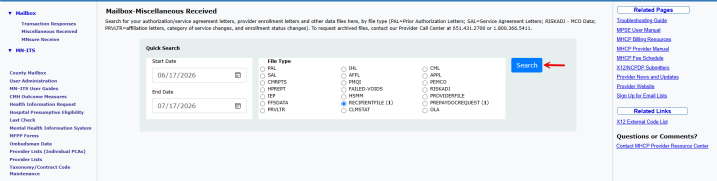
4. Select Search to display the items within the RECIPIENTFILE file.
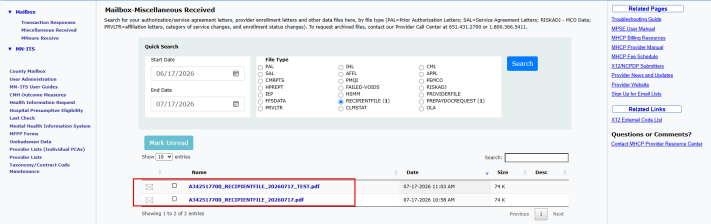
File Names
The files all follow the same name format.
The bolded items are unread. The non-bolded items have been read by you or someone else within your organization. The file items will display in order from the newest to the oldest unless you change the order.
5. Select the file link to open the file:
6. Select Open
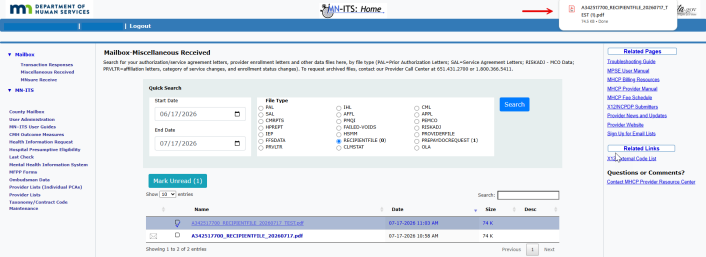
7. At the top of your browser, the File will open in PDF, Word, Excel, (depending on how the file was uploaded to the MN–ITS mailbox) and then select either Save As or Print depending on your internal workflow process.

Logging out of MN–ITS Mailbox
You may log out of MN-ITS mailbox anytime by selecting “Logout” in the upper left portion of the page located on the dark blue bar. This will bring you back to the MN–ITS Homepage.

Questions
If you have questions, follow these steps below:
1. Contact the MHCP Provider Call Center at 651-431-2700 or 1-800-366-5411.2. Enter the NPI/UMPI for your agency (this is the number after the @ sign of your MN–ITS user name.3. Select MN–ITS option 2.

 Report this page