
Access the long-term care (LTC) screening document
Page posted: 8/3/26
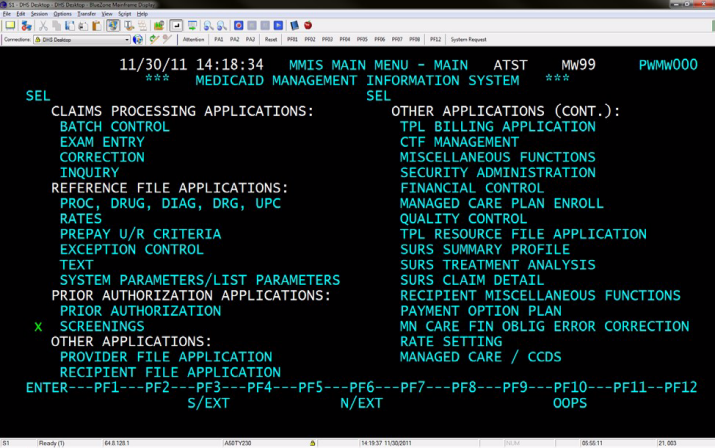
The LTC screening document is part of the prior authorization application subsystem in MMIS. To access the screening document:
1. Log into MMIS. For instructions, refer to MMIS LTSS Manual – Access to MMIS.
2. Move the cursor to screenings on the main menu.
3. Type X.
3. Press the transmit key to open the SCRNG (screening) key panel screen.
Figure 1: Main menu with X next to the screenings line.
Screening document (SCRNG) key panel
You can use the SCRNG key panel to:
Figure 2: MMIS SCRNG KEY PANEL - ASCR screen.
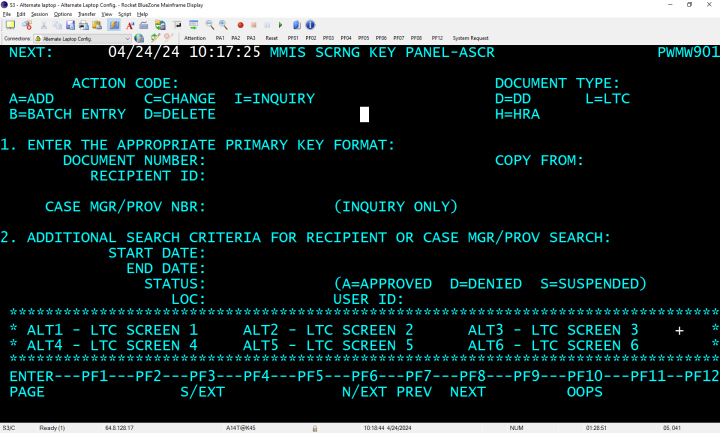
When you are on the SCRNG key panel, you can:
1. Complete the ACTION CODE field based on the action you need to take:
Note: Action code C (change) works the same as action code A (add) when you work with a copy of a previously saved screening document.
2. Complete the DOCUMENT TYPE field using L for LTC screening document.
Note: Managed care organizations (MCOs) now use MnCHOICES to complete HRAs. Previously, MCOs entered HRAs into MMIS with document type H, so you might notice these types of screening documents in a person’s screening document history.
3. Enter the appropriate primary key format using either:
Note: Use the person’s person master index (PMI) number as the recipient ID.
4. Press the transmit key to open either the ALT1 screen or the ASEL (selection) screen for the person.
Use additional search criteria on the key panel
The SCRNG key panel has an additional search criteria section. You can select criteria to narrow the search for screening documents by using:
If no documents meet the additional criteria you specified, a message will appear when you press the transmit key (e.g., “No documents meet the selection criteria”).
For information about how to use the SCRNG key panel screen to identify and retrieve suspended LTC screening documents, refer to MMIS LTSS Manual – Use inquiry mode with an LTC screening document.
Screening document selection screen
The screening document selection screen will only appear when the person has more than one screening document saved in MMIS. The ASEL screen will appear when you:
The screening document selection screen allows you to choose a specific saved document for inquiry. A + or - (plus or minus) sign in the bottom right corner indicates there are more saved screening documents than can appear on the first screen. Press F8 to scroll forward and F7 to return to the previous screen’s list of documents or scroll backward within the list of documents.
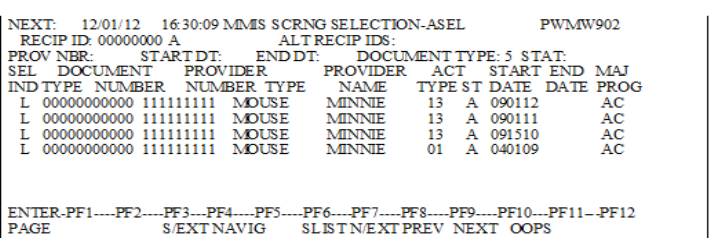
Figure 3: The MMIS screening selection screen called ASEL. This example shows screening documents for the Alternative Care (AC) program.
The selection screen shows the following column headings, from left to right:
Select a document for review (i.e., inquiry)
DHS recommends using inquiry first when you start to work in LTC screening documents to determine if the person has existing, saved screening documents in MMIS. For instructions, refer to MMIS LTSS Manual – Use inquiry mode with an LTC screening document.
For instructions to add an initial screening document or use a copy of the person’s last saved screening document, refer to MMIS LTSS Manual – Enter an LTC screening document.
For instructions to delete certain screening documents previously saved in MMIS, refer to MMIS LTSS Manual – Delete an LTC screening document.
Additional resources
MMIS LTSS Manual – Access to MMIS
MMIS LTSS Manual – Assessment results and program types
MMIS LTSS Manual – Delete an LTC screening document
MMIS LTSS Manual – Enter an LTC screening document
MMIS LTSS Manual – Route an LTC screening document for additional approval
MMIS LTSS Manual – Use inquiry mode with an LTC screening document
 Report this page