New Organization Provider Enrollers
Revised: July 26, 2023
Overview
Minnesota Health Care Programs (MHCP) requires that all providers enroll with MHCP prior to providing MHCP services to members. Providers can use the Minnesota Provider Screening and Enrollment (MPSE) portal to complete enrollment.
The information that MPSE requires you to enter in the program will be different based on your organizations’s provider type and the services your organization provides This means the enrollment questions may be different for different types of organizations. MPSE will show an asterisk (*) next to the field name for fields you are required to complete.
Use the Help link in the top right, corner of each MPSE portal page for help with defining specific fields and requirements for the MPSE portal page you are in.
Screenshot of MPSE Help link

Steps to Enroll as as Organization Provider
1. At the bottom of the Manage Portfolio page, which is the landing page for the MPSE portal, click Create a New Profile Request.2. Enter in the desired Request Effective Date. This is your application date. Click Continue.3. Complete the Profile Identifier section. a. Select Organization for the Portfolio Type. (If you are an individual provider, use the steps for New Individual Provider Enrollers).b. Enter either a Social Security Number (SSN) or federal employer identification number (FEIN). A provider can enter both.c. If an error message appears stating that the FEIN or SSN is already in use, follow the instructions in Retrieve Portfolio.d. Once you have added all the information you need, click the Continue button at the bottom of the page to save your information and move to the next page in the MPSE portal.4. Complete the Organization Information section.a. The Legal Name and Ownership Type you enter on this page must match the records with the Secretary of State in Minnesota. b. Once you have added all the information you need, click the Continue button at the bottom of the page to save your information and move to the next page in the MPSE portal.5. On the Manage Enrollment Records page, click on Add a New Enrollment Record at the bottom, left side of the page.6. On the Enrollment Record Information page, complete the information in the Enrollment Record Information section and the Tribal Information section.a. The field options and requirements will change based on the Enrollment Record Type that you select. Note that available services and required credentials found on other pages in the portal are also based on the Enrollment Record Type you select.b. You cannot select fields that are grayed out. These fields are for MHCP use or informational purposes only. Some examples include the Medicaid Agreement Indicator field, Risk Level field, and EFT Effective Date field. Depending on the selected Enrollment Record Type there may be additional fields that are grayed out and for MHCP use only.c. For more information about the EFT Vendor Number and EFT Vendor Location Code fields, refer to the Electronic funds transfer (EFT) or direct deposit section of the MHCP Provider Manual. Here you can enroll to receive payments for approved claims electronically.d. Once you have added all the information you need, click the Continue button at the bottom of the page to save your information and move to the next page in the MPSE portal.7. Complete the Physical Practice Address section.a. There are two columns in the Physical Practice Address section. Click the items in the Available Address Usage Types column that apply to the address entered on this page. This will move the items to the Selected Address Usage Types column.
MPSE section to select address usage types
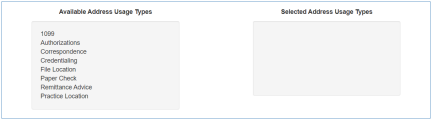
b. You are required to move Practice Location to the Selected Address Usage Types column. Select all other applicable items in the Available Address Usage Types that can be used for the address on this page. If the enrollment record requires separate addresses to be added for any of the other items in the Available Address Usage Types column, leave the applicable item(s) in the Available Address Usage Types column. c. Once you have added all the information you need, click the Continue button at the bottom of the page to save your information and move to the next page in the MPSE portal.8. Skip to Step 14 if you did not leave items in the Available Address Usage Types in Step 7. If there were items left in the Available Address Usage Types in Step 7, continue to Step 9.9. On the Manage Mailing Addresses page, click Add a Mailing Address.a. There are two columns in the Mailing Address section. Click the name of the items in the Available Address Usage Types column that applies to the address entered on this page. This will move the items to the Selected Address Usage Types column. b. Select all the applicable items in the Available Address Usage Types that can be used for the address on this page. If the enrollment record requires separate addresses to be added for any of the other items in the Available Address Usage Types column, leave the applicable item(s) in the Available Address Usage Types column. You will be able to add up to two mailing addresses. If you do not add File Location to the Selected Address Usage Types field in the Mailing Address section, you will be required to enter that address on a separate page in Step 13. c. Once you have added all the information you need, click the Continue button at the bottom of the page to save your information and return to the Manage Mailing Addresses page.10. Repeat Step 9 if you need to add additional mailing addresses or continue to Step 11. 11. Once you have added all the Mailing Addresses you need, click the Continue button at the bottom of the page to save your information and move to the next page in the MPSE portal.12. Skip to Step 14 if the Manage File Location Address page does not appear for you. The Manage File Location Address page only appears if File Location was not added to the Selected Address Usage Types column in either Step 7 or Step 9.13. On the Manage File Location Address page, complete the fields in the File Location Address section, and click Continue to go to the next page in the MPSE portal.14. At the bottom of the Provider Identifiers section, click Add a Provider Identifier.a. If you have a National Provider Identifier (NPI) from the National Plan and Provider Enumeration System (NPPES), enter your NPI in the NPI/UMPI field. If you do not have an NPI number, click Yes next to the Use UMPI field.b. The Effective Date is either the date your NPI was effective or is the date you are requesting your unique Minnesota provider identifier (UMPI) to be made effective.c. The Active field is for MHCP staff use only and you will not be able to select it.d. You can learn more about getting a provider identification number on the Enroll with MHCP section of the Provider Manuale. Once you have added or updated all the information you need, click the Continue button at the bottom of the page to save your information and move back to the Provider Identifiers page in the MPSE portal.15. From the Provider Identifiers page. Click the Continue button at the bottom of the page to save your information and move to the next page in the MPSE portal.16. On the Manage Services page, review the Enrollment Record Type Default Service Categories section to see a list of services that are automatically applied based on the Enrollment Record Type selected in Step 6. If there are no additional services to add for this provider, skip to Step 19.17. If there are other services you provide that are not listed on the Manage Services page for this enrollment record, add additional services by clicking the Add a Service button at the bottom of the page. a. Select the Service Name from the list provided and select a Service Begin Date. Note that Service End Date should not be entered at this time as that indicates that the service is no longer being provided.b. Once you have added the information you need, click the Continue button at the bottom of the page to save your information and move back to the Manage Services page in the MPSE portal.18. Repeat Step 17 until all services you provide have been added. Note that the services you added appear in the Provider Specialty and Packaged Services section of the Manage Services page of the MPSE portal. 19. Click the Continue button at the bottom of the Manage Services page to save your information and move to the next page in the MPSE portal.20. The Manage Medicare Enrollment Information page only appears if you answered Yes to the question “Are you, or is this facility enrolled with Medicare?” in Step 6. If you answered No in Step 6, Skip to Step 24.21. At the bottom of the Manage Medicare Enrollment Information, click the Add Medicare Enrollment Information button.22. In the Medicare Enrollment Information section, answer the required questions.a. The Medicare ID Number you enter must already be enrolled with Medicare. Do not enter a number here if you have not completed the process to enroll in Medicare.b. Once you have added the information you need, click the Continue button at the bottom of the page to save your information and move back to the Manage Medicare Enrollment Information page in the MPSE portal.23. Click the Continue button at the bottom of the Manage Medicare Enrollment Information page to save your information and move to the next page in the MPSE portal.24. The Manage Tribes page only appears if you answered Yes to at least one of the questions in the Tribal Information section in Step 6. If you selected No to both questions in the Tribal Information section of the Enrollment Record Information page in Step 6, Skip to Step 27.25. At the bottom of the Manage Tribes page, click Add a Tribe.a. Complete the required information in the Manage Tribes section.b. Once you have added the information you need, click the Continue button at the bottom of the page to save your information and move back to the Manage Tribes page in the MPSE portal.26. Click the Continue button at the bottom of the Manage Tribes page to save your information and move to the next page in the MPSE portal.27. Answer the questions in the Additional Enrollment Questions section. a. Questions on this page are added to your public-facing provider portfolio. An answer is required for each question on the page. If a question on this page does not apply to you, either select No if the option is available, or type N/A in the provided box.b. Click the Continue button at the bottom of the page to save your information and move to the next page in the MPSE portal.28. On the Manage Credentials page, carefully review the required credentials, if any exist. Review the following information on how to know if there are required credentials for your enrollment.a. The Credentials section in the MPSE portal has a built-in guidance system that appears as a yellow box in the middle of the Manage Credentials page. b. If there is no yellow text box, the yellow text box is empty, or the only items in the yellow text box are marked as optional, skip to Step 32.c. This guidance system uses the Enrollment Record Type selected in Step 6 and the selections made on the Services page in Steps 16 through 19 to determine the credentials you are required to have. If you do not have the required credentials, review those previous steps to ensure your selections are accurate before continuing with your enrollment application. d. Some credentials that you are required to add in this section will be MHCP electronic forms. You can access these forms at E-Docs Searchable Document Library.e. You can learn more about the credentials required in the Enroll with MHCP section of the Provider Manual and reviewing the appropriate enrollment page for your provider type.f. The MPSE credentials guidance is laid out as a list of options available for you to meet enrollment requirements. In the following example, the box labeled Requirement Criteria lists the enrollment record type and service that determine the options available for meeting the credential requirements. The box labeled Option 1 indicates that all the items that follow it are required. The box labeled Option 2 indicates that only one of the items that follow it are required for verification. It is important to review these sections carefully as each credentialing requirement has its own specifications for being met.
Example of MPSE requirements yellow box
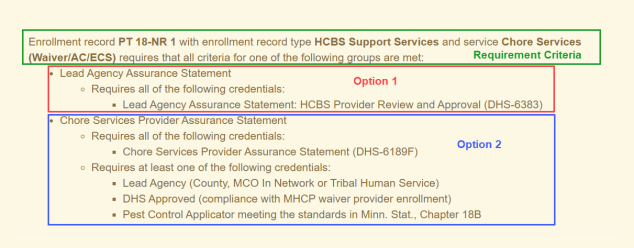
29. If there are required credentials, or you need to add any optional credentials, click Add a Credential at the bottom of the Manage Credentials page. Take careful note of the credential you are going to add in this step because the credential selection screen mirrors the content in the yellow box, but you will not have access to the yellow box when selecting the credential.a. Select the appropriate credential listed in the yellow box from the previous page. Note that you can only select one credential at a time. If needed, there is a search bar above the available credentials that you can use to filter through the credential options.b. Click Continue at the bottom of the page to be taken to the Manage Credential page to enter in additional details about this credential.30. On the Manage Credential page, complete the required fields. a. Required fields have an asterisk (*) next to the field name. It is important to only complete the required fields as these pages impact the credentials guidance system.b. Once you have added all the information you need, click the Continue button at the bottom of the page to save your information. This will take you back to the Manage Credentials page.31. Repeat Steps 29 through 31 until all required credentials and optional credentials you wish to add are in the Credentials section of the Manage Credentials page.32. On the Manage Credentials page, click the Continue button at the bottom of the page to save your information and move to the next page in the MPSE portal.33. On the Manage Fees page, review the application fee section of the MHCP provider manual to see if your provider type requires an application fee. a. If your provider type does not require a fee, skip to Step 35.b. If an application fee is required, the fee can be paid on the MHCP Provider Screening Fee Collections System. c. After paying your application fee, continue to the next step.34. On the Manage Fees page, click Add Fee Payment Information.a. Complete the Fee Information section.b. If you paid your application fee using the MHCP Provider Screening Fee Collections System, select Minnesota in the Fee Payment Type field. If you paid your fee to another state or to Medicare within the past 5 years, select Medicare or the State Name in the Fee Payment Type field.c. Once you have added all the information you need, click the Continue button at the bottom of the page to save your information. This will take you back to the Manage Fees page.35. On the Manage Fees page, click Continue to move to the next page in the MPSE portal.36. On the Manage Site Visits page, if you do not have proof of a site visit performed by Medicare or another state’s Medicaid program, click Continue to move to the next page in the MPSE portal and skip to Step 37.a. If you have proof of a site visit performed by Medicare or another state’s Medicaid program, click Add Site Visit.b. Use the drop down list in the Referred To/Performed By field to select the state that performed the site visit, or select medicare if medicare performed the site visit.c. Enter the Completion Date of the site visit.d. Click on the Eye Icon to upload proof of the completed site visit.e. Click Continue to return to the Manage Site Visits page.f. Click Continue to move to the next page in the MPSE portal.37. The Manage Facility/Agency Identifiers page is for office use only. Click Continue at the bottom of the page to move to the next page in the MPSE portal.38. On the Manage Agreements/Addendums page, review the Required But Missing Agreements/Addendums section. This section indicates any agreements or addendums that may be required as part of your enrollment but your organization has not yet uploaded to the enrollment record. Once you have uploaded the required agreement(s) or addendum(s), the Required But Missing Agreements/Addendums section will automatically be updated.
Example of MPSE message that appears if documents are required

39. At the bottom of the Manage Agreements/Addendums page, click Add Agreement/Addendum.a. Complete the fields with an asterisk (*) next to the field name. Note that the Digital Signature and Signers Title should be signed by the person with the authority to sign agreements or addendums, and the Signature Date should be the date the agreement or addendum was uploaded in MPSE. The person uploading the document in MPSE may or may not be the same as the person signing the actual agreement or addendum.b. Once you have added all the information you need, click the Continue button at the bottom of the MPSE page to save your information and return to the Manage Agreements/Addendums page40. Repeat Step 39 until the Required But Missing Agreements/Addendums section has disappeared from the Manage Agreements/Addendums page.41. At the bottom of the Manage Agreements/Addendums page, click Continue to move to the next page in the MPSE portal. 42. On the Manage Limiting Caseload page, you can submit forms to limit their acceptance of new MHCP members to your practice while remaining in compliance with Rule 101. If this applies to you, complete the information on this page. If this does not apply to you, click Continue at the bottom of the page to move to the next page in the MPSE portal.43. You can use the Manage Notes page to communicate information to MHCP that you cannot communicated in other areas of the enrollment application. It is optional to add a note. If you choose to not add a note, skip to Step 45.44. Click Add a Note at the bottom of the Manage Notes page.a. Enter your Note Text.b. Click Continue at the bottom of this page to go back to the Manage Notes page.45. At the bottom of the Manage Notes page, click Continue to move to the next page in the MPSE portal.46. The Manage Enrollment Status page is for MHCP staff use only. Click Continue at the bottom of the page to move to the next page in the MPSE portal.47. You will not use the Manage Revalidations page during the initial enrollment. Click Continue at the bottom of the page to move to the next page in the MPSE portal.48. The Manage Service Provider to Trading Partner Affiliations page is optional. Providers who choose to affiliate themselves to a trading partner must add the organization they are being affiliated to. If you choose not to affiliate your enrollment record to a trading partner, skip to Step 50.49. At the bottom of the Manage Service Provider to Trading Partner Affiliations page, click Create New Affiliation.a. Enter the NPI or UMPI of the trading partner you are affiliating the enrollment record to and click Search at the bottom of the page.b. If an organization matching the entered NPI or UMPI is enrolled with MHCP, their enrollment record will appear in the Search Results section of this page.c. Click Select in the User Actions column of the Search Results section. Note that, depending on the size of your browser window, you may need to scroll the search bar on the right to see this column.d. Complete the Affiliation Information section of this page.e. Once you have added the information you need, click the Continue button at the bottom of the page to save your information and return to the Manage Service Provider to Trading Partner Affiliations page in the MPSE portal.50. At the bottom of the Manage Service Provider to Trading Partner Affiliations page, click Continue to move to the next page in the MPSE portal. 51. On the Manage Enrollment Records page, you have two options:a. If you have more than one business location that provides a service, you must enroll each business location. To add additional enrollment records to your profile request, follow Steps 5 through 50 of this organization provider enrollment guide.b. If you are finished adding all your enrollment locations, click Continue at the bottom of the Manage Enrollment Records page.52. On the Manage Owners/Authorized Persons page, click the Help link in the top, right corner of the MPSE page to review the overview section of the Manage Owners/Authorized Persons page to get details about MHCP requirements for reporting owners in this section. 53. At the bottom of the Manage Owners/Authorized Persons page, there are four available options:a. If your organization has an owner that is a person with 5% or more direct or indirect controlling interest, follow Steps 54 through 63.b. If your organization has an owner that is a business with 5% or more direct or indirect controlling interest, follow Steps 64 through 70. c. If your organization does not have an owner with 5% or more direct or indirect controlling interest, follow Step 71.d. If you are finished reporting your owners, continue to Step 72 to add your authorized persons.54. At the bottom of the Manage Owners/Authorized Persons page, click Add a Person to add an owner.a. In the Owner/Authorized Person Name section, the First Name, Middle Name, and Last Name entered must match the individual’s records with the Internal Revenue Service (IRS). b. Middle Name is required unless the individual does not have a middle name with the IRS. If the Middle Name is not applicable, check the box indicating this next to the field.c. Once you have added all the information you need, click the Continue button at the bottom of the page to save your information and move to the next page in the MPSE portal.55. On the Manage Owners/Authorized Person Roles page, click Add a Role Type for the owner you have added.a. In the Owner/Authorized Person Role Type section, select Owner Managing Interest from the list.b. Click the Continue button to save your information and move to the next page in the MPSE portal.c. Complete the Owner/Authorized Person Role Information section. Do not enter the End Date at this time.d. Click the Continue button to save your information and move to the next page in the MPSE portal.56. On the Manage Owners/Authorized Person Roles page, click Continue.57. Complete the Owner/Authorized Person Detail section.a. Required fields have an asterisk (*) next to the field name.b. NPI/UMPI is an optional field. If you enter an NPI/UMPI in this field, make sure it is a type 1 NPI/UMPI which are for individuals, not organizations.c. The Residential Address section should be completed with the owner’s personal residential address information.d. If the owner is related to another owner or authorized person, you must disclose this in the Relationship Information section by clicking on the relationship type in the Available Relationship Types box. If this does not apply to the owner, you can skip this section.e. Once you have added the information you need, click the Continue button at the bottom of the page to save your information and move to the next page in the MPSE portal.58. On the Owners/Authorized Person Training Courses page, some provider types are required to add training courses for their owners and authorized employees. You can find more information about training course requirements on the specific enrollment page for your provider type in the Enroll with MHCP part of the MHCP Provider Manual.a. If you do not need to add training courses for the owner, skip to Step 59.b. Click Add a Course.c. Select the Course Name from the list and click Continue.d. Complete the Owners/Authorized Persons Training Course Information sectione. Click Continue to return back to the Owners/Authorized Persons Training Courses page.f. If additional training courses need to be added for this person, repeat Step 58.g. Click Continue to return to the next page in the MPSE portal.59. On the Owners/Authorized Person Training Courses page, click Continue.60. On the Manage Owner/Authorized Person Background Studies page, click Continue.61. On the Owner/Authorized Person or Business Residential Properties page, owners of personal care assistance provider agencies are required to disclose any locations they own, manage, or lease that are used or could be used for providing home care services. If this does not apply to you, skip to Step 62.a. Click Add a Residential Property.b. Complete the Owner/Authorized Person or Business Residential Property Information section.c. Complete the Owner/Authorized Person or Business Residential Address section.d. Click Continue to return back to the Owner/Authorized Person or Business Residential Properties page of the MPSE portal.62. On the Owner/Authorized Person or Business Residential Properties page, click Continue.63. On the Manage Owners/Authorized Persons page, return to Step 53. 64. At the bottom of the Manage Owners/Authorized Persons page, click Add a Business.65. On the Manage Owner/Authorized Business page, complete the Owner/Authorized Business section and the Business Address section. Once complete, click Continue at the bottom of the page.66. On the Manage Owners/Authorized Business Roles page, click Add a Role Type.a. In the Owner/Authorized Business Role Type section, select a Role Type from the list.b. Click Continue to move to the next page in the MPSE portal.c. Complete the Manage Owner/Authorized Business Role Information section. Do not enter the End Date at this time.d. Click Continue to move to the next page in the MPSE portal.67. On the Manage Owners/Authorized Business Roles page, click Continue.68. On the Owner/Authorized Person or Business Residential Properties page, owners of personal care assistance provider agencies are required to disclose any locations they own, manage, or lease that are used or could be used for providing home care services. If this does not apply to you, skip to Step 69.a. Click Add a Residential Property.b. Complete the Owner/Authorized Person or Business Residential Property Information section.c. Complete the Owner/Authorized Person or Business Residential Address section.d. Click Continue to return back to the Owner/Authorized Person or Business Residential Properties page of the MPSE portal.69. On the Owner/Authorized Person or Business Residential Properties page, click Continue.70. On the Manage Owners/Authorized Persons page, return to Step 53. 71. At the bottom of the Manage Owners/Authorized Persons page, click Confirm No Owner Role.a. In the Confirm No Owner Role section, complete the Enter your Name and Signature Date fields and click Continue to return to the next page in the MPSE portal.72. In the previous steps, you added owners to your enrollment record. In the following steps, you will add any other authorized person for your organization or add additional required roles to the owners you added in the previous steps. Review the Required But Missing Role Type(s) section on the Manage Owners/Authorized Persons page.
Example of Required But Missing Role Type(s) Section
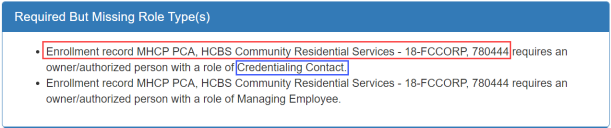
In this example, the red box shows the enrollment record that requires the role type. The blue box shows the role type that the enrollment record requires. This is important as some role types are specific to an enrollment record and the requirement(s) will not allow you to continue until the instructions are followed successfully.
73. On the Manage Owners/Authorized Persons page, you have three options:a. If you have added all the applicable Role Types for your owners and authorized persons, continue to Step 94.b. If the person you want to assign a Required But Missing Role Type to has already been added to the Owners/Authorized Persons – Modify Requests section, follow Steps 74 through 83.c. If the person you want to assign a Required But Missing Role Type to has not been added to the Owners/Authorized Persons – Modify Requests section, follow Steps 84 through 93.i. Note – Never add a person more than once. A person may have multiple role types but should only ever have one row on the Manage Owners/Authorized Persons page. Failure to follow this requirement will result in errors being displayed on your enrollment application.74. On the Manage Owners/Authorized Persons page, click View/Edit in the User Actions column associated with the person.a. On the Owner/Authorized Person Name page, click Continue.75. At the bottom of the Manage Owner/Authorized Person Roles page, click Add a Role Type.a. In the Owner/Authorized Person Role Type section, select the appropriate Role Type from the list and click Continue.b. Complete the Owner/Authorized Person Role Information section. Do not enter the End Date at this time. c. Click Continue to return to the Owner/Authorized Person Roles page.76. Repeat Step 75 until all Role Types for this person has been added. Once you have added all desired Role Types, continue to the next step.77. On the Manage Owner/Authorized Person Roles page, click Continue to move to the next page in the MPSE portal.78. On the Manage Owner/Authorized Person Detail page, complete the Owner/Authorized Person Detail section, the Residential Address section, and the Relationship Information section of this page for any authorized person. a. The Relationship Information section is only needed in specific circumstances. There are detailed instructions in this section for when this section is required in the blue box under the title of this section.b. Once you have added all the information you need, click the Continue button at the bottom of the page to save your information and move to the next page in the MPSE portal.79. On the Owners/Authorized Person Training Courses page, some provider types are required to add training courses for their owners and authorized individuals. More information about training course requirements can be found on the specific enrollment page for your provider type in the Enroll with MHCP part of the MHCP Provider Manual.a. If you do not need to add training courses for an authorized person, skip to Step 80.b. Click Add a Course.c. Select the Course Name from the list and click Continue.d. Complete the Owners/Authorized Persons Training Course Information sectione. Click Continue to be brought back to the Owners/Authorized Persons Training Courses page.f. If additional training courses need to be added for this person, repeat Step 79.g. Click Continue to be brought to the next page in the MPSE portal.80. On the Owners/Authorized Person Training Courses page, click Continue.81. On the Manage Owner/Authorized Person Background Studies page, click Continue.82. On the Owner/Authorized Person or Business Residential Properties page, click Continue.83. On the Manage Owners/Authorized Persons page, return to Step 73. 84. At the bottom of the Manage Owners/Authorized Persons page, click Add a Person.a. In the Owner/Authorized Person Name section, the First Name, Middle Name, and Last Name entered must match the individual’s records with the Internal Revenue Service (IRS). b. Middle Name is required unless the individual does not have a middle name with the IRS. If the Middle Name is not applicable, check the box indicating this next to the field.c. Once you have added all the information you need, click the Continue button at the bottom of the page to save your information and move to the next page in the MPSE portal.85. At the bottom of the Manage Owner/Authorized Person Roles page, click Add a Role Type.a. In the Owner/Authorized Person Role Type section, select the appropriate Role Type for the authorized person you added from the list and click Continue.b. Complete the Owner/Authorized Person Role Information section. Do not add the End Date at this time. c. Click Continue to return to the Owner/Authorized Person Roles page.86. Repeat Step 85 until all Role Types for this person has been added. Once you have added all desired Role Types, continue to the next step.87. On the Manage Owner/Authorized Person Roles page, click Continue to move to the next page in the MPSE portal.88. On the Manage Owner/Authorized Person Detail page, complete the Owner/Authorized Person Detail section, the Residential Address section, and the Relationship Information section of this page for any authorized person. a. The Relationship Information section is only needed in specific circumstances. There are detailed instructions in this section for when this section is required in the blue box under the title of this section.b. Once you have added all the information you need, click the Continue button at the bottom of the page to save your information and move to the next page in the MPSE portal.89. On the Owners/Authorized Person Training Courses page, some provider types are required to add training courses for their owners and authorized employees. You can find more information about training course requirements on the specific enrollment page for your provider type in the Enroll with MHCP part of the MHCP Provider Manual.a. If you do not need to add training courses, skip to Step 90.b. Click Add a Course.c. Select the Course Name from the list and click Continue.d. Complete the Owners/Authorized Persons Training Course Information section.e. Click Continue to be brought back to the Owners/Authorized Persons Training Courses page.f. If additional training courses need to be added for this person, repeat Step 89.g. Click Continue to be brought to the next page in the MPSE portal.90. On the Owners/Authorized Person Training Courses page, click Continue.91. On the Manage Owner/Authorized Person Background Studies page, click Continue.92. On the Owner/Authorized Person or Business Residential Properties page, click Continue.93. On the Manage Owners/Authorized Persons page, return to Step 73. 94. At the bottom of the Manage Owners/Authorized Persons page, click Continue.95. You can use the Manage Notes page to communicate information to MHCP that you cannot communicated in other areas of the enrollment application. It is optional to add a note. If you choose to not add a note, skip to Step 97.96. Click Add a Note at the bottom of the Manage Notes page.a. Enter your Note Text.b. Click Continue at the bottom of this page to go back to the Manage Notes page.97. At the bottom of the Manage Notes page, click Continue to move to the next page in the MPSE portal.98. On the Submit Request page, review for any Request Errors that may appear. a. You will need to resolve any errors that appear prior to submitting the request. If there are errors listed, click the Go To link that appears next to the error to be taken to the MPSE page where the error can be resolved. Once the error is resolved, click Submit Request in the right-side navigation to return to the Submit Request page.b. If there are no errors listed on this page, complete the Attestation by reading the statement and then click the checkbox if you agree.c. At the bottom of the Submit Request page, click Submit for Approval. 99. On the Submission Approval page, there are a few features available to you:a. An optional survey where you can report your experience using the MPSE portal. We encourage you to take this survey as we continue to make updates and improvements to the MPSE portal.b. Contact the MHCP Provider Resource Center with any questions you may have.c. A Download All Documents button at the bottom of the page that you can use to download a zip file containing all documents that you uploaded as part of this enrollment application as well as a Summary Report, which is a detailed PDF containing all the information you submitted for your enrollment application.d. Click Continue at the bottom of this page to be taken to your Manage Portfolio page.
Enrollment Application Follow Up
After submitting the initial enrollment application using the MPSE portal, MHCP recommends logging into the MPSE portal at least once or twice per week to review the Status/Outcome of your request.
Example of a Submitted Request in the MPSE portal

· The Submit Date column on the left has the date your request was submitted · MHCP has 30 calendar days from the Submit Date of your request to process your application.· The Request Actions column has several actions you can take on your request.· The View Request link allows you to review the submitted items. Note that users will not be able to make changes to a request using this function.· The Revert To Draft link allows you to change the Status/Outcome to Draft which will then display an Edit link in the Request Actions column. Note that the Submit Date will change if a request is reverted to draft and resubmitted on a different day.· The Summary Report link allows you to download a PDF version of your submitted request.· The View Differences Report link is not useful in this scenario and you should not use this link.
Processing Timeline
The Status/Outcome column on the Manage Portfolio page of the MPSE portal indicates where your application is in the Processing Timeline.
· If it has been more than 30 calendar days since your Submit Date, and the Status/Outcome column still reads Pending Review, please contact the MHCP Provider Resource Center to request a ticket to be opened for Provider Enrollment. · If the Status/Outcome column changes to Draft - Returned, that means you need to take action on the request in some way. · You should be watch for a Request for More Information letter that MHCP sends through the U.S. Post Office when the Status/Outcome column changes to Draft – Returned status. The Request for More Information letter will detail missing items or items that need correction on your initial application. · If the Status/Outcome column reads Completed – Approved, that means that MHCP has processed and approved your application. · Look out for a Welcome Letter from MHCP detailing next steps you need to take. On the Manage Portfolio page, you can review your request at the bottom of the page to ensure that it was submitted properly. You will find other options for the request you submitted to delete, return it to draft status or print a summary report.

 Report this page