Recurring Items
Revised: June 6, 2024
· Overview · Portfolio/Profile Information· Enrollment Record Information· Warning Message· Expand/Collapse· Digital Signature
Overview
The Minnesota Provider Screening and Enrollment (MPSE) portal pages frequently contain fields that are for informational and navigational purposes only. These fields are designed to provide information to the user about where they currently are in the MPSE portal, provide warning to the user about specific actions, expand or collapse hidden sections, and provide information about sections that require uploader signatures.
Portfolio/Profile Information
The Portfolio/Profile Information section shows your portfolio and profile information. The information that appears in this section is informational only; you will not be able to make changes to it. There are two versions of the Portfolio/Profile Information sections. One version appears when the user is making a request, and the other version appears when the user is not in a request.
The portfolio/profile information that appears when you are making a request is your Source Portfolio Legal Name and Request Type.
· The Source Portfolio Legal Name box shows the legal name associated with your portfolio. If your portfolio type is organization, the organization’s legal name appears. If your portfolio type is individual, the individual’s full legal name appears in the format of first, middle, and last name. · The Request Type box shows the request type you selected when you first created the request.
Example of Portfolio/Profile Information section when in a request:

The portfolio/profile information that appears when you are not in a request is your Portfolio Legal Name, Profile Type, Assigned Reviewer and Last Update Date/Time.
· The Portfolio Legal Name box shows the legal name associated with your portfolio. If your portfolio type is organization, the organization’s legal name appears. If your portfolio type is individual, the individual’s full legal name appears in the format of first, middle, last name. · The Profile Type box always displays Master Profile.· The Assigned Reviewer box shows the name of the current user. · The Last Update Date/Time box shows the date and time that Minnesota Health Care Programs (MHCP) recorded any official change to your enrollment portfolio.
Example of Portfolio/Profile Information section when not in a request:

If there is a mistake in the information displayed in the Portfolio/Profile Information section, you need to create a request to make a change. Go to the MPSE Requests page for information on what type of request you need to make to update your information.
Enrollment Record Information
The Enrollment Record Information section shows information on the enrollment record you are viewing or changing. The information that appears in this section is informational only; you will not be able to make changes to it.
· The NPI/UMPI box shows the National Provider Identifier (NPI) or Unique Minnesota Provider Identifier (UMPI) associated with the enrollment record you are viewing.· The Practice/Provider Name box shows the practice or provider name associated with the enrollment record you are viewing. If you are an organization, the practice name associated with your enrollment record appears. If you are an individual provider, your individual provider name displays. · The Enrollment Record Type box shows the enrollment record type of the record you are viewing. More information about enrollment record types can be found on the Enrollment with MHCP provider manual page. · The Unique Display Name box shows the unique display name of the enrollment record you are viewing. The unique display name is chosen by the individual or organization and is used to help identify enrollment records from each other.
Example of Enrollment Record Information Section:

Warning Message
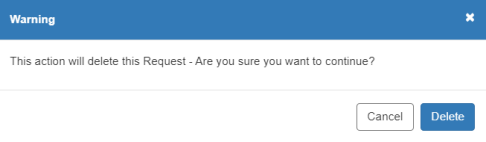
A warning message appears after you click Delete to delete any information that has been entered into MPSE. From the warning message, you can choose to cancel your action to delete the information, or to continue your action to delete the information.
· Click Cancel from the warning message to cancel the action to delete your information. This will close the warning message and keep your information. · Click Delete from the warning message to continue your action and delete your information. This will delete the information you have selected to delete and close the warning message.
Example of Warning Message in MPSE:
Expand/Collapse
Some sections within MPSE are expandable and collapsible. Depending on the default settings of that section, you may need to expand the section to view the contents.
· Click plus (+) to expand a collapsed section. This will allow you to view the content in that section.· Click minus (-) to collapse an expanded section. This will close the section and only the title of the section will show.
Plus Button in MPSE:

Minus Button in MPSE:

Digital Signature
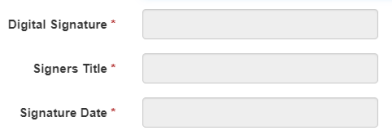
A digital signature is an attestation that the information you provided on the MPSE page is correct. It should be completed by the individual who is completing the application.
· The Digital Signature box is your full legal name in the format of first, middle and last name. · On pages where an upload is required along with a digital signature, you must type in your digital signature on the same day that you upload your document. The Digital Signature box is enabled only on the same day as your upload. · A digital signature in MPSE does not replace the requirement for an enrolling provider to sign provider agreements and addendums, MHCP forms, and assurance statements that enrolling providers are required to upload to MPSE. · The Signers Title box contains your professional title. · For example, if your working title is office administrator, you will type “office administrator” in the Signers Title box. · Enter the date the document was uploaded to MPSE in the format of MM/DD/YYYY in the Signature Date box. · Your signature date cannot be a future date.
Example of Digital Signature Section:

 Report this page