
Navigating the MPSE Portal
Revised: April 13, 2026
Overview
The primary purpose of this page is to instruct users on how to navigate within the Minnesota Provider Screening and Enrollment (MPSE) portal. There are two ways to navigate within the portal that you can use interchangeably:
Right-Side Navigation
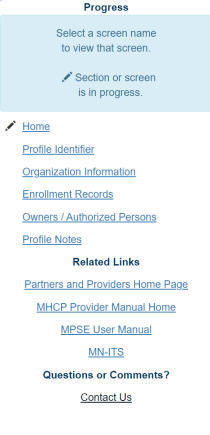
The Right-Side Navigation menu is a table of contents for the MPSE portal that always appears on the right side of the user’s screen. The right-side navigation allows you to go to specific pages within the MPSE portal when you know which page you want to view or update. Click on the link for the page in the right-side navigation menu to immediately move to that section of MPSE. The menu options presented in the Right-Side Navigation will change based on the following:
This means that the Right-Side Navigation Menu will change as different options are selected in the portal and your options may be different from another user’s options.
Links to specific pages in an enrollment record, and specific pages for an owner or authorized person, will not appear in the Right-Side Navigation until you click the View or Edit link associated with the enrollment record or owner or authorized person. You will find the View or Edit link in the User Actions column on the right on MPSE pages.
The Right-Side Navigation also contains links to external webpages. These external webpages include the Partners and Providers Home Page, the MHCP Provider Manual Home Page, the MPSE User Manual, a Contact Us link for the Provider Resource Center, and the MN–ITS Home Page.
Example of the Right-Side Navigation in the MPSE Portal
MPSE Page Buttons and Links
View/Edit Links
In MPSE pages with current enrollment record information listed, you will find the View/Edit link that allows you to open that section of MPSE to view or edit existing information. These links may also appear separated where it is just a View link or an Edit link. The View link shows information that cannot be updated. The Edit link takes the user to pages where information can be added or updated.
Continue Button
The Continue button is a static button that appears on every page of the portal. Use this button to move directly to the next page in the MPSE portal. The Continue button also serves as the save button. If you make any change to an MPSE page, always use the Continue button to ensure that your changes are saved in the program.
Cancel Button
Next to the Continue button, there is a Cancel button. Use the Cancel button to navigate to the previous screen in the MPSE portal. The Cancel button also deletes any updates you made to information on the MPSE page you were in.
Example of the Continue and Cancel Buttons in MPSE

 Report this page