Owner and Authorized Person
Revised: April 9, 2025
Overview
Minnesota Health Care Programs (MHCP) requires enrolling providers to disclose ownership and controlling interest in their business entity. This section of the Minnesota Provider Screening and Enrollment (MPSE) portal allows MHCP to collect the required ownership and managing interest information as part of your enrollment with us.
· Follow the Steps to add an owner or authorized person to add a new owner or person authorized to act on behalf of your practice. An ownership and authorized person video is also available to walk you through the steps.· Follow the Steps to add a business to add a new business to your practice.· Follow the Steps to update an owner or authorized person or business to update the owner or authorized person information already listed for your organization in MPSE. Or use these steps to end an owner or authorized person relationship with your organization.
If you need to upload training certificates for an owner and authorized person, watch the Uploading Training Certificates in MPSE video module.
Change of Ownership
Enrolled MHCP organization providers must disclose a change in ownership or controlling interest in the business. A change of ownership occurs when a business entity adds or removes a person or business that has a direct or indirect controlling interest of at least 5% or more in the business entity. Changes in ownership are a complicated process and may involve legal implications where professional assistance from an MHCP provider enrollment specialist is advised. Business entities that are reporting a change of ownership are strongly encouraged to call the Provider Resource Center prior to following the steps outlined on this page.
Change of Ownership is a Global Request
Making a request to change ownership information in MPSE is a global request. Only one global request can be in Draft or Pending Review status at a time. Do not submit your request until you have added and updated all the owner and authorized person information that is required. Failure to ensure all items are added and updated could cause delays in processing. You can add a profile note to the record to further explain any details of the ownership change that is occurring.
Changes in ownership may also require you to submit additional enrollment record requests to provide supporting documents for each of your enrolled sites.
Steps to Add an Owner or Authorized Person
1. Once you have started a Global Request, the MPSE portal will take you to the Manage Profile Identifier page. On the Manage Profile Identifier page, use the Right-Side Navigation and click on Owners/Authorized Persons. 2. At the bottom of the Manage Owners/Authorized Persons page, click Add a Person.a. Enter the First Name, Middle Name, and Last Name in the Owner/Authorized Person Name section. The name you enter must match the records with the Internal Revenue Service (IRS). b. Middle Name is required unless the individual does not have a middle name with the IRS. If the Middle Name is not applicable, check the box indicating this next to the field.c. Once you have added all the information you need, click the Continue button at the bottom of the page to save your information and move to the next page in the MPSE portal.3. On the Manage Owners/Authorized Person Roles page, click Add a Role Type.a. In the Owner/Authorized Person Role Type section, select the appropriate role type from the list.b. Click the Continue button to save your information and move to the next page in the MPSE portal.c. Complete the Owner/Authorized Person Role Information section. i. Note that some role types require providers to select the enrollment record the role type belongs to. If the role type applies to all available enrollment records, select Apply this role to all Enrollment Records, otherwise select the appropriate enrollment record from the list.d. Click the Continue button to save your information and move to the next page in the MPSE portal.4. On the Manage Owner/Authorized Person Roles page, if there are additional roles that you need to add for this person, repeat Step 3.5. On the Manage Owner/Authorized Person Roles page, click Continue.6. Complete the Owner/Authorized Person Detail section.a. Required fields have an asterisk (*) next to the field name. You will need to complete fields with an asterisk before the program will allow you to continue.b. NPI/UMPI is an optional field. NPI means national provider identifier and UMPI means unique Minnesota provider identifier. If you enter an NPI/UMPI in this field, make sure it is a type 1 NPI/UMPI which are for individuals, not organizations. Your NPI/UMPI type is identified when you apply for an NPI on the federal NPPES website.c. If required, enter the owner’s personal residential address information in the Residential Address section.d. If the owner/authorized person is related to another owner or authorized person, you must disclose this in the Relationship Information section by clicking on the relationship type in the Available Relationship Types box. If this does not apply to the person, you can skip the Relationship Information section.e. Once you have added the information you need, click the Continue button at the bottom of the page to save your information and move to the next page in the MPSE portal.7. The Owners/Authorized Person Training Courses page only appears for certain role types. If this page does not appear for the person you are adding, skip to Step 8. You can find more information about training course requirements on the specific enrollment page for your provider type in the Enrollment with MHCP section of the MHCP Provider Manual.a. Click Add a Course.b. Select the Course Name from the list and click Continue.c. Complete the Owners/Authorized Persons Training Course Information section.d. Click Continue to return to the Owners/Authorized Persons Training Courses page.e. If you need to add additional training courses for this person, repeat Step 6.f. Click Continue to be brought to the next page in the MPSE portal.8. On the Owners/Authorized Person Training Courses page, click Continue.9. The Owners/Authorized Person Background Studies page only appears for certain role types. If this page does not appear for the person being added, skip to Step 10.a. Click Add a Background Study Type.b. Complete the Owner/Authorized Person Background Study Type section.c. Click Continue.d. Complete the Owner/Authorized Person Background Study Information section.e. If you need to add additional background studies for this person, repeat Step 9.f. Click Continue to be brought to the next page in the MPSE portal.10. On the Owner/Authorized Person or Business Residential Properties page, owners of personal care assistance provider agencies are required to disclose any locations they own, manage, or lease that are used or could be used for providing home care services. If this does not apply to the person, skip to Step 11.a. Click Add a Residential Property.b. Complete the Owner/Authorized Person or Business Residential Property Information section.c. Complete the Owner/Authorized Person or Business Residential Address section.d. Click Continue to return to the Owner/Authorized Person or Business Residential Properties page of the MPSE portal.e. On the Owner/Authorized Person or Business Residential Properties page, click \.11. On the Manage Owners/Authorized Persons page, if you need to add additional owners or authorized persons, repeat Steps 2 through 10. 12. If there are no other people you need to add to the Owners/Authorized Persons – Master List, you can use the Right-Side Navigation to click Submit Request to submit your request for approval.
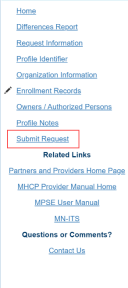
Screenshot of MPSE right-side navigation
Steps to Add a Business
1. Once you have started a Global Request, the MPSE portal will take you to the Manage Profile Identifier page. On the Manage Profile Identifier page, use the Right-Side Navigation and click on Owners/Authorized Persons. 2. At the bottom of the Manage Owners/Authorized Persons page, click Add a Business.3. On the Manage Owner/Authorized Business page, complete the Owner/Authorized Business section and the Business Address section. Once complete, click Continue at the bottom of the page.4. On the Manage Owners/Authorized Business Roles page, click Add a Role Type.a. In the Owner/Authorized Business Role Type section, select a Role Type from the list.b. Click Continue to move to the next page in the MPSE portal.c. Complete the Manage Owner/Authorized Business Role Information section. Do not enter an End Date at this time.d. Click Continue to move to the next page in the MPSE portal.5. On the Manage Owners/Authorized Business Roles page, click Continue.6. On the Owner/Authorized Person or Business Residential Properties page, owners of personal care assistance provider agencies are required to disclose any locations they own, manage, or lease that are used or could be used for providing home care services. If this does not apply to the business, skip to Step 7.a. Click Add a Residential Property.b. Complete the Owner/Authorized Person or Business Residential Property Information section.c. Complete the Owner/Authorized Person or Business Residential Address section.d. Click Continue to return to the Owner/Authorized Person or Business Residential Properties page of the MPSE portal.7. On the Owner/Authorized Person or Business Residential Properties page, click Continue.8. On the Manage Owners/Authorized Persons page, if you need to add additional businesses repeat Steps 1 through 8.9. If there are no other people or businesses you need to add to the Owners/Authorized Persons – Master List, you can use the Right-Side Navigation to click Submit Request to submit your request for approval.
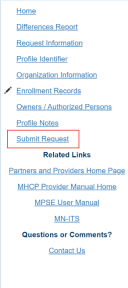
Screenshot of MPSE right-side navigation
Steps to Update an Owner or Authorized Person or Business
The names of specific pages in these steps will be different depending on whether you are updating the record for a business or a person.
1. Once you have started a Global Request, the MPSE portal will take you to the Manage Profile Identifier page. On the Manage Profile Identifier page, use the Right-Side Navigation and click on Owners/Authorized Persons. 2. On the Manage Owners/Authorized Persons page, click View/Edit in the User Actions column associated with the person or business.3. On the Owner/Authorized Person Name page, click Continue.a. You cannot update an owner, authorized person or business name once it is part of the approved portfolio record. If there is a change in the person’s legal name, contact the Provider Resource Center and use Option 3 for enrollment questions.4. On the Manage Owner/Authorized Person Roles page, there are three options available: a. If you need to update an existing role type, continue to Step 5.b. If you need to add a new role type, skip to Step 6.c. If you do not need to make changes on this page, skip to Step 7.5. On the Manage Owner/Authorized Person Roles page, click View/Edit next to the role type. a. In the Owner/Authorized Person Role Information section, update the desired information.b. Click Continue to return to the Owner/Authorized Person Roles page.c. If you need to add additional role types for this person, repeat Step 5. d. If you need to add a new role type for this person, continue to Step 6.e. If you do not need to make other changes to the person’s role type, skip to Step 7.6. On the Manage Owner/Authorized Person Roles page, click Add a Role Type.a. In the Owner/Authorized Person Role Type section, select the appropriate Role Type from the list and click Continue.b. Complete the Owner/Authorized Person Role Information section. Do not enter an End Date at this time. c. Click Continue to return to the Owner/Authorized Person Roles page.d. On the Manage Owner/Authorized Person Roles page, if you need to add additional role types for this person, repeat Step 6.7. On the Manage Owner/Authorized Person Roles page, click Continue to move to the next page in the MPSE portal.8. The Manage Owner/Authorized Person Detail page only appears for owners or authorized people with specific role types. If this page does not appear, skip to Step 9.a. On the Manage Owner/Authorized Person Detail page complete the Owner/Authorized Person Detail section, the Residential Address section, and the Relationship Information section of this page. b. The Relationship Information section is only needed in specific circumstances. There are detailed instructions in this section for when this section is required in the blue box under the title of this section.c. Once you have added all the information you need, click the Continue button at the bottom of the page to save your information and move to the next page in the MPSE portal.9. The Owners/Authorized Person Training Courses page only appear for owners and authorized people with specific role types. If this page does not appear for you, skip to Step 13. On the Owners/Authorized Person Training Courses page, there are three options available:a. To add a new training course, continue to Step 10.b. To update an existing training course from the list, skip to Step 11. c. To leave all information on this page the same, skip to Step 12.10. On the Owners/Authorized Person Training Courses page, click Add a Course.a. Select the Course Name from the list and click Continue.b. Complete the Owners/Authorized Persons Training Course Information section.c. Click Continue to be brought back to the Owners/Authorized Persons Training Courses page.d. If you need to add additional training courses for this person, repeat Step 10.e. To update an existing training course for this person, continue to Step 11.f. To finish with training courses for this person, skip to Step 12.11. On the Owners/Authorized Person Training Courses page, click View/Edit in the User Actions column of the training course that you need to update.a. Update the Owners/Authorized Person Training Course Information section as needed.b. Click Continue to return to the Owner/Authorized Person Training Courses page.12. On the Owners/Authorized Person Training Courses page, click Continue.13. The Owners/Authorized Person Background Studies page only appear for owners and authorized people with specific role types. If this page does not appear for you, skip to Step 17. On the Manage Owner/Authorized Person Background Studies page, there are three options available:a. To add a new background study for this person, continue to Step 14.b. To update an existing background study for this person, skip to Step 15.c. To leave all information on this page the same, skip to Step 16.14. On the Manage Owner/Authorized Person Background Studies page, click Add a Background Study Type.a. In the Owner/Authorized Person Background Study Type section, select the appropriate Background Study Type and click Continue.b. Complete the Owner/Authorized Person Background Study Information section.c. Click Continue to return to the Manage Owner/Authorized Person Background Studies page.d. If you need to add additional background studies for this person, repeat Step 14.e. To update an existing background study for this person, continue to Step 15.f. To finish with background studies for this person, skip to Step 16.15. On the Manage Owner/Authorized Person Background Studies page, click View/Edit in the User Actions column of the background study that you need to update.a. Update the Owner/Authorized Person Background Study Information section as needed.b. Click Continue to return to the Manage Owner/Authorized Person Background Studies page.16. On the Manage Owner/Authorized Person Background Studies page, click Continue.17. The Owners/Authorized Person Residential Properties page only appear for owners and authorized people with specific role types. If this page does not appear for you, skip to Step 21. On the Manage Owner/Authorized Person or Business Residential Properties page, there are three options available:a. To add a new residential property for this person or business, continue to Step 18.b. To update an existing residential property for this person or business, skip to Step 19.c. To leave all information on this page the same, skip to Step 20.18. On the Manage Owner/Authorized Person or Business Residential Properties page, click Add a Residential Property.a. Complete the Owner/Authorized Person or Business Residential Property Information section.b. Complete the Owner/Authorized Person or Business Residential Address section.c. Click Continue to return to the Manage Owner/Authorized Person or Business Residential Properties page.d. If additional residential properties need to be added for this person or business, repeat Step 18.e. To update an existing residential property for this person or business, continue to Step 19.f. To finish with residential properties for this person or business, skip to Step 20.19. On the Manage Owner/Authorized Person or Business Residential Properties page, click View/Edit in the User Actions column of the residential property that you need to update.a. Update the Owner/Authorized Person or Business Residential Property Information section as needed.b. Update the Owner/Authorized Person or Business Residential Address section as needed.c. Click Continue to be brought back to the Manage Owner/Authorized Person or Business Residential Properties page.20. On the Manage Owner/Authorized Person or Business Residential Properties page, click Continue.21. On the Manage Owners/Authorized Persons page, to update additional owners, authorized people or businesses . 22. If there are no other people or businesses you need to update in the Owners/Authorized Persons – Master List, you can use the Right-Side Navigation to click Submit Request to submit your request for approval.
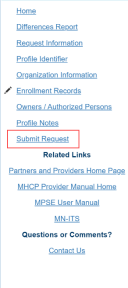
Screenshot of MPSE right-side navigation

 Report this page