Credentials
Revised: April 30, 2024
Overview
This section in the Minnesota Provider Screening and Enrollment (MPSE) portal contains licenses, assurance statements, proof of insurance, and other requirements to demonstrate the provider’s eligibility to provide services. Credentials will need to be added or updated depending on the provider type.
Follow the Steps to Add a New Credential if the credential has never been added to the applicable enrollment record.
Follow the Steps to Update an Existing Credential if the credential was previously added to MPSE, but you need to make a change to the credential or upload a new credential document.
How do I know what credentials to upload in MPSE?
This section in the MPSE portal has a built-in guidance system that appears as a yellow box in the middle of the page. This guidance system uses the enrollment record type selected on the Enrollment Record Information page and the selections made on the Services page to determine the required credentials. You can learn more about the credentials required by visiting the Enroll with MHCP section of the Provider Manual and reviewing the appropriate enrollment page for your provider type.
Some required credentials you will need to submit will be Minnesota Health Care Programs (MHCP) forms that you can find in the e-Docs Searchable Document Library.
The guidance system is laid out as a list of options available to meet enrollment verification requirements. In the following example:
· The box labeled “Requirement Criteria” lists the enrollment record type and service that determines the options available to meet the credential requirements.· The box labeled “Option 1” indicates that all the items that follow in that box are required.· The box labeled “Option 2” indicates different options in that box that will meet the requirements for verification.
You can choose which option of credentials you will submit. It is important to review these sections carefully as each credentialing requirement has its own specifications for being met.
Example Screenshot of MPSE requirements yellow box

As you add credentials to MPSE, the MPSE program removes those credentials from the yellow box and only shows the optional credentials you have not submitted. You will not be able to submit the enrollment record request to add credentials if there are outstanding credential requirements on the Credentials page.
Steps to Add a New Credential
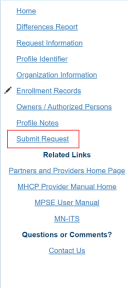
1. To add credential information, you will submit an Enrollment Record Request. Once you have started an Enrollment Record Request, MPSE will take you to the Manage Enrollment Record page. Click Edit in the User Actions column of the enrollment record you have selected to add a credential to.2. Using the Right-Side Navigation, click Credentials.3. Take careful note of the credential you are going to add in this step because the credential selection screen mirrors the content in the yellow box, but you will not have access to the yellow box when selecting the credential in this section.4. At the bottom of the page, click Add a Credential.5. Select the appropriate credential that you identified from the yellow box and click Continue at the bottom of the page.· There is a search bar above the available credentials that you can use to filter through the credential options. · You can select only one credential at a time. 6. Fill out all the fields on this page that have an asterisk (*) next to the field name.7. Once you have added all the information you need, click the Continue button at the bottom of the page to save your information. This will also take you back to the Manage Credential page.8. Repeat steps 3 through 6 if you need to add additional credentials or follow the Steps to Update an Existing Credential if you need to update existing credentials that you have already added to an enrollment record.9. If there are no other updates you need to make to this enrollment record request, you can use the Right-Side Navigation to click Submit Request to submit your request for approval.
Screenshot of MPSE right-side navigation
Steps to Update an Existing Credential
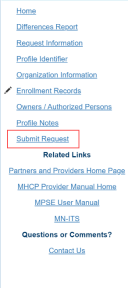
1. To add credential information, you will submit an Enrollment Record Request. Once you have started an Enrollment Record Request, MPSE will take you to the Manage Enrollment Record page. Click Edit next to the enrollment record you have selected to update. 2. Using the Right-Side Navigation, click Credentials.3. In the Credentials section, you will see all your current and expired credentials that you added for this enrollment record. Once you add a credential, you cannot remove that credential. 4. Locate the credential that you need to update and click View/Edit in the User Actions column.5. Make changes as needed. Most fields on this page will be grayed out indicating that the field cannot be edited or changed. Grayed out fields are for MHCP staff use only.6. Once you have updated all the information you need, click the Continue button at the bottom of the page to save your information. This will also take you back to the Manage Credential page.7. Repeat Steps 4 through 6 if you need to update additional existing credentials or follow the Steps to Add a New Credential if you need to add new credentials.8. If there are no other updates you need to make to this enrollment record request, you can use the Right-Side Navigation to click Submit Request to submit your request for approval.
Screenshot of MPSE right-side navigation

 Report this page