
Manage Credentials
Revised: May 1, 2024
Overview
Use this page to manage the credentials for your enrollment record. You can only edit the information on this page if you are in an MPSE Request.
Certain enrollment record types and services require you to provide credentials to show your qualifications to enroll as that enrollment record type or to provide that service. Your credentials may come from several documents, including your professional license and an assurance statement required by Minnesota Health Care Programs (MHCP).
Portfolio/Profile Information
This is a recurring section that appears on multiple Minnesota Provider Screening and Enrollment (MPSE) pages for informational purposes only. See Portfolio/Profile Information on the Recurring Items page of the MPSE User Manual.
Enrollment Record Information
This is a recurring section that appears on multiple MPSE pages for informational purposes only. See Enrollment Record Information on the Recurring Items page of the MPSE User Manual.
Built-in Guidance System
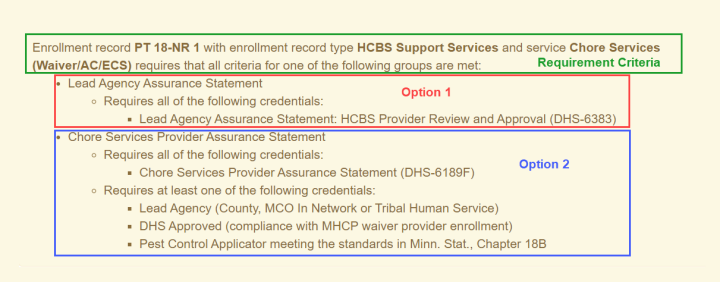
When there are credentials required to complete your request, the required credentials are displayed in a yellow box. This guidance system uses the enrollment record type selected on the Enrollment Record Information page and any services added on the Services page to determine your required credentials. You can learn more about the credentials required for providers by visiting the Enroll with MHCP section of the MHCP Provider Manual and reviewing the appropriate enrollment page for your provider type.
To meet the requirements for some credentials, you may need to upload DHS forms that you can find in the e-Docs Searchable Document Library.
As you add credentials to MPSE, the MPSE program removes those credentials from the yellow box and only shows the credentials you have not submitted. You will not be able to submit your enrollment record request to add your credentials if there are outstanding required credentials listed on the Credentials page.
The guidance system is laid out as a list of options available to meet enrollment verification requirements. In the following example:
You can choose which option of credentials you will submit. It is important to review these sections carefully as each option has its own specific requirements that you must submit.
Example Screenshot of MPSE requirements yellow box
Credentials
This section displays information related to existing credentials in your enrollment record. If you do not have any credentials in your enrollment record yet, this section will not have any information to display.
View/Edit
Click View/Edit to go to the Manage Credential page. From this page, you can view and edit your credential information. To have the View/Edit option, you must be in an MPSE Request.
Select Credential
Click Select Credential to go to the Select Credential page. From this page, you can select the correct credential from the list of options.
View
Click View to go to the Manage Credential page. From this page, you can view your credential information. You will not be able to make any edits or changes while in View mode.
Delete
Click Delete to delete a credential. You can only delete a credential when it has been added in the current request.
Add a Credential
Click Add a Credential to go to the Select Credential page.
Continue
Click Continue to save your changes and go to the next page.
Select Credential
Overview
Use this page to select the credentials that were listed as required or optional on the Manage Credentials page. The credentials that are available to select are based on the enrollment record type and selected services.
Portfolio/Profile Information
This is a recurring section that appears on multiple MPSE pages for informational purposes only. See Portfolio/Profile Information on the Recurring Items page of the MPSE User Manual.
Enrollment Record Information
This is a recurring section that appears on multiple MPSE pages for informational purposes only. See Enrollment Record Information on the Recurring Items page of the MPSE User Manual.
Select Credential
Under Select Credential, use the option buttons to select a credential.
Continue
Click Continue to save your changes and go to the next page.
Cancel
Click Cancel to go back to the previous page.
Manage Credential
Overview
On this page, you can provide information for your selected credential and upload required supporting documentation for that credential, if necessary.
Portfolio/Profile Information
This is a recurring section that appears on multiple MPSE pages for informational purposes only. See Portfolio/Profile Information on the Recurring Items page of the MPSE User Manual.
Enrollment Record Information
This is a recurring section that appears on multiple MPSE pages for informational purposes only. See Enrollment Record Information on the Recurring Items page of the MPSE User Manual.
Credential
Under Credential, the credential you are providing supporting information for is displayed.
Credential Name
In the Credential Name box, the name of the credential you have selected to modify is displayed.
Manage Credential
Under Manage Credential, you can provide information about your credential and upload supporting documentation, if required. Boxes that are not required for your credential may be disabled.
Start Date
Enter the effective date of your credential in the format of MM/DD/YYYY in the Start Date box.
End Date
Enter the expiration date of your credential in the format of MM/DD/YYYY in the End Date box. If your credential does not have an expiration or end date, leave this box blank.
License/Cert ID
Type your license or certification identification number in the License/Cert ID box. If your credential does not have a license or certification identification number, leave this box blank.
Issued By
Select the state that issued your credential from the Issued by drop-down list. If this does not apply to your credential, do not select anything.
Credential Status
Office use only. The Minnesota Department of Human Services (DHS) completes the credential status by selecting from the Credential Status drop-down list after reviewing your request. The credential statuses are:
License Type
Office use only. DHS completes the license type after reviewing your request and selects a license type from the License Type drop-down list. A license type is the type of license or certification you are providing. For example, if you are a pharmacy and are providing a copy of your pharmacy license, your license type will display “Pharmacy” after DHS has reviewed and selected your license type.
License Verified
Office use only. The License Verified box defaults to No. DHS selects the Yes option after they have reviewed and verified your license through MHCP screening requirements.
Credential Documentation
The Credential Documentation box shows your uploaded document. Refer to the Recurring Items for more information on viewing uploaded documentation.
Remove Upload
Refer to Recurring Items for more information.
Upload Credential Documentation
Use the Upload Credential Documentation field to upload the credential document, if required. Click on the words Upload Credential Documentation or click on the icon shaped like an eye to open a dialogue box on your computer which will allow you to select a document to upload. MPSE only allows the following document types for upload: PDF, JPG, and PNG.
NPI/UMPI
Type your National Provider Identifier (NPI) or Unique Minnesota Provider Identifier (UMPI) in the NPI/UMPI box to satisfy the credential requirement, if applicable and required.
Producer/Insurance Company
Type the name of your insurance company who has issued your insurance or bonds in the Producer/Insurance Company box.
Producer/Insurance Company Phone Number
Type the 10-digit phone number for your insurance company in Producer/Insurance Company Phone Number box.
Bond Amount
Type the amount of your bond in the Bond Amount box.
Continue
Click Continue to save your changes and go to the next page.
Cancel
Click Cancel to go back to the previous page.
 Report this page