Enrollment Record Information
Revised: August 21, 2023
Overview
This section in the Minnesota Provider Screening and Enrollment (MPSE) portal contains basic information about the provider’s enrollment record. This includes the name and type of enrollment record, electronic funds transfer (EFT) information, and the main phone number of the enrollment record.
· Add or Update Enrollment Record Information· Terminate Enrollment Record· Notes on Managing Enrollment Record Information
Steps to Add or Update Enrollment Record Information
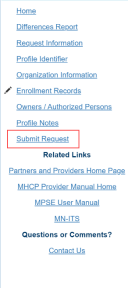
1. Once you have started an Enrollment Record Request, MPSE will take you to the Manage Enrollment Record page. Click Edit next to the enrollment record you have selected to update. 2. Fill out all fields on this page that have an asterisk (*) next to the field name.3. Once you have added or updated all the information you need, click the Continue button at the bottom of the MPSE page to save your information and move to the next page in the MPSE portal.4. If there are no other updates needed to this enrollment record request, you can use the Right-Side Navigation and click Submit Request to submit your request for approval.
Screenshot of MPSE right-side navigation
Steps to Terminate an Enrollment Record
1. Once you have started an Enrollment Record Request, MPSE will take you to the Manage Enrollment Record page. Click Edit next to the enrollment record you have selected to end. 2. Fill out all fields on this page that have an asterisk (*) next to the field name.3. Once you have added all the information you need, click the Plus Icon ( ) in the blue box labeled Termination Information at the bottom of the MPSE.4. Check the box underneath the word Terminate.5. Enter a Termination Date.6. Enter a Termination Reason.7. Click the Continue button at the bottom of the MPSE page to save your information and move to the next page in the MPSE portal.8. If there are no other updates needed to this enrollment record request, you can use the Right-Side Navigation and click Submit Request to submit your request for approval.
Screenshot of MPSE right-side navigation

Notes on Managing Your Enrollment Record Information
· If you are adding information for a new enrollment record, the field options and requirements change based on the Enrollment Record Type that you select. Note that available services and required credentials found on other pages in the portal are also based on the Enrollment Record Type you select.· If you are updating information for an existing enrollment record, you will not be able to change the Enrollment Record Type field. If you need to change the enrollment record type of an already existing enrollment record, you will need to add a new enrollment record.· You cannot select fields that are grayed out. These fields are for internal use only. Some examples include the Medicaid Agreement Indicator field, Risk Level field, and EFT Effective Date field. Depending on the selected Enrollment Record Type there may be additional fields that are grayed out and for internal use only.· For more information about the EFT Vendor Number and EFT Vendor Location Code fields, refer to the Electronic funds transfer (EFT) or direct deposit section of the MHCP Provider Manual. Here you can enroll to receive payments for approved claims electronically.· Use the Help link in the top right-corner of this MPSE portal page for help with defining specific fields and requirements for the MPSE portal page you are in.
Screenshot of MPSE Help link

Note that, depending on the selected Enrollment Record Type, not all fields defined on the Help link may appear on your screen.

 Report this page