Site Visits
Revised: August 22, 2023
Overview
This section in the Minnesota Provider Screening and Enrollment (MPSE) portal allows a provider to view their existing site visit information or add new site visit information. Providers can learn more about site visits by referring to the Site Visits section of the Provider Screening Manual.
Here is the information you would add for a site visit:
· Who performed the site visit· When the site visit was completed
Follow the Steps to Add a Site Visit if you are adding site visit information for the first time for an enrollment record. Follow the Steps to Update a Site Visit if the site visit information was previously uploaded to MPSE, but you want to make a change.
Steps to Add a Site Visit
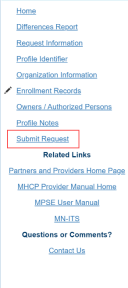
1. To add site visit information, you will create an Enrollment Record Request. Once you have started an Enrollment Record Request, MPSE will open the Manage Enrollment Record page. 2. Click Edit in the Actions column of the enrollment record you want to add a site visit to. 3. Using the Right-Side Navigation, click Site Visits to go to the Manage Site Visits page.4. Click Add a Site Visit.5. Complete the fields with an asterisk (*) next to the field name. Most fields on this page are not able to be edited by the provider and are for Minnesota Health Care Programs staff use only.6. Once you have added all the information requested, click the Continue button at the bottom of the page to save your information and return to the Manage Site Visits page.7. Click Continue at the bottom of the Manage Site Visits page to move to the next page in the MPSE portal.8. If you do not need to make other updates to this enrollment record request, use the Right-Side Navigation to click Submit Request to submit your request for approval.
Screenshot of MPSE right-side navigation
Steps to Update a Site Visit
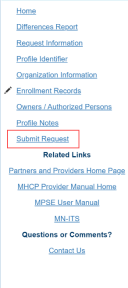
1. To update site visit information, you will create an Enrollment Record Request. Once you have started an Enrollment Record Request, MPSE will open the Manage Enrollment Record page. 2. Click Edit in the Actions column of the appropriate enrollment record that already has site visit information added to the record. 3. Using the Right-Side Navigation, click Site Visits to go to the Manage Site Visits page.4. Click View/Edit in the User Actions column of the Manage Site Visits section.5. Update any fields as needed. Then, click the Continue button at the bottom of the page to save your information and return to the Manage Site Visits page.6. Once you have updated the site visit information as needed, click the Continue button at the bottom of the page to save your information and move to the next page in the MPSE portal.7. If you do not need to make other updates to this enrollment record request, use the Right-Side Navigation and click Submit Request to submit your request for approval.
Screenshot of MPSE right-side navigation

 Report this page