Agreements and Addendums
Revised: August 22, 2023
Overview
This section in the Minnesota Provider Screening and Enrollment (MPSE) portal allows providers to view and edit their existing agreements and addendums or upload new agreements and addendums. Agreements and addendums are specific documents that providers review and sign indicating their agreement to Minnesota Health Care Programs (MHCP) policies and procedures.
Use the Steps to Add an Agreement or Addendum to add an agreement or addendum to an enrollment record that has not been added to that enrollment record before.
Use the Steps to Update an Agreement or Addendum if the agreement or addendum was previously uploaded to MPSE, but a change needs to be made to the uploaded agreement or addendum or the uploaded agreement or addendum needs to be replaced.
The MPSE portal has built-in guidance to inform providers on which agreements and addendums are necessary to complete a request. The following is an example of what is displayed on the Manage Agreements/Addendums page if providers are missing required forms:
Example screenshot of MPSE message that appears if documents are required

You can find agreements and addendums documents on the E-Docs Searchable Documents Library. We recommend you complete agreements and addendums prior to using the MPSE portal. You can find additional information about which forms you may need to complete for your enrollment record type at Enroll with MHCP.
Steps to Add an Agreement or Addendum
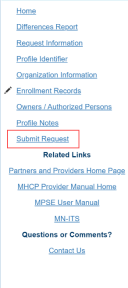
1. You will add an agreement or addendum to an enrollment record by making and Enrollment Record Request. Once you have started an Enrollment Record Request, MPSE will open the Manage Enrollment Record page. 2. Click Edit in the Actions column of the enrollment record you need to add the agreement or addendum to. 3. Using the Right-Side Navigation, click Agreements/Addendums to go to the Manage Agreements/Addendums page.4. Click Add Agreement/Addendum.5. Complete the fields with an asterisk (*) next to the field name. Note that the Digital Signature and Signers Title should be signed by the person with the authority to sign agreements or addendums, and the Signature Date should be the date the agreement or addendum was uploaded in MPSE. The person uploading the document in MPSE may or may not be the same as the person signing the actual agreement or addendum.6. Once you have added all the information you need, click the Continue button at the bottom of the MPSE page to save your information and return to the Manage Agreements/Addendums page.7. You can click Continue at the bottom of the Manage Agreements/Addendums page to move to the next page in the MPSE portal.8. If there are no other updates you need to make to this enrollment record request, you can use the Right-Side Navigation and click Submit Request to submit your request for approval.
Screenshot of MPSE right-side navigation
Steps to Update an Agreement or Addendum
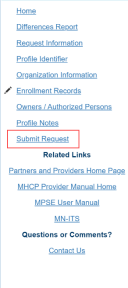
1. You will update an existing agreement or addendum for an enrollment record by making and Enrollment Record Request. Once you have started an Enrollment Record Request, MPSE will open the Manage Enrollment Record page. 2. Click Edit next to the enrollment record you have selected to update. 3. Using the Right-Side Navigation, click Agreements/Addendums to go to the Manage Agreements/Addendums page.4. Locate the agreement or addendum you want to update and click View/Edit in the User Actions column.5. The only change you can make to an existing agreement or addendum is to upload a new version of the agreement or addendum.6. Once you have uploaded the new agreement or addendum, click the Continue button at the bottom of the MPSE page to save your information and return to the Manage Agreements/Addendums page.7. You can click Continue at the bottom of the Manage Agreements/Addendums page to move to the next page in the MPSE portal.8. If there are no other updates you need to make to this enrollment record request, you can use the Right-Side Navigation and click Submit Request to submit your request for approval.
Screenshot of MPSE right-side navigation

 Report this page