MCO In-Network Provider Enrollment
Revised: July 1, 2026
Overview
Starting July 17, 2023, any provider contracted with a managed care organization (MCO) who wishes to provide Minnesota Health Care Programs (MHCP) services is required to be enrolled with MHCP.
In order to enroll with MHCP, all MCO in-network providers must first register to use the Minnesota Provider Screening and Enrollment (MPSE) portal.
Click Registration and follow the steps to register for MPSE. There is also a training video available: MPSE Portal Registration for New Provider Enrollers.
After registering:
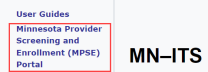
1. Access MN-ITS through LoginMN by clicking on the MN–ITS icon. 2. Click on the Minnesota Provider Screening and Enrollment (MPSE) portal link on the left-hand navigation.
Screenshot of left-hand navigation in MN-ITS
3. Click on the Create a New Profile Request button located at the bottom of the Manage Portfolio page.
Screenshot of Create a New Profile Request button in MPSE

4. Enter a Request Effective Date and click Continue.5. Select a Portfolio Type.· You will select individual if you are an individual provider or organization if you provide services for an organization. Review the MHCP Provider Manual to see which provider types are individual and which are for an organization.6. Enter the Profile Identifier you want to use and click Continue.· Providers previously enrolled with MHCP by an MCO will get an error message indicating that the Profile Identifier is already in use.Screenshot of an error message in MPSE

· Double check your entry for any typos. · If your entry is correct, and you still get the above error, click on the Home link in the right-side navigation. This means your managed care organization already registered you with MHCP.· Click Delete in the Request Actions column for the request you just created to reset your portfolio.· Follow the instructions on the Retrieve Portfolio page to complete your enrollment with MPSE.7. If you do not get the message that a profile identifier already exists for you, follow the steps in the following link that matches your Portfolio Type:· Organization Provider· Individual Provider
Contact the MHCP Provider Resource Center if there are any questions about this process.

 Report this page